
Why Some Image URLs Won't Download (and What to Do Instead)

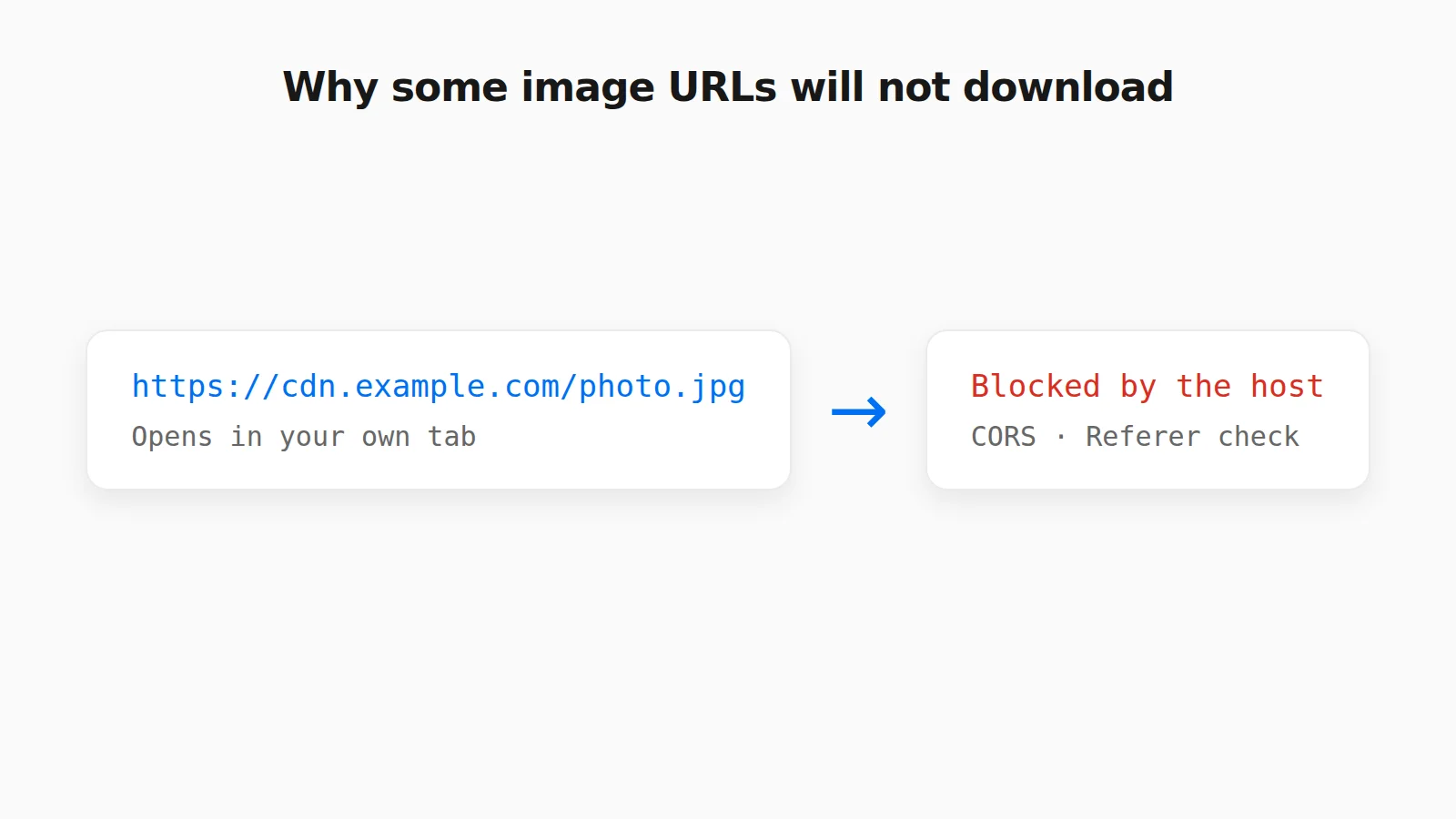
You paste in a direct link to an image. Instead of a preview, you get an error or a blank result. The image opens fine when you visit the URL in a new tab, so it clearly exists. A browser-based tool, or a script on any web page, can still fail here even though your own browser succeeds. The reason comes down to a handful of server-side protections. None of them were built with you in mind. They exist to stop other websites.
CORS: The Browser's Own Restriction
Cross-Origin Resource Sharing, or CORS, is a browser security rule. It stops a script on one website from reading the actual bytes of a resource hosted on a different website. The only way around it is an Access-Control-Allow-Origin header from that resource's own server. The image host does not have to configure anything special to block you. This is just the default, safe behavior of every modern browser. A page can display an image from another domain just fine. But a script on that page cannot read its pixel data, for example to draw it onto a canvas and re-encode it, unless the header is present.
That is why a page can show you an image but not let you convert it or force a download with a specific filename. Reading and re-encoding the pixels needs CORS permission that many image hosts simply do not grant.
Hotlink Protection: A Deliberate Block
Separately from CORS, many servers check the Referer header on incoming requests. They reject any request that did not come from their own website. This is called hotlink protection. It exists to stop other sites from embedding an image directly and burning the original host's bandwidth. It is common on stock photo sites, some CDNs, and forums tired of their images showing up everywhere except their own pages. Unlike CORS, this is an intentional block. It targets exactly what a URL download tool is trying to do.
The Link Is Not Actually an Image
A surprising number of failed "image URLs" are not image URLs at all. Many sites show a picture on a page whose address looks like a direct link but actually returns an HTML page with the image embedded in it. Search result links, social media post links, and image gallery pages all work this way. A tool that asks for image bytes gets a web page back, and the conversion fails.
The fix is to find the real file address. Right-click the image itself, not the page, and choose "Open image in new tab". The address bar in that new tab is the actual image URL. It usually ends in a file extension such as .jpg, .png, or .webp, or contains a CDN path with size parameters. Some sites also serve images through blob: or data: addresses that only exist inside that page. Those cannot be downloaded from anywhere else at all, so saving or copying the image directly is the only route.
Links That Expire or Change Format
Cloud storage and private sharing services often hand out signed URLs: long addresses with a token that is valid for a limited time, sometimes only minutes. A link copied from one of these works in your own tab right away and then fails later, or fails when a different service requests it. Content delivery networks can also return a different format depending on who asks. Your browser may receive a WebP or AVIF version of an image, while a server-side request for the same address gets a JPEG, or an error. That is why the same link can behave differently in different tools.
Why a Proxy Does Not Always Fix It
Some tools retry a blocked request through a third-party proxy that fetches the image server-side. That can get around CORS, because the proxy, not your browser, makes the original request. It does not reliably get around hotlink protection, since a strict Referer check can reject the proxy the same way it rejects any other outside request. It also means the image passes through someone else's server, which is worth knowing before you use it with anything private.
What to Do When a Link Will Not Download
The most reliable options do not depend on any of these protections, because a real browser navigation carries the correct referrer and cookies automatically:
- Open the image in its own tab (right-click, then Open image in new tab) and use Save image as.
- Or right-click the image and choose Copy Image, which puts the picture itself on your clipboard, not its address.
- If the site blocks right-click, take a clipboard screenshot of just the image. It will match what is on your screen, though it will not be the original file.
Once you have the image as a file or on the clipboard, converting it does not involve the original host at all. Paste it into PasteDownloadApp with Ctrl+V (or Cmd+V), or drag the saved file in, and download it as PNG, JPEG, or WebP. The step-by-step version is in saving clipboard images without software.
Frequently Asked Questions
Why does an image open in my browser but fail in a web tool?
Your browser tab navigates to the image directly and sends its own cookies and referrer. A web tool has to read the image bytes with a script, which browser CORS rules block unless the image host allows it. Hotlink protection can also reject requests that did not come from the host's own site.
Why does the image show a preview but then fail to download?
A plain <img> tag can often display an image that CORS still blocks a script from reading. Displaying and re-encoding are different operations with different permission requirements. That is why you can see a preview and still hit a failure at the download step.
Can I fix this myself if I own the image's server?
Yes. Adding an Access-Control-Allow-Origin header for the domains you want to support resolves the CORS side. Loosening or removing a Referer check resolves hotlink protection. That second fix, though, reopens the exact bandwidth concern the protection was meant to solve.
Related Guides
 5 Faster Ways to Save Clipboard Images Without Software Compare browser-based and built-in methods for saving copied images on desktop and mobile.
  Why "Access Clipboard" Fails, and How to Fix It Clipboard read permission errors explained: browser support, HTTPS requirements, and permission prompts.
  PNG vs JPG vs WebP: Real File Sizes Compared PNG vs JPG vs WebP for quality, transparency, and file size, backed by real measured results, not general claims.