Why "Access Clipboard" Fails, and How to Fix It

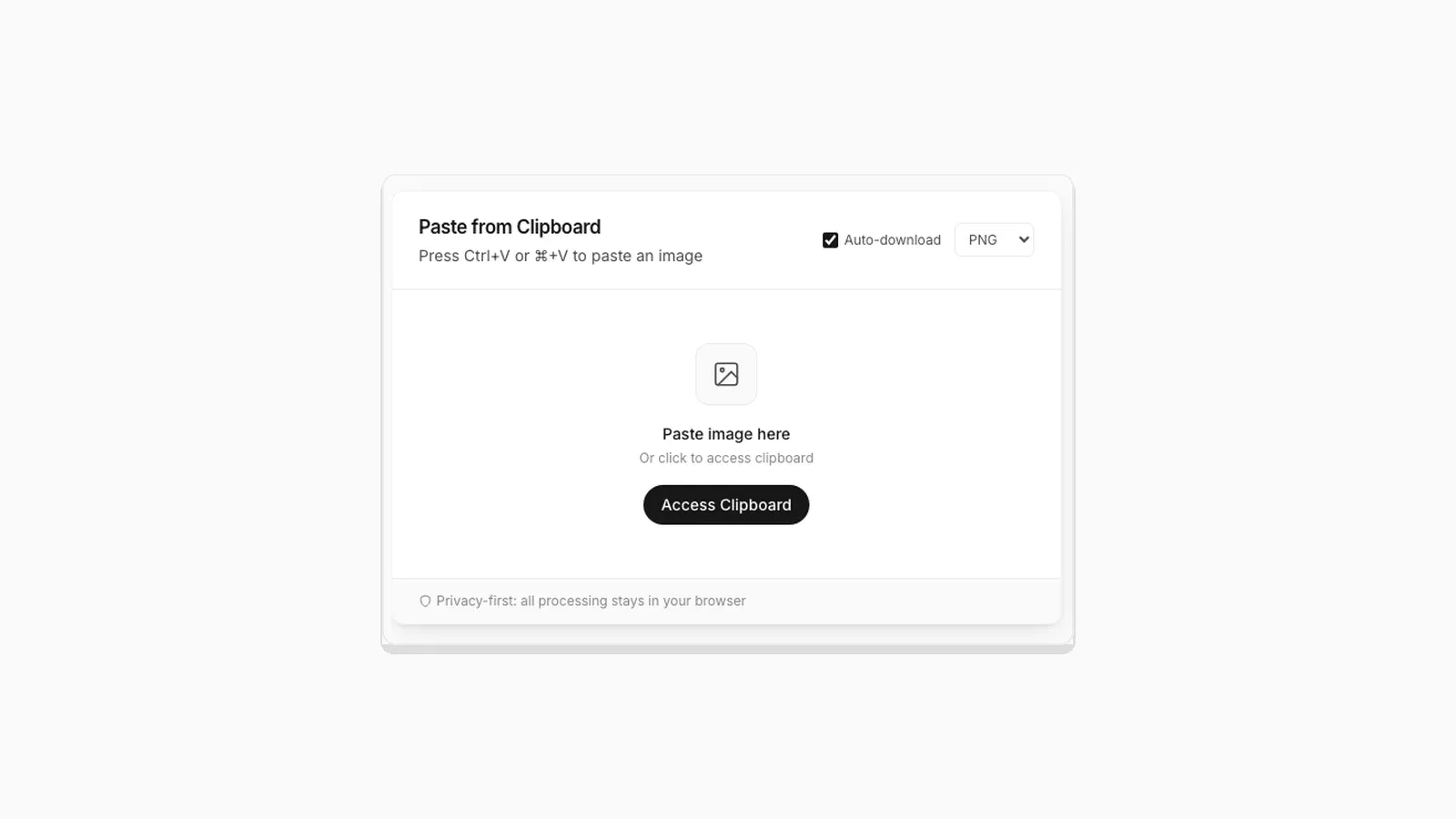
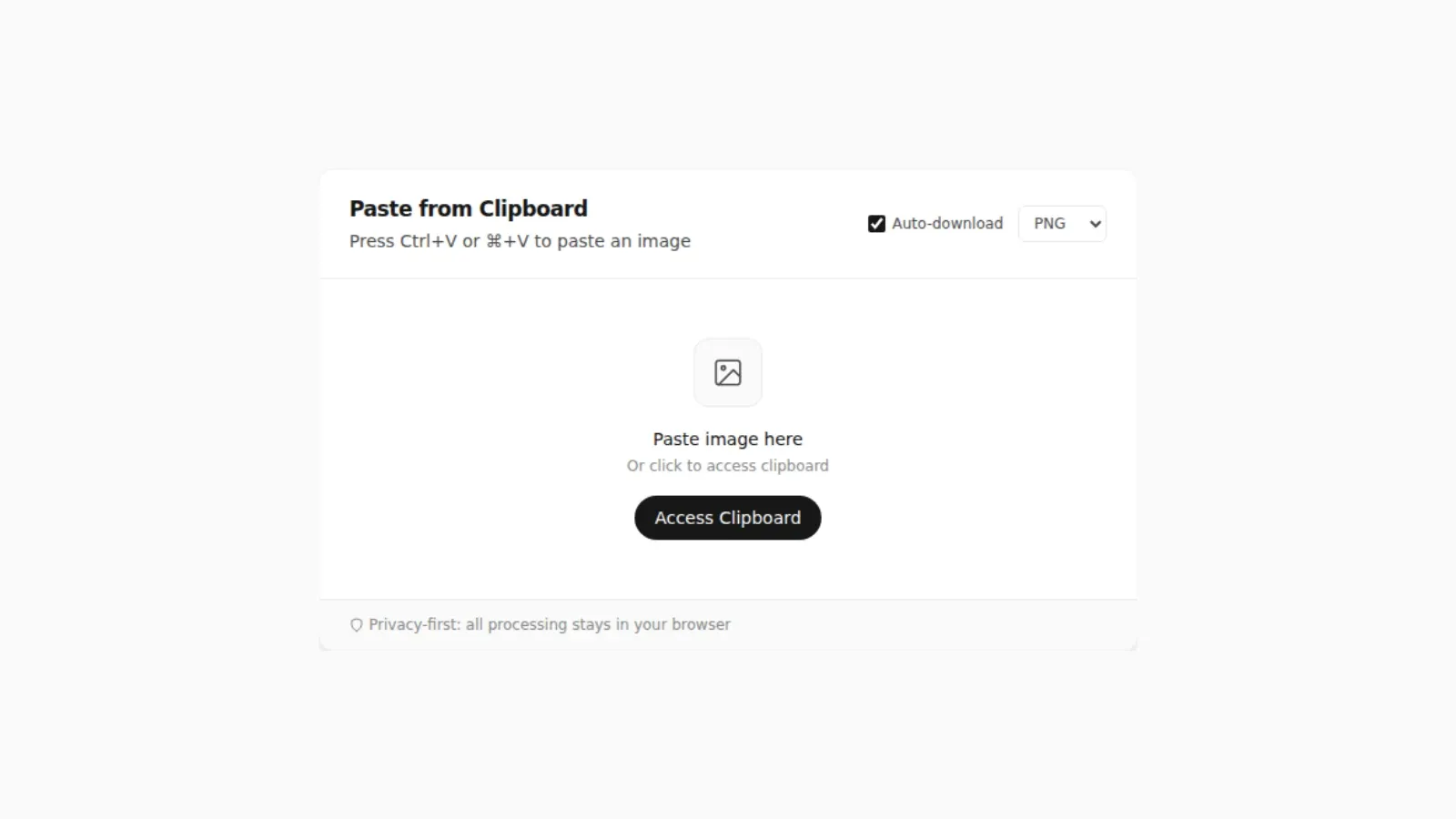
You click Access Clipboard and nothing happens. No error, no prompt, no image. This is one of the more confusing failure modes on the web because browsers deliberately fail quietly here instead of showing a clear message, since a chatty error would leak information about what is on your clipboard to a page that has not been granted permission yet. Here are the actual causes, in the order they are worth checking.
1. The Page Is Not Served Over HTTPS
navigator.clipboard.read() requires a secure context. It will not run at all on a plain http:// page, with the sole exception of localhost during development. If you are testing a site locally over HTTP on a non-localhost address, such as a local IP on your network, this is the first thing to check. PasteDownloadApp is served over HTTPS in production, so this specifically applies if you are running a copy of the code yourself.
2. The Browser Tab Lost Focus
Clipboard reads only work when the tab is focused and, in most browsers, only when triggered directly inside a click handler. If you switch to another window right after clicking, or if the click landed while the tab was still gaining focus from a previous action, the read call can be rejected. Click once, directly on the button, without any other window in front.
3. You Have Not Granted the Permission Yet, and the Browser Is Not Showing a Prompt
Chrome and Edge normally show a one-time permission prompt above the address bar the first time a site calls clipboard.read(). If you dismissed that prompt, or if a browser extension is auto-dismissing permission popups, the site is left with no clipboard access and no way to ask again automatically. Check your browser's site settings (the padlock icon next to the address bar) and look for a Clipboard permission you may have blocked.
How to Reset a Blocked Clipboard Permission
Each browser keeps this setting in a slightly different place:
- Chrome: click the site information icon at the left of the address bar, open Site settings, find Clipboard, and set it to Allow or Ask. Reload the page afterward.
- Edge: click the padlock, choose Permissions for this site, and change Clipboard the same way.
- Firefox: there is no stored per-site clipboard setting to reset. Instead, Firefox shows a small Paste button next to your cursor when a site asks to read the clipboard, and you click it to allow that one read. If you click elsewhere, the read is denied, so just try again.
- Safari: works like Firefox. A Paste button appears near the click, and the read only goes through if you click it.
If you use several Chrome profiles, the permission is stored per profile, so allowing it in one profile does not carry over to another.
4. Your Clipboard Does Not Actually Contain Image Data
This is the most common cause and the easiest to miss. Copying a link to an image, or copying the URL from an address bar, does not put image data on the clipboard, only text. The source has to be an actual image: a right-click "Copy image" on a picture, a screenshot capture, or a copied file. If you are not sure what is on your clipboard, try pasting into a chat app first; if it pastes as a link instead of a picture, that is the problem. For a broader look at why a screenshot or copied image is not automatically a file you can find later, see where clipboard images and screenshots actually go.
A related trap: "Copy image address" and "Copy image" sit right next to each other in the right-click menu, and the first one only copies the URL as text. If the Access Clipboard button finds nothing, go back to the image and make sure you picked "Copy image". Copying a file in File Explorer or Finder is another case that surprises people. That puts a reference to the file on the clipboard, not the pixels inside it, and most browsers will not read it as an image. Drag the file into the drop zone instead.
5. The Browser Does Not Support This Path the Way You Expect
Chrome, Firefox, and Safari implement navigator.clipboard.read() with different permission rules, and Safari in particular requires the call to happen synchronously inside the click handler with no delay at all. A page that works in Chrome can fail silently in Safari for this reason alone. The full breakdown is in why clipboard paste behaves differently across browsers.
The Reliable Fallback: Skip the Button
Every cause above is specific to the button-triggered clipboard.read() call. None of them affect the plain keyboard paste event. If Access Clipboard is not cooperating, click into the drop zone and press Ctrl+V (or Cmd+V on Mac) instead. That path only needs a real keystroke, works the same across Chrome, Firefox, and Safari, and is what the button exists to approximate for people who prefer clicking. Drag and drop is a second reliable fallback, since it does not touch the Clipboard API at all.
A Quick Checklist Before You Give Up
- Copy the image again, right now, using "Copy image" or a screenshot-to-clipboard shortcut.
- Click once inside the page so the tab has focus.
- Press Ctrl+V or Cmd+V instead of clicking the button.
- If you prefer the button, check the site's Clipboard permission as described above and reload.
- Still nothing? Try a private window, which runs without most extensions, to rule out an extension blocking the Clipboard API.
- As a last resort, save the image as a file and drag it into the drop zone. Drag and drop does not use the clipboard at all.
In practice, steps 1 and 3 resolve almost every case. A stale or text-only clipboard and a blocked permission account for nearly all of the reports, and a keyboard paste avoids the permission question entirely.
Frequently Asked Questions
Is there a way to see exactly why the read call failed?
Only through the browser's developer console, which will usually log a NotAllowedError with a short reason. Right-click the page, choose Inspect, and check the Console tab after clicking Access Clipboard to see the underlying error.
Does using a VPN or ad blocker affect clipboard access?
A VPN has no effect, since this is a browser permission, not a network request. Some aggressive privacy extensions do block the Async Clipboard API outright, so if the button fails on every site, try disabling extensions one at a time.
Why does the same button work on one site but not another?
Clipboard permission is granted per site, not globally. Even within the same browser, you may have granted access on one domain and not another, or the other site may not have requested it correctly in the first place.
Related Guides
 Why Clipboard Image Paste Behaves Differently in Chrome, Firefox, and Safari The Clipboard API is not implemented the same way everywhere. Here is what actually differs between browsers.
  Saving a Clipboard Image on Android vs iPhone: What Actually Works Mobile clipboard access does not match desktop. Here is the real difference between Android and iOS browsers.
  5 Faster Ways to Save Clipboard Images Without Software Compare browser-based and built-in methods for saving copied images on desktop and mobile.
  Where Do Screenshots Go on Windows, Android, and iPhone? Screenshots and copied images do not behave like normal files until you save them. Here is where they go on Windows, Android, and iPhone.