
Where Do Screenshots Go on Windows, Android, and iPhone?

You take a screenshot, or copy an image from a webpage, and then go looking for the file. Sometimes it is sitting right there on the desktop. Other times it is nowhere. That happens because it was never saved as a file at all, only placed on the clipboard, a temporary holding area in memory rather than a folder. The behavior is different on every platform, and none of them explain it clearly at the moment it matters.
Using a Mac?
Mac screenshots save to the Desktop by default, and holding Control with the shortcut sends them to the clipboard instead. This page covers Windows and phones. For the Mac details, including how to find a missing screenshot and change the save folder, see where screenshots go on Mac.
Where Do Screenshots Go on Windows?
Windows has three separate screenshot shortcuts, and each one does something different with the result:
- PrtScn: copies the entire screen to the clipboard only. No file is created anywhere.
- Alt+PrtScn: copies just the active window to the clipboard. Also no file.
- Win+PrtScn: saves a PNG file automatically to
Pictures\Screenshots, in addition to copying it to the clipboard. - Win+Shift+S (Snipping Tool): copies your selection to the clipboard and shows a small notification in the corner. If you click that notification within a few seconds, you can save it as a file. If you miss it or dismiss it, the image only exists on the clipboard. It stays there until you copy something else, at which point it is gone for good.
That last one is the shortcut most people actually use, and it is also the one most likely to leave you with an image that was never saved anywhere as a file. Recent Snipping Tool versions can fix this permanently: open Snipping Tool's settings and enable auto-save, and every capture, region snips included, saves to Pictures\Screenshots without the notification-click step.
Where Do Screenshots Go on Android?
Screenshots on Android typically save automatically to a Pictures/Screenshots folder, visible in your gallery app and in the Files app. Copying an image from a webpage or another app to the clipboard, on the other hand, does not create a file. Android's clipboard is also more aggressive about clearing itself than desktop systems. It often loses its contents after a reboot or after a period of inactivity. That is worth knowing if you copy an image and get interrupted before pasting it somewhere.
Where Do Screenshots Go on iPhone and iPad?
A screenshot on iPhone or iPad (side button + volume up) is saved into the Screenshots album inside the Photos app automatically. Long-pressing an image and choosing Copy is a different action entirely. It places the image on the system pasteboard, which other apps can read from. That pasteboard is not visible anywhere in the Files app or Photos, though. If you copy an image on iOS and never paste it, it simply disappears the next time something else is copied.
The Pattern Across Platforms
A screenshot, taken with the platform's dedicated screenshot tool, almost always becomes a real file automatically. A copy, whether of a screenshot or of any other image, almost always stays on the clipboard only. It is invisible to Finder, File Explorer, or any file picker, until you explicitly paste it somewhere that writes it to disk. That distinction, not the platform itself, is what actually decides whether you can find the image again later.
Turning a Clipboard-Only Image Into a Real File
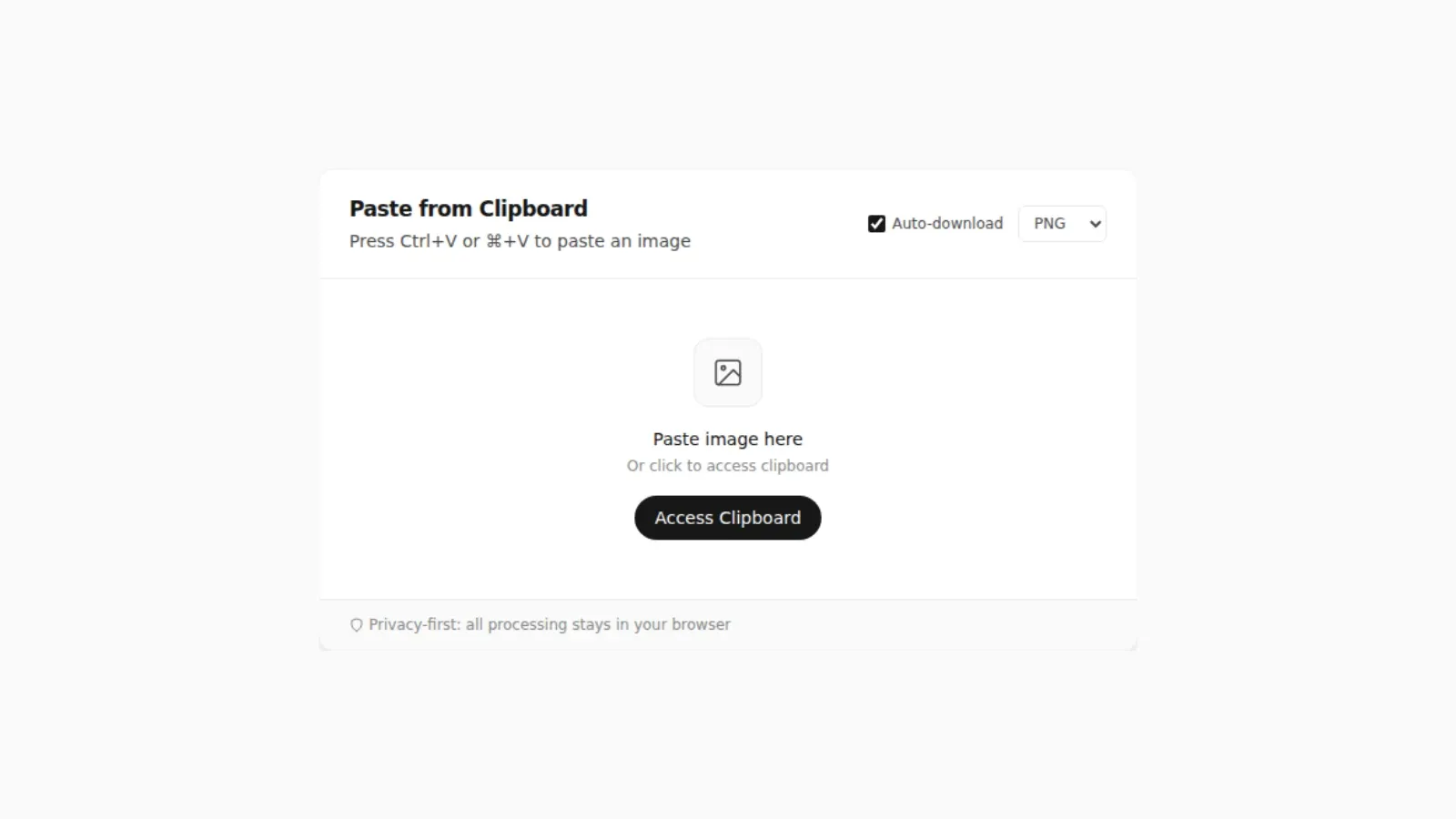
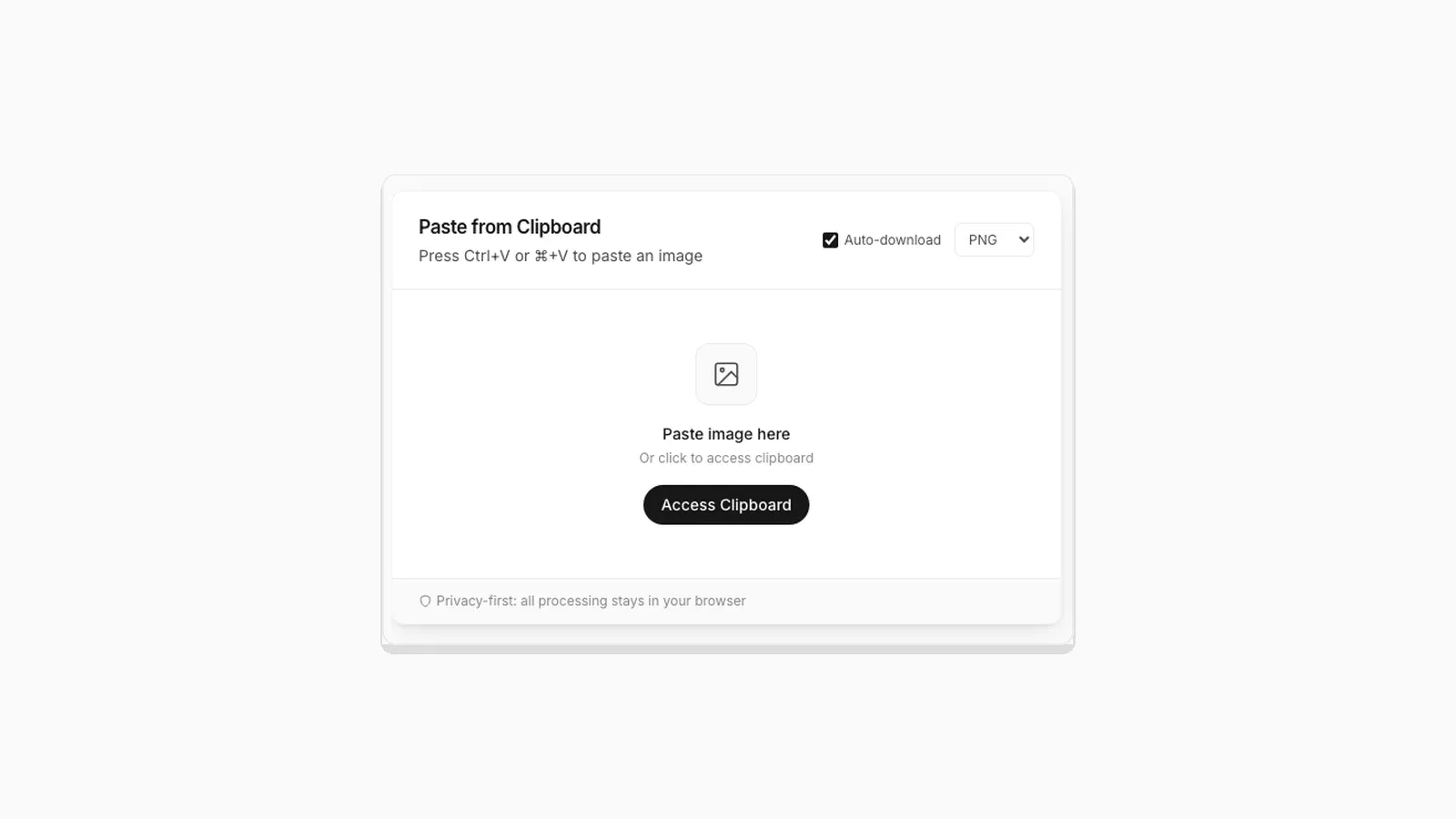
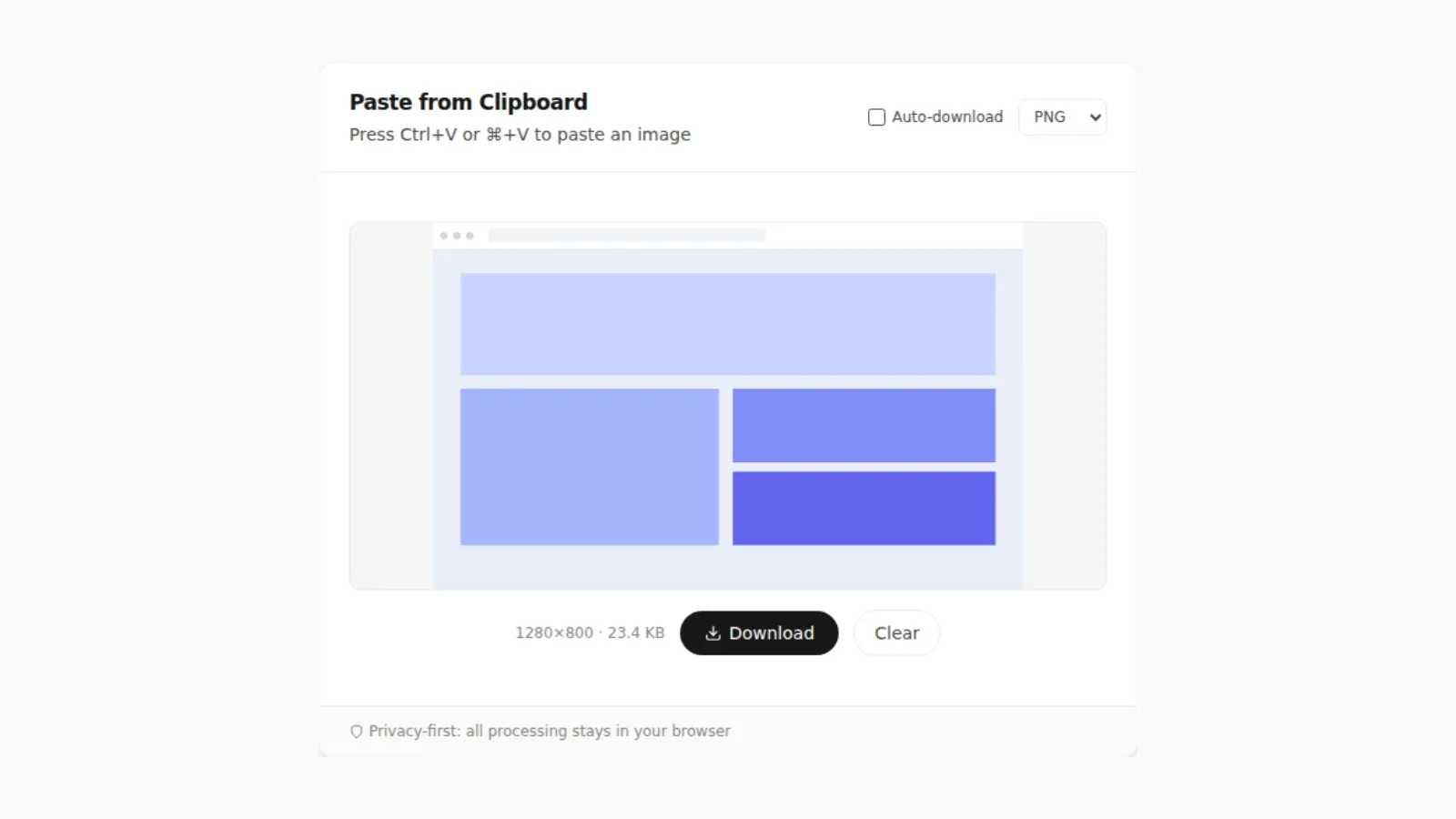
This is exactly the gap PasteDownloadApp exists to close. It does not matter what put the image on your clipboard: a Snipping Tool selection you did not save, a Control-modified Mac screenshot, or an image copied from a browser tab. Paste it into the tool with Ctrl+V or Cmd+V, and it reads the image directly from the clipboard. You can then download it as an actual PNG, JPEG, or WebP file, ready to attach anywhere a real file is required, including as an email attachment. Nothing is uploaded. The read and the file conversion both happen in your browser.
Frequently Asked Questions
Where do screenshots go on Windows?
Only Win+PrtScn saves a file automatically, to Pictures\Screenshots. Plain PrtScn, Alt+PrtScn, and Win+Shift+S all leave the capture on the clipboard only, unless you save it manually or enable Snipping Tool's auto-save setting.
Why can't I find a screenshot I know I took?
Check whether the shortcut you used copies to the clipboard or saves a file. On Windows, plain PrtScn and Alt+PrtScn never save a file. On Mac, adding Control to the usual screenshot shortcut switches it to clipboard-only. If you used one of those, the image may still be recoverable from the clipboard if you have not copied anything else since.
Can I recover a clipboard image after restarting my device?
Generally no. The clipboard is stored in memory, not on disk, so restarting clears it on every platform covered here. If the image mattered, the only fix going forward is saving it as a file before you close the app or restart.
Does changing my screenshot save location fix this?
It fixes it for screenshots taken with your platform's screenshot shortcut. Those already save a file, just possibly to a folder you would not think to check. It does not change anything about images you copy manually, though, since those were never going to be saved as a file in the first place.
Related Guides
 5 Faster Ways to Save Clipboard Images Without Software Compare browser-based and built-in methods for saving copied images on desktop and mobile.
  Why "Access Clipboard" Fails, and How to Fix It Clipboard read permission errors explained: browser support, HTTPS requirements, and permission prompts.
  How to Save a Screenshot Directly as a File Without Opening MS Paint Turn Print Screen or Snipping Tool captures into PNG or JPG files without opening an editor.
  How to Turn a Pasted Screenshot Into an Email Attachment Gmail and Outlook can paste an image straight into the message body, but that is not the same as an attachment. Here is how to turn a clipboard image into a real file first.