
Where Do Screenshots Go on Mac? How to Find Them and Change the Folder

A Mac screenshot lands on your Desktop as a PNG file, unless something changed that. People search for this answer because the screenshot is sometimes not there: the Desktop looks empty, the file was filed into a pile, or the capture never became a file at all. This guide covers the default, every way a screenshot ends up somewhere else, and how to pick a folder that suits you.
The Default: Desktop, as a PNG
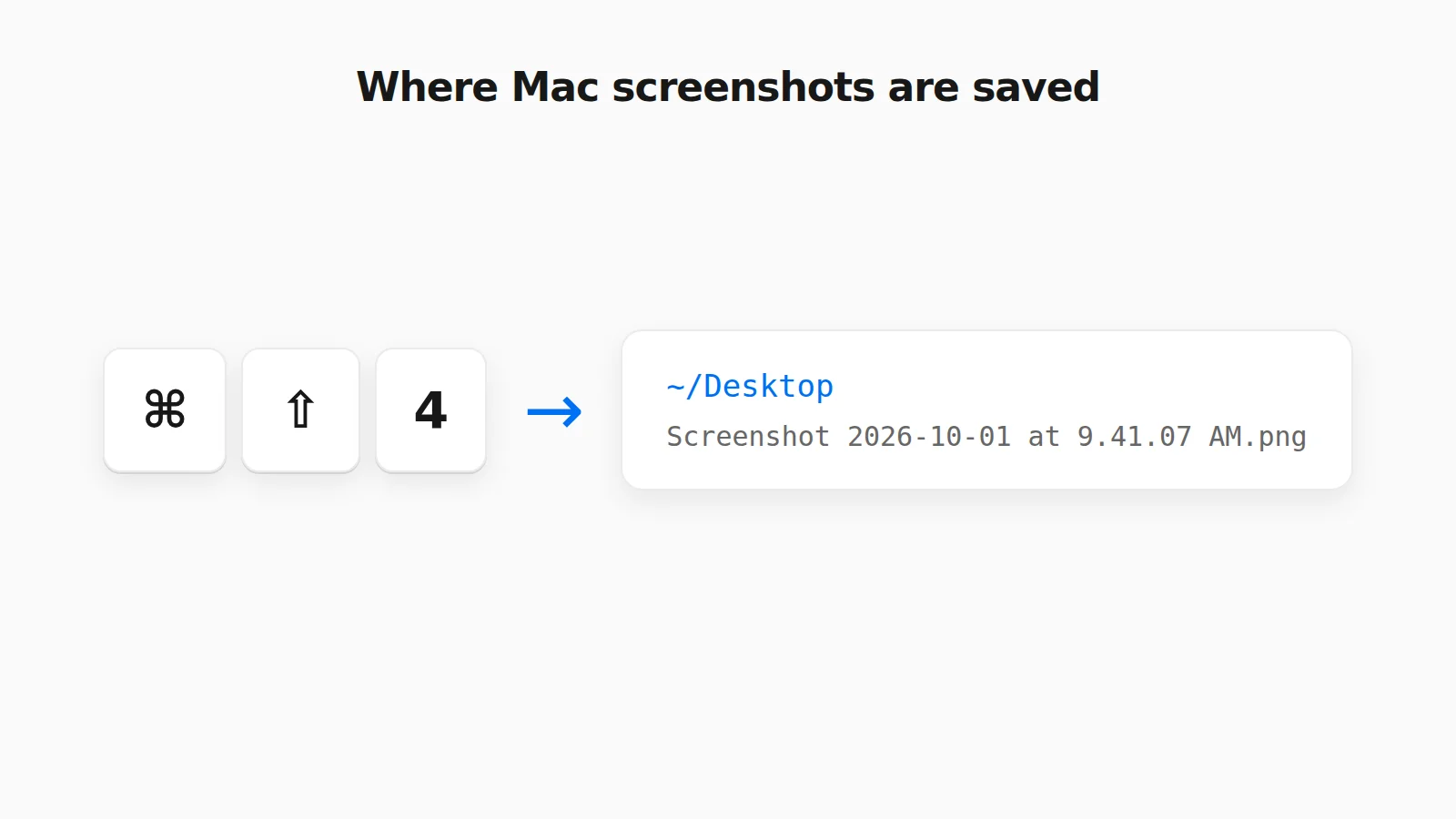
On any recent version of macOS, Cmd+Shift+3 (whole screen) and Cmd+Shift+4 (a selection) save a file to the Desktop. The name follows the pattern Screenshot [date] at [time].png. Older macOS releases used "Screen Shot" instead of "Screenshot", so a search for the old wording can still turn up files from years ago. The format is PNG, which is why a full-screen capture on a Retina display can be several megabytes. If you need something smaller, see how to convert a Mac screenshot from PNG to JPG.
Seven Reasons a Screenshot Is Not on Your Desktop
The Save to location was changed
Press Cmd+Shift+5 to open the capture toolbar, then click Options. The Save to section lists Desktop, Documents, Clipboard, Mail, Messages, Preview, and any folders you used recently, plus Other Location. A checkmark shows the current choice. macOS keeps that setting until you change it again, so a one-time switch (for example to Documents) quietly applies to every screenshot after it.
It went to the clipboard, not a file
Adding Control to the shortcut, as in Cmd+Ctrl+Shift+3 or Cmd+Ctrl+Shift+4, copies the capture to the clipboard and creates no file. Choosing Clipboard under Save to does the same for every capture. In both cases the image exists only in memory until you paste it somewhere, and copying anything else replaces it. This is the most common reason a screenshot seems to vanish. See how to save a clipboard-only screenshot below.
You left the floating thumbnail alone, or dismissed it
After a capture, a small thumbnail appears in the bottom-right corner. If you ignore it, the file is saved to your chosen location after a few seconds. Swiping it to the right saves it immediately. Control-clicking it offers options such as opening the screenshot in Markup or moving it to another folder. If you do not like the delay, turn Show Floating Thumbnail off in the same Options menu.
Desktop Stacks grouped it
If you turned on Use Stacks (right-click the Desktop, or use the View menu), macOS gathers files into piles by kind, and screenshots get their own pile. The files are there, just stacked in one corner. Click the stack to expand it, or turn Stacks off.
The file is on the Desktop, but you are looking at the wrong Desktop
If iCloud Drive's Desktop & Documents sync is on, your Desktop is an iCloud folder, and a second Mac signed into the same account shows the same files. If you are on a Mac that has not finished syncing, the file can take a moment to appear.
Search for it by what it is
macOS tags screenshots when it saves them, so you can find them wherever they went. Open Spotlight with Cmd+Space and search for kMDItemIsScreenCapture:1. The same query works in a Finder search field. Sort the results by Date Created to see the newest first.
Ask macOS directly in Terminal
If you want to confirm the folder, open Terminal and run:
defaults read com.apple.screencapture locationIt prints the folder if one has been set. If it reports that the pair does not exist, no custom location is set and the Desktop is in use.
How to Change the Screenshot Folder on Mac
A dedicated folder keeps your Desktop clean and makes screenshots easy to find. There are two ways to set one.
With the Screenshot toolbar
- Press Cmd+Shift+5.
- Click Options.
- Under Save to, pick a folder, or choose Other Location and select or create one, such as
Pictures/Screenshots.
With Terminal
Create the folder first, then point macOS at it and restart the service that handles captures:
mkdir -p ~/Pictures/Screenshots
defaults write com.apple.screencapture location ~/Pictures/Screenshots
killall SystemUIServer
To go back to the default, run defaults delete com.apple.screencapture location and then killall SystemUIServer again. Screenshots return to the Desktop.
When the Screenshot Only Exists on the Clipboard
If your capture went to the clipboard, you have not lost it, as long as you have not copied anything else. Paste it into PasteDownloadApp with Cmd+V. The tool reads the image from your clipboard in the browser, shows a preview, and lets you download it as a PNG, JPEG, or WebP file. Nothing is uploaded. Below is the tool with a test screenshot pasted in.
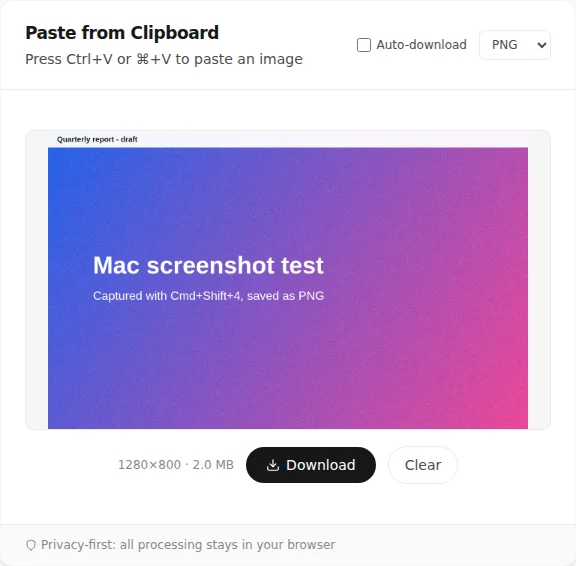
This also works for images you copied from a web page or from Preview with Cmd+C, which behave like clipboard screenshots. For a longer walkthrough, see how to download a copied image on Mac. For the same question on other devices, see where screenshots go on Mac, Windows, Android, and iPhone.
A Setup That Avoids the Problem
- Pick one folder under Save to and keep it, so you always know where files go.
- Learn the one shortcut you use. Without Control, you get a file. With Control, you get a clipboard image.
- Use the Spotlight query above whenever a file seems missing. It finds screenshots in any folder.
Frequently Asked Questions
Where do screenshots go on Mac by default?
They are saved to the Desktop as PNG files named like Screenshot 2026-10-01 at 9.41.07 AM.png. That holds until the save location is changed in the Cmd+Shift+5 Options menu or with a Terminal command.
Why are my Mac screenshots not showing up on the Desktop?
The most common causes are a changed Save to location, a Control-modified shortcut that copied the image to the clipboard instead of saving a file, or the Desktop grouping files into Stacks. Check Cmd+Shift+5 → Options first, then search Spotlight for kMDItemIsScreenCapture:1.
How do I change where screenshots are saved on Mac?
Press Cmd+Shift+5, click Options, and choose a folder under Save to. To use a folder that is not in the list, choose Other Location. You can also set it in Terminal with defaults write com.apple.screencapture location followed by the folder path, then run killall SystemUIServer.
Where do Mac screen recordings go?
Screen recordings made from the Cmd+Shift+5 toolbar use the same Save to location as screenshots, so they land on the Desktop unless you changed it.
Related Guides
 Where Do Screenshots Go on Windows, Android, and iPhone? Screenshots and copied images do not behave like normal files until you save them. Here is where they go on Windows, Android, and iPhone.
  How to Download a Copied Image on Mac Without Saving to Photos Save clipboard images from your Mac directly as files without Photos, Preview, or extra steps.
  How to Convert a PNG Screenshot to JPG on Mac (4 Ways) Preview, the Finder Convert Image action, a Terminal default, and a browser tool, with real file sizes.