
How to Turn a Pasted Screenshot Into an Email Attachment

Gmail and Outlook both let you paste an image directly into the body of a message with Ctrl+V. Most of the time, that is exactly what you want. But a pasted image and an actual attachment are not the same thing. There are several common situations where only a real file will do. Here is the difference, and how to get from one to the other.
Why a Pasted Image Is Not Always Enough
- Plain-text email: If the recipient's client renders your message as plain text, or you switch your own compose window to plain text, the inline image is stripped out entirely. It is not shown as an attachment either.
- File upload fields: A support ticket form, a job application, or any
<input type="file">field on a website cannot accept a paste. It only accepts a real file selected from your device. - Forwarding and archiving: Some mail clients handle inline images inconsistently when a message is forwarded or exported. A proper attachment, by contrast, travels with the message reliably.
- Explicit attachment requests: If someone asks you to "attach the screenshot," a pasted inline image technically is not that. It just looks similar on screen.
The Fix: Convert the Clipboard Image Into a File First
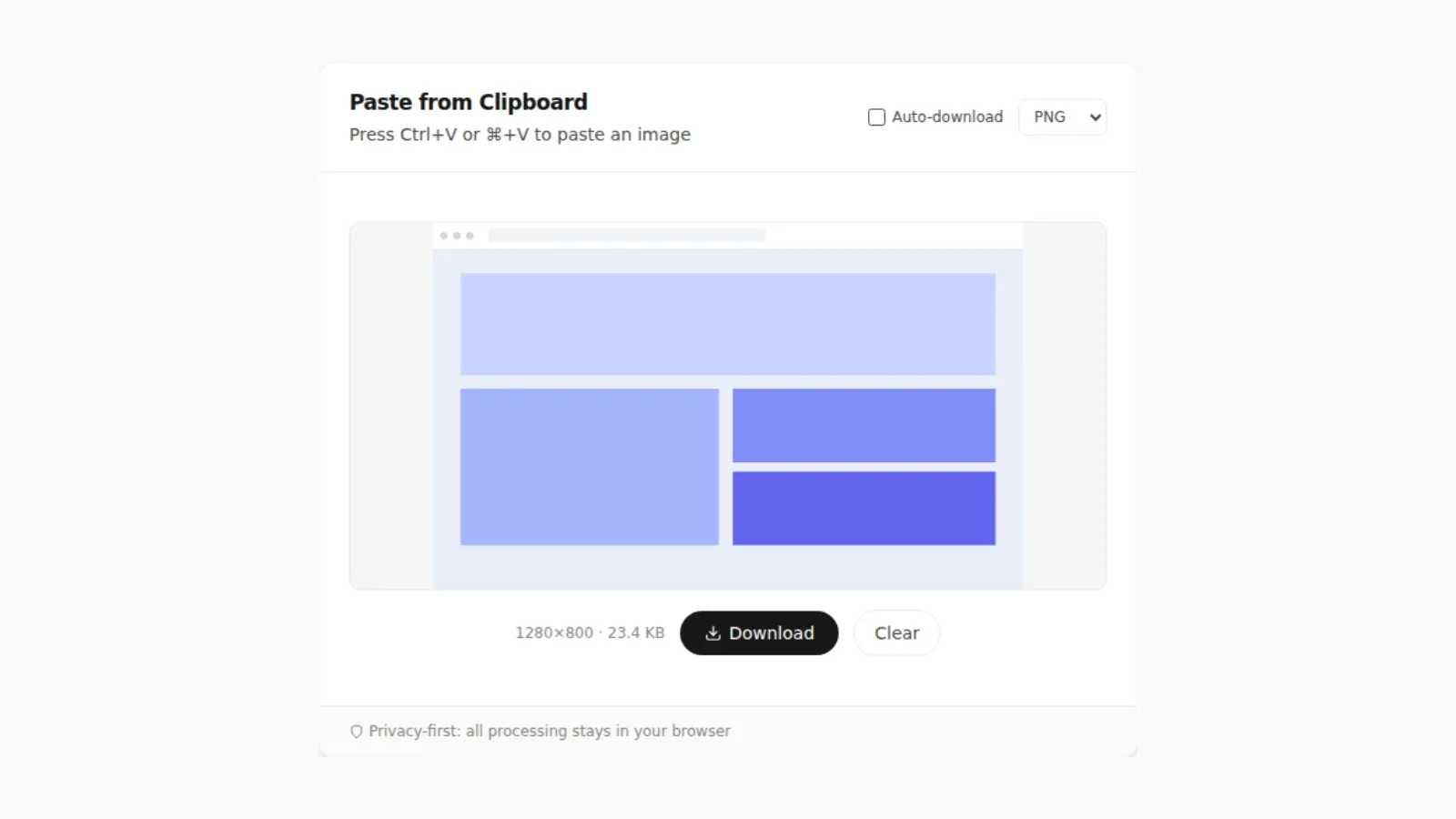
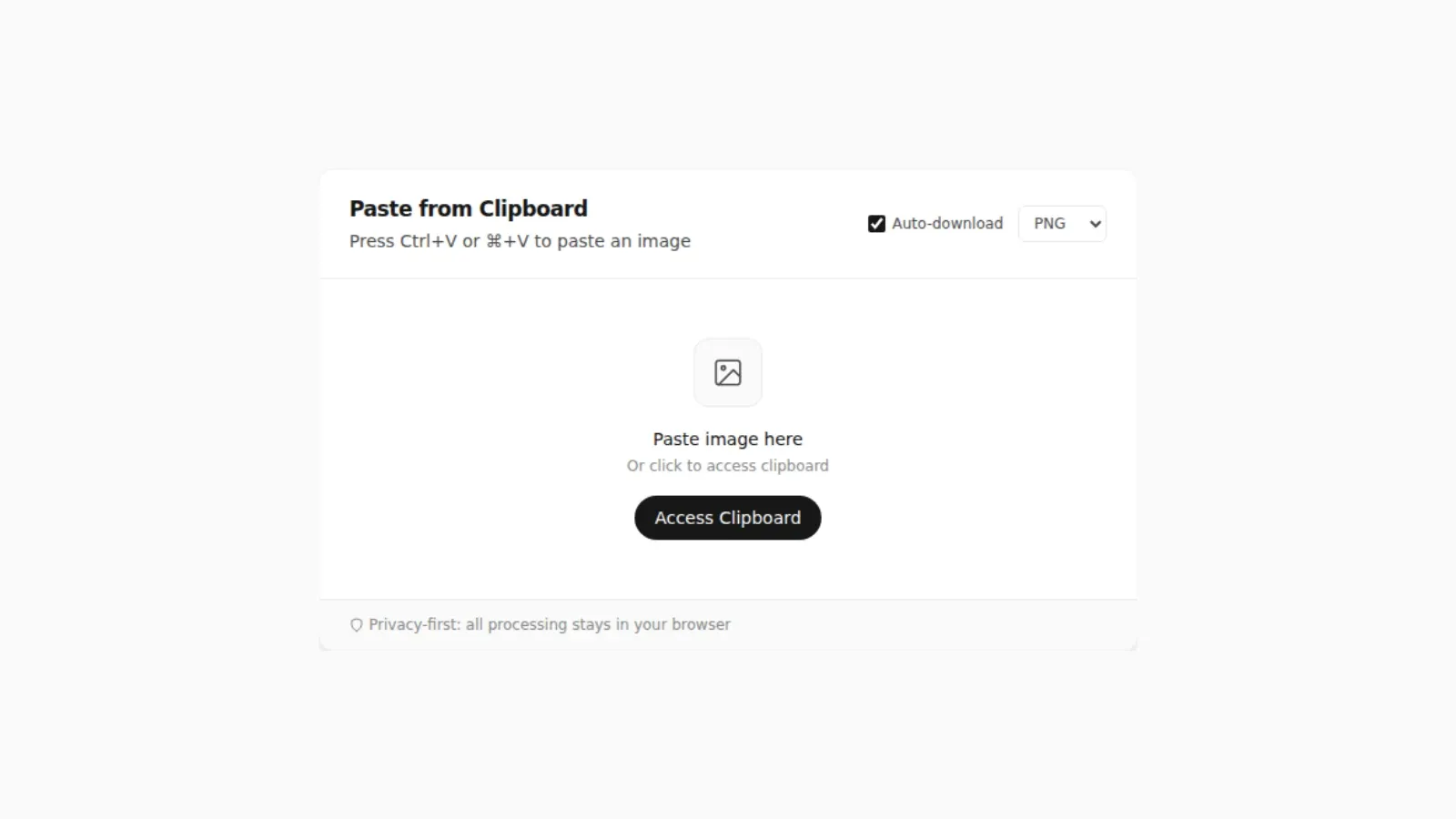
The clipboard holds image data, not a file, until something writes it to disk (see where clipboard images and screenshots actually go for the full explanation). Pasting directly into an email body works because the mail client happens to accept that image data inline. A file upload field or an attachment button generally does not have that same ability. The workaround is simple. Paste the image into PasteDownloadApp and download it as a PNG or JPEG. You now have an actual file on your device, and any attachment button, upload field, or drag-and-drop area will accept it.
Attaching It in Gmail
Once you have a downloaded file, open Gmail and start a new message. Click the paperclip icon in the compose toolbar, or drag the downloaded file directly into the compose window. Either method attaches it as a proper file rather than an inline image. It shows up as a separate download for the recipient, instead of embedded content in the message.
Attaching It in Outlook
In both Outlook desktop and the web version, use Insert > Attach File and browse to the file you downloaded. You can also drag it into the message window the same way. If you need it to appear inline as well as attached, most versions of Outlook let you do both: paste the image into the body first, then attach the file separately.
Attaching From a Phone
The same split exists on mobile. In the Gmail app on Android or iPhone, tap the paperclip and choose the file. On iPhone, a file downloaded from Safari lands in the Files app under Downloads, so browse there rather than in Photos. On Android, Chrome saves to the Downloads folder, which the Gmail file picker opens by default. In the iOS Mail app, tap inside the message body, then use the attachment button above the keyboard to insert a file from Files. If you only have the screenshot on your clipboard, paste it into PasteDownloadApp in the phone's browser first, download it, then attach the saved file.
Keeping the Attachment Small Enough to Send
Mail services cap attachment size, and a full-resolution screenshot from a large or high-density display can be bigger than people expect. Gmail allows up to 25 MB of attachments per message and offers to send anything larger as a Google Drive link instead. Outlook's limit depends on the account type and the organization's settings, and 20 MB is a common ceiling. A single screenshot rarely gets close to those numbers, but ten of them in one message can.
Format is the easiest lever. A screenshot of a web page or app, full of flat color and sharp text, usually stays small as PNG and looks crisp. A screenshot of a photo, a video frame, or a busy gradient compresses far better as JPEG. PasteDownloadApp's JPEG and WebP output use a quality setting of 0.92, which keeps text readable while cutting size. If you are not sure, download both and compare the sizes the tool shows before attaching. The compression quality guide has real before-and-after numbers.
One caution for JPEG: it does not support transparency. If your screenshot has transparent areas, for example a cropped window with a see-through shadow, PasteDownloadApp fills them with white when you choose JPEG. That is usually what you want in an email, but pick PNG if you need the transparency preserved.
Naming the File Before You Attach It
Files downloaded from PasteDownloadApp are named with a timestamp, such as pasted_ followed by the date and time. That keeps multiple downloads from overwriting each other, but a name like that tells the recipient nothing. Renaming the file to something descriptive, such as "invoice-error-march.png", takes a few seconds and makes the attachment much easier to find later in both your sent folder and the recipient's inbox. Gmail and Outlook show the file name on the attachment chip, so it is also the first thing the recipient sees.
Email Signatures Are a Special Case
Signature editors in Gmail and Outlook generally do accept a pasted image directly. A signature is stored as part of the account settings, not composed fresh each time, which is why the paste works there. If your signature editor rejects a paste or shows a broken image, there is a more reliable path: save the clipboard image as a file first, then use the signature editor's own "insert image" or upload option.
Frequently Asked Questions
Why does my pasted screenshot show up as a tiny broken icon instead of a picture?
This usually happens when the mail client expected a file reference but received raw clipboard data it could not resolve. It often shows up after a message is saved as a draft and reopened. Downloading the image as a file and attaching it directly avoids the issue entirely.
Does this work the same way in webmail clients other than Gmail and Outlook?
Most modern webmail clients, including Yahoo Mail and iCloud Mail, support pasting an image inline in the same way. The distinction between an inline paste and a true attachment still applies. So the same fix, downloading the image first, works everywhere.
Will converting the image to JPEG instead of PNG make the email smaller?
Usually yes, for photographic screenshots with lots of color detail. PNG stays smaller for screenshots that are mostly flat UI and text, though. PasteDownloadApp lets you choose the format before downloading, so you can pick whichever produces a smaller attachment for your image.
Related Guides
 5 Faster Ways to Save Clipboard Images Without Software Compare browser-based and built-in methods for saving copied images on desktop and mobile.
  PNG vs JPG vs WebP: Real File Sizes Compared PNG vs JPG vs WebP for quality, transparency, and file size, backed by real measured results, not general claims.
 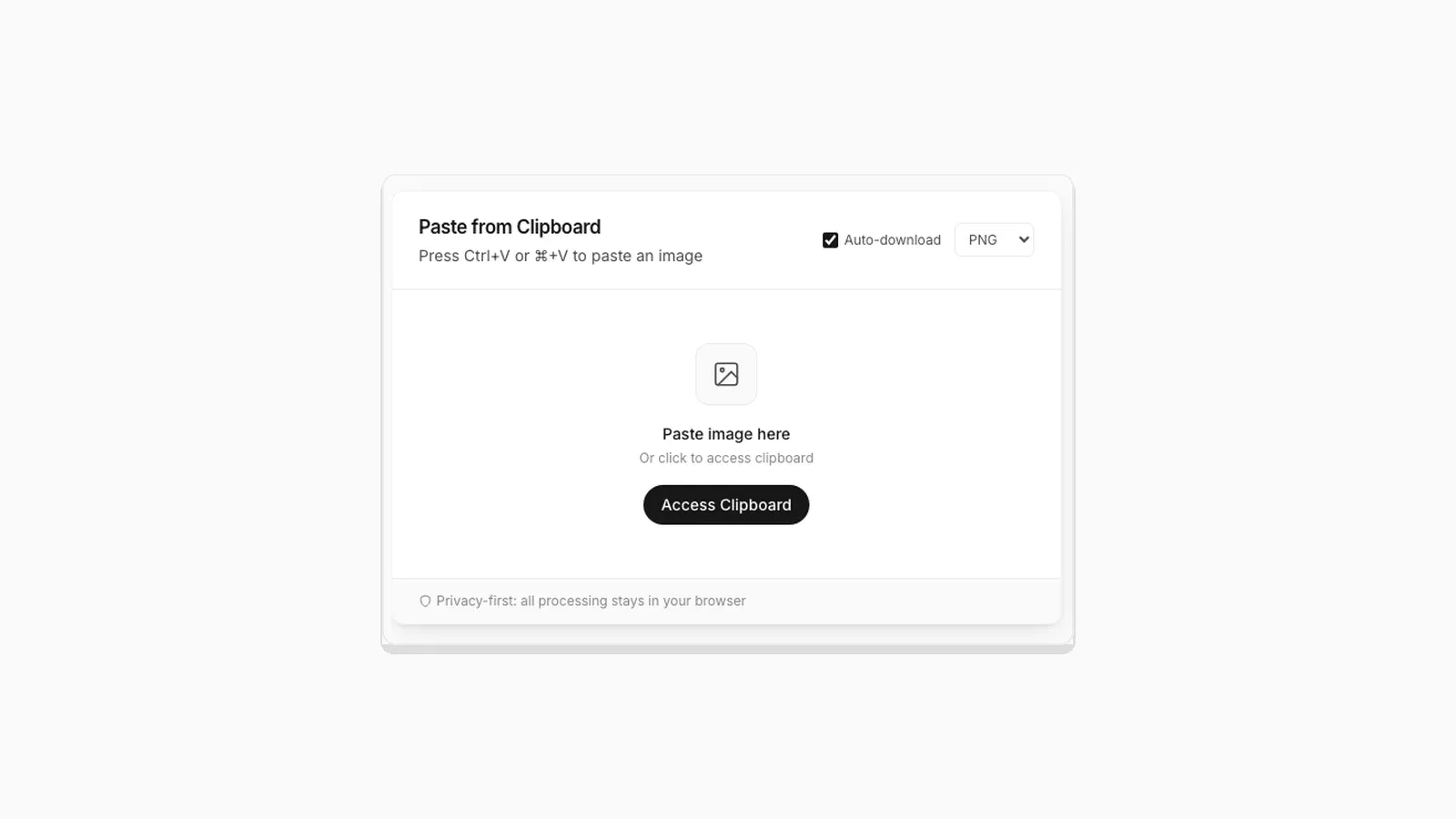 Why "Access Clipboard" Fails, and How to Fix It Clipboard read permission errors explained: browser support, HTTPS requirements, and permission prompts.
  Where Do Screenshots Go on Windows, Android, and iPhone? Screenshots and copied images do not behave like normal files until you save them. Here is where they go on Windows, Android, and iPhone.