Saving a Clipboard Image on Android vs iPhone: What Actually Works

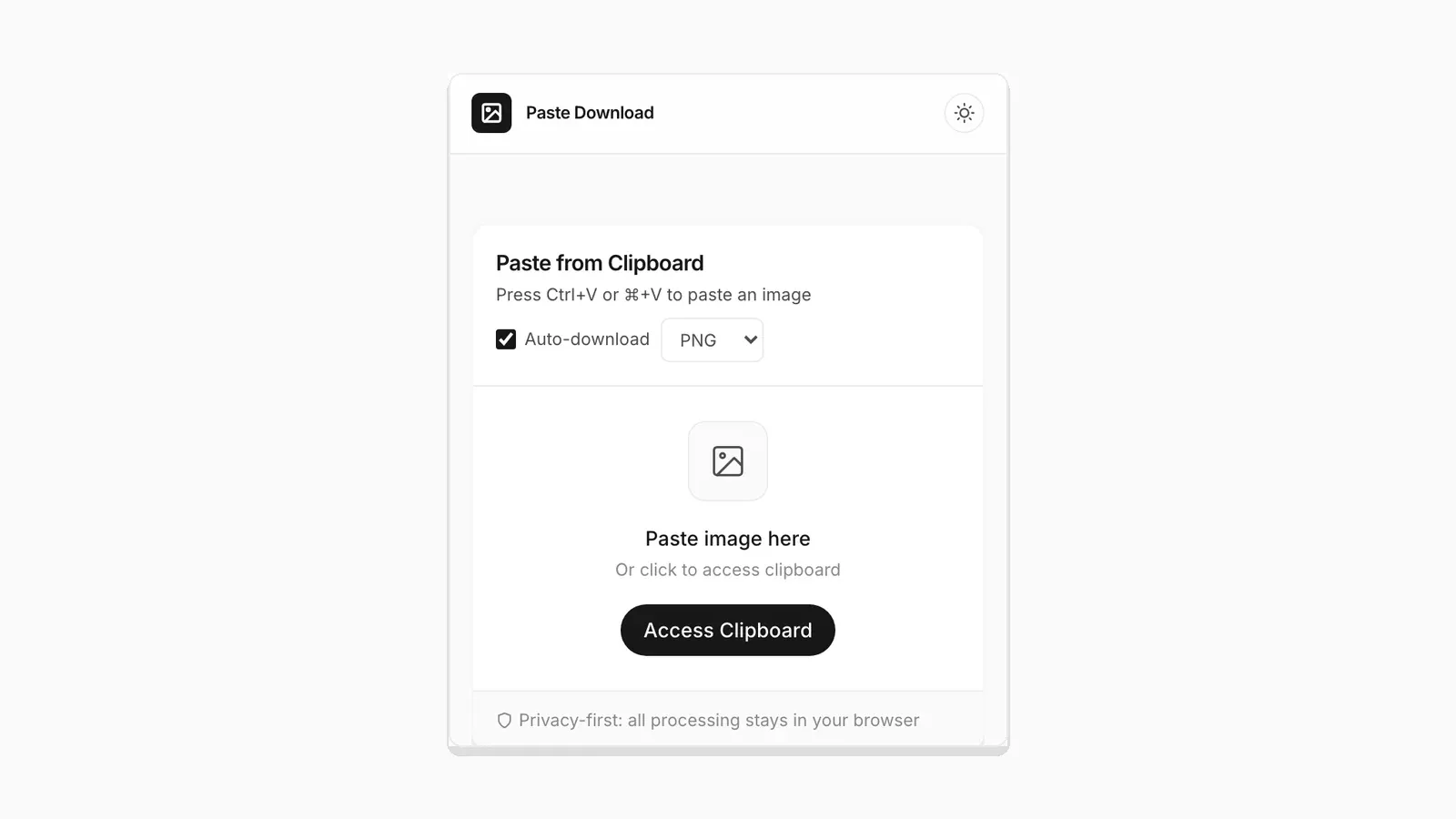
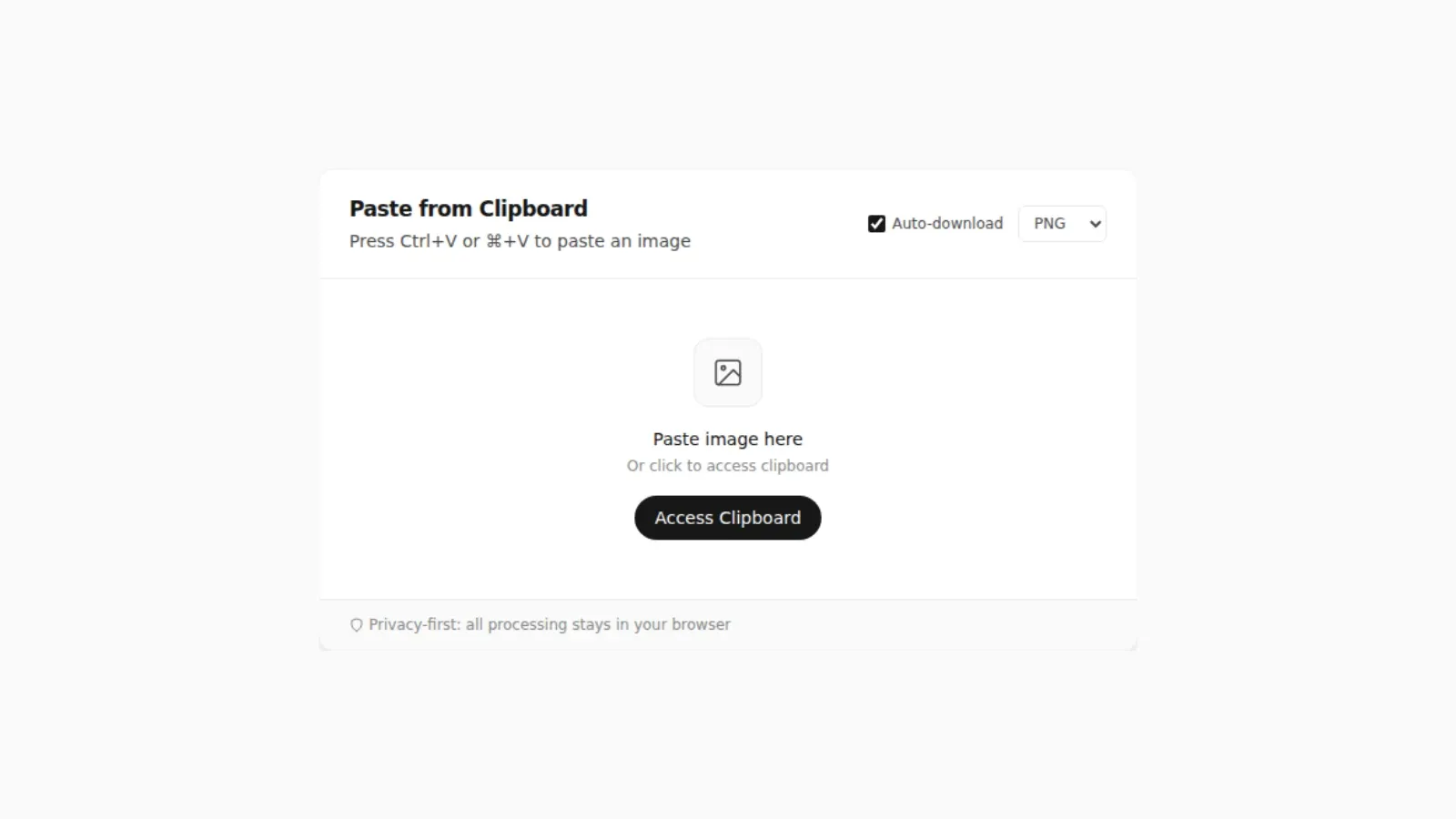
A copied image on a phone does not behave the same as one on a laptop. There is no right-click and no keyboard shortcut. The browser also runs inside an OS that has its own opinion about which apps get to touch the clipboard. I tested PasteDownloadApp in a 390 pixel wide mobile viewport, shown below, to see exactly what changes. The honest answer: the biggest differences come from the OS, not the site.
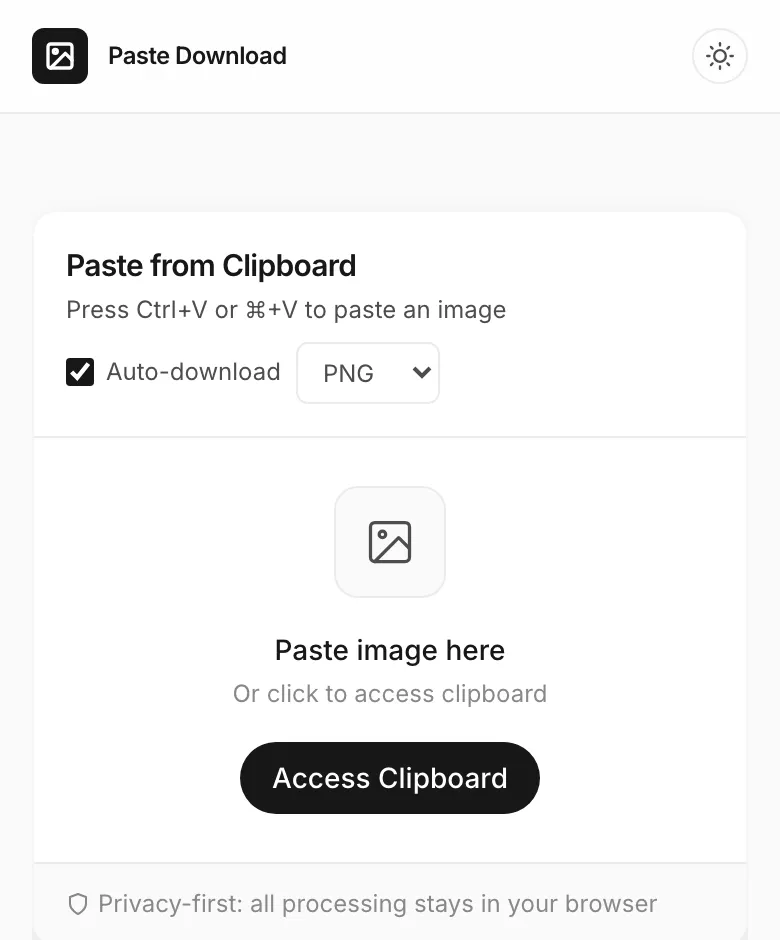
How Copying an Image Works on Android
On Android, long-pressing an image in Chrome, in Google Photos, or in most apps that render images gives you a "Copy image" option. That places the actual image data on the system clipboard. Chrome for Android can then read it through the same paste event and navigator.clipboard.read() paths used on desktop Chrome. In practice, the workflow is close to identical to a laptop: long-press to copy, open the tool, tap the paste zone or use Access Clipboard, and the image appears. There is one real gap, though. Android has no Ctrl+V equivalent, so every mobile paste goes through the click-triggered read() path rather than a keystroke-triggered paste event. That matters, because it is the path with the strictest permission requirements, as covered in how clipboard permissions differ across browsers.
How Copying an Image Works on iPhone
iOS handles image copying at the system level, through the same universal clipboard used for Handoff between Apple devices. Safari on iOS exposes it through the same Async Clipboard API as desktop Safari. The practical difference is that iOS is stricter about which gesture counts as "direct enough" to authorize a clipboard read; the call has to fire synchronously inside the tap handler with no delay, the same restriction covered in how clipboard permissions differ across browsers. Safari on iOS also does not always show a visible permission prompt the way desktop browsers do; it can silently fail instead. If tapping Access Clipboard does nothing on an iPhone, retrying the tap once, right after copying and without switching apps in between, is the most reliable fix.
Getting a Screenshot Onto the Clipboard on Each Phone
Most people reach this page with a screenshot, not a web image. Both platforms can put a screenshot on the clipboard without saving it to the camera roll first, but the path is different on each.
On iPhone, take the screenshot as usual (side button plus volume up on Face ID models), then tap the thumbnail that appears in the corner before it slides away. That opens the markup editor. Tap Done, and one of the options is Copy and Delete. It copies the screenshot to the clipboard and discards the saved copy, so nothing lands in Photos. For an image that is already in Photos, open it, tap the share icon, and choose Copy Photo.
On Android, the details vary by manufacturer, but the common route is the Gboard keyboard. Recent versions of Gboard can show a freshly taken screenshot in the keyboard's clipboard panel, ready to paste. Outside of Gboard, open the screenshot in Google Photos, tap share, and look for a copy option, or long-press an image inside Chrome and choose Copy image. Samsung phones add their own clipboard panel on the Samsung Keyboard that behaves similarly.
Copying on iPhone, Pasting on a Mac (and Back)
If you own both an iPhone and a Mac, you may not need the phone to save anything at all. Apple's Universal Clipboard shares the clipboard between devices signed in to the same Apple Account with Bluetooth, Wi-Fi, and Handoff turned on. Copy an image on the iPhone, switch to the Mac within a short window, and press Cmd+V on PasteDownloadApp. The image arrives as if you had copied it on the Mac, and you can download it from there as PNG, JPEG, or WebP. The reverse also works. It is often faster than AirDropping a file, because nothing needs to be accepted on the other side.
Universal Clipboard only holds the most recent item, and it expires after a short time, so copy right before you paste. If nothing arrives, check that Handoff is enabled on both devices, since that is the setting most often switched off.
What to Do When Access Clipboard Just Won't Work
Worth being direct about a real limitation here rather than suggesting a workaround that does not exist: PasteDownloadApp's paste zone does not currently include a file-picker fallback. Tapping it triggers the same clipboard-read path described above, nothing more, so it is subject to the same iOS and Android restrictions rather than sidestepping them. If Access Clipboard genuinely will not cooperate after a retry, the reliable options are copying the image again immediately before tapping (a stale clipboard grant is a common silent-failure cause), or reloading the page fresh, since a permission state can get stuck after a failed first attempt.
Quick Comparison
| Step | Android (Chrome) | iPhone (Safari) |
|---|---|---|
| Copy an image | Long-press, tap Copy image | Long-press, tap Copy |
| Paste into the tool | Tap Access Clipboard | Tap Access Clipboard |
| If that fails | Reload the page and retry once | Copy the image again, then retry immediately |
None of this is specific to phones, either. The same file-versus-clipboard confusion trips people up on desktop, just with different shortcuts. See where clipboard images and screenshots actually go for the full picture across Windows, Mac, Android, and iOS.
Frequently Asked Questions
Why does the Access Clipboard button need a second tap sometimes?
Mobile browsers sometimes swallow the first tap as a focus event on the page rather than a click on the button, particularly right after the page finishes loading. A second tap after the page has settled usually works.
Can I paste an image on a Chromebook the same way?
Yes. ChromeOS runs the same Chrome browser engine as desktop and Android, so both the paste event and Access Clipboard behave the same way they do on a Windows or Mac laptop.
Does downloading save to my phone's normal downloads or photo gallery?
It saves to the browser's downloads location. On both Android and iOS, that is typically a Files or Downloads app, not the photo gallery. You can move it into Photos afterward using the share sheet if you need it there.
Related Guides
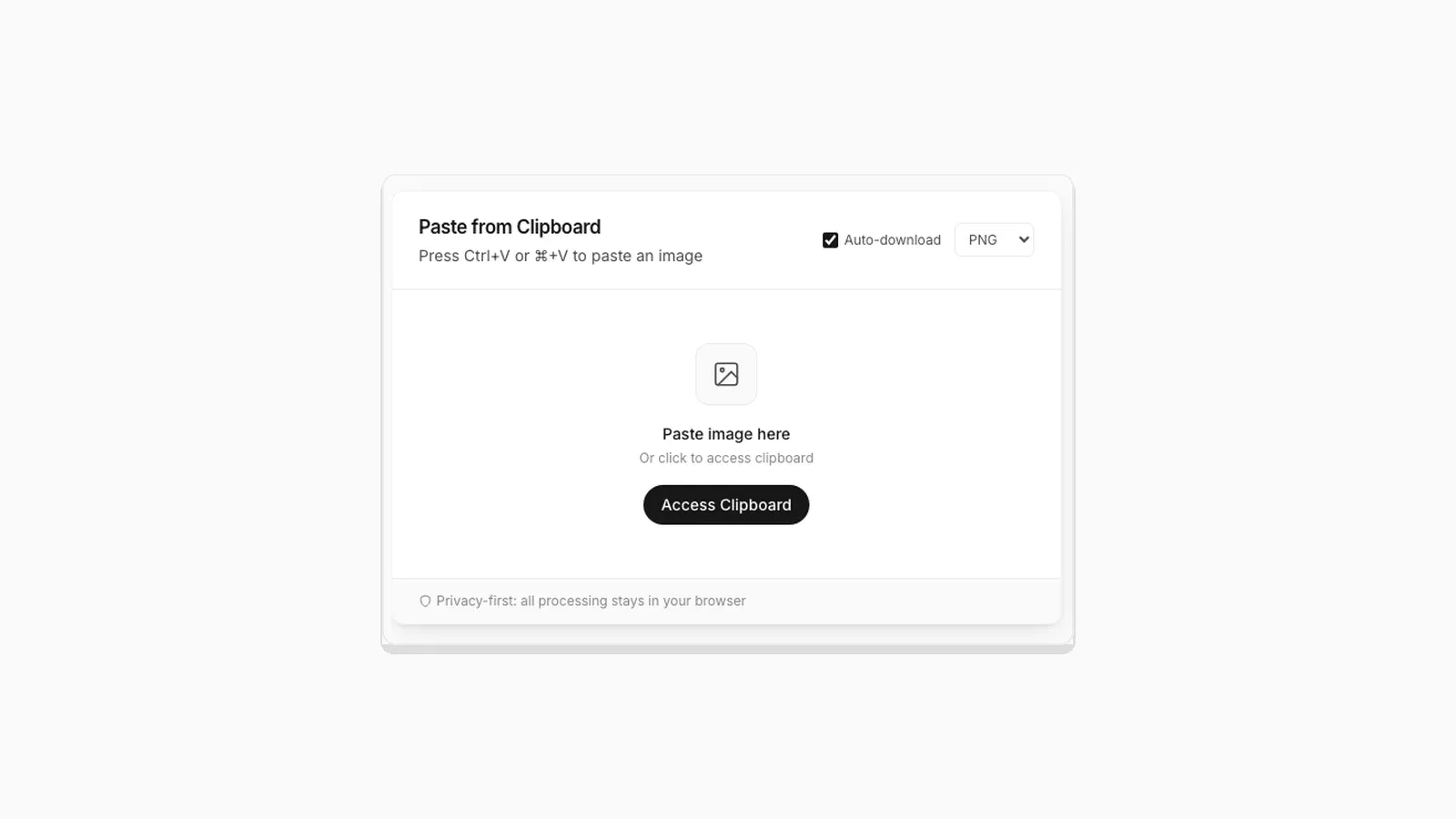 Why "Access Clipboard" Fails, and How to Fix It Clipboard read permission errors explained: browser support, HTTPS requirements, and permission prompts.
  Why Clipboard Image Paste Behaves Differently in Chrome, Firefox, and Safari The Clipboard API is not implemented the same way everywhere. Here is what actually differs between browsers.
  5 Faster Ways to Save Clipboard Images Without Software Compare browser-based and built-in methods for saving copied images on desktop and mobile.
  Where Do Screenshots Go on Windows, Android, and iPhone? Screenshots and copied images do not behave like normal files until you save them. Here is where they go on Windows, Android, and iPhone.