
How to Paste an Image Into a PDF on Mac or Windows

You have a PDF open, an image on your clipboard, maybe a signature, a logo, or a screenshot that belongs on page three, and Cmd+V or Ctrl+V does nothing. That is not a bug. A PDF is designed to be a finished, fixed layout, the digital version of a printed page. Most PDF viewers are built to display it, not to edit it, so there is often nowhere for a paste to go.
It is still very doable. The route depends on which app you have: Preview on a Mac, Adobe Acrobat, or Microsoft Word on either platform. Each one handles pasted images a little differently, and each has one step that trips people up. Below is how to do it in all three, how to paste straight from the clipboard where that is possible, and how to turn a clipboard image into a file for the apps that insist on one.
First, Decide What "In the PDF" Means
There are two quite different ways an image can end up in a PDF, and the difference matters if anyone else will open the file.
- As an annotation: The image sits on top of the page, like a sticker. It is part of the file and displays everywhere, but it is a separate object. Anyone with a PDF editor can select it, move it, or delete it. Pasted images in Preview and stamps in Acrobat work this way.
- As page content: The image becomes part of the page itself, the same as the text and graphics that were already there. It is much harder to remove or move. Acrobat's Edit PDF tool and the Word round trip both produce this.
For a logo on a flyer or a screenshot in a report, either is fine. For a signature on a contract, think about which one you want. And if you need a legally binding signature, use a proper e-signature service rather than a pasted image. A pasted picture of a signature proves nothing about who placed it there.
Paste an Image Into a PDF With Preview on a Mac
Preview is free and already on every Mac, and it can place an image on a PDF page. The catch is that pasting an image copied from another app usually does nothing. Preview treats images and PDFs differently, and it only accepts a paste of an object it recognizes as a selection. The workaround is to let Preview create that selection itself:
- Open the image in Preview. If it is only on your clipboard, open Preview and choose File, then New from Clipboard, which opens the clipboard image in a new window.
- Press Cmd+A to select the whole image, then Cmd+C to copy it.
- Still in the image window, press Cmd+V. Preview pastes a copy on top of the image as a movable object. It looks like nothing changed, but the pasted copy is now selected.
- Press Cmd+C again to copy that object.
- Switch to your PDF, go to the page you want, and press Cmd+V. The image appears on the page.
- Drag it into position and use the corner handles to resize it. Hold Shift while dragging a corner to keep its proportions.
- Save with Cmd+S. If you want to keep the original untouched, use File, then Export as PDF, and give the copy a new name.
Step three is the one that feels wrong and is the one that makes it work. Copying the image straight from a browser or Photos gives Preview image data. Copying the pasted object from inside Preview gives it an object it knows how to drop onto a PDF page.
Adding the Image as a Whole New Page
If the image should be its own page rather than sit on an existing one, for example a scanned receipt appended to an expense report, there is a cleaner path. Show the sidebar with View, then Thumbnails, select the page the new one should follow, then choose Edit, then Insert, then Page from File, and pick the image file. Preview adds it as a new page. Dragging an image file from Finder into the thumbnail sidebar does the same thing. Both of these need a real file, not a clipboard image, which is covered further down.
Paste an Image Into a PDF With Adobe Acrobat
Acrobat gives you two different tools, and they map neatly onto the annotation versus page content split described above.
Paste From the Clipboard as a Stamp
Acrobat's Stamp tool includes a command called Paste Clipboard Image as Stamp Tool. Copy the image, open the stamp tools (in the commenting tools, under Stamp), choose that command, and click on the page where the image should go. It lands as a stamp annotation that you can move and resize. This is the only built-in way in Acrobat to use an image directly from the clipboard. The exact menu location has moved between Acrobat versions, so if you cannot find it, search the tools for "stamp".
Add an Image as Page Content
In Acrobat Pro or Standard, open Edit PDF and choose Add image (called Image in some versions). Acrobat asks you to pick an image file, then lets you click or drag on the page to place it. Once placed, you can move, resize, rotate, crop, and replace it with the editing tools. This option needs a file on disk. It will not read the clipboard.
The free Acrobat Reader is mainly a viewer. It includes commenting, filling, and signing tools, but not Edit PDF, so adding an image as page content requires a paid Acrobat plan.
Paste an Image Into a PDF With Microsoft Word
If you do not have Acrobat, Word is the most common editor that can handle this on Windows, and it works the same on a Mac. Word can open a PDF and convert it into an editable document:
- In Word, choose File, then Open, and pick the PDF. Word warns that it will convert the file. Accept.
- Click where the image should go and press Ctrl+V. Word pastes clipboard images directly, so a screenshot works without any extra step.
- Use the Layout Options button next to the image to choose how text wraps around it, then drag it into place.
- Choose File, then Save As, and pick PDF as the file type.
The trade-off is layout. The conversion rebuilds the PDF as a Word document, and anything complex, such as forms, multi-column layouts, unusual fonts, or precise positioning, may shift. It works well for simple text documents and poorly for designed brochures. Always check every page of the new PDF before you send it, and keep the original.
When the App Wants a File but You Have a Clipboard Image
Several of the routes above only accept a file: Acrobat's Add image, Preview's Page from File, and most online PDF editors. If your image is a screenshot you just took with a copy-to-clipboard shortcut, or something you copied from a web page, it is not a file yet. It exists only as data on the clipboard until something saves it.
You can turn it into a file in a few seconds without opening an image editor:
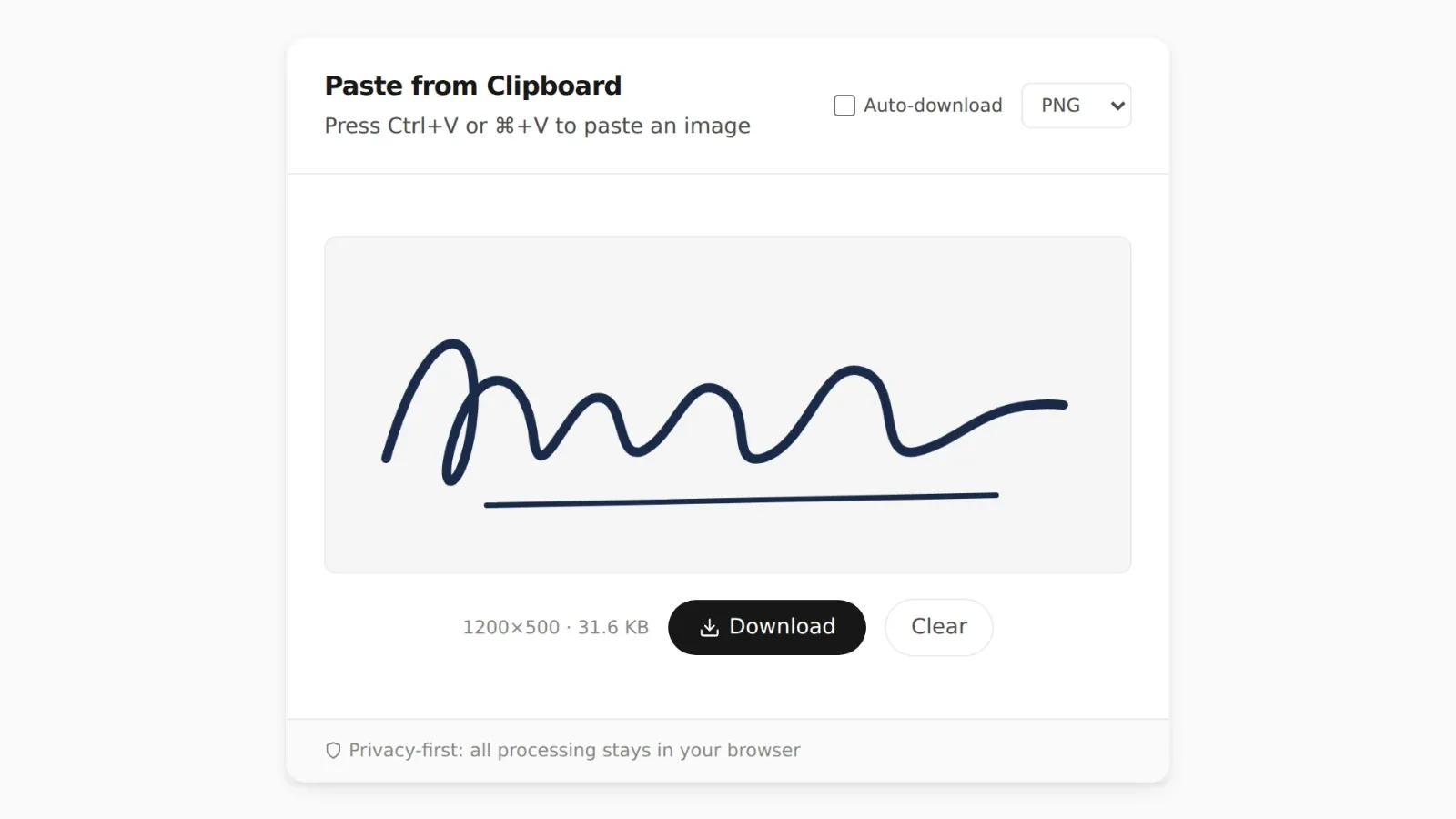
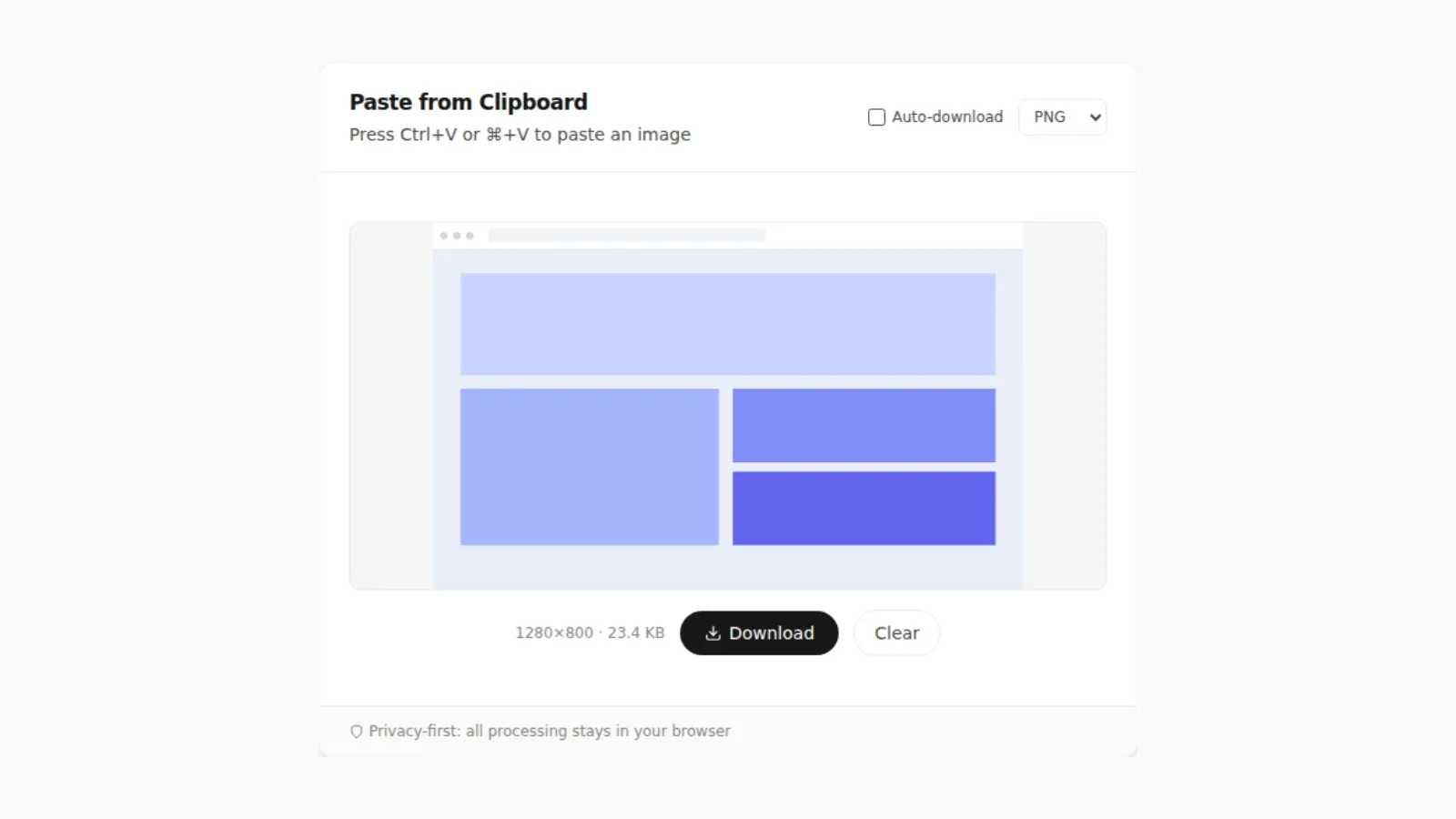
- Open PasteDownloadApp and press Ctrl+V or Cmd+V.
- Pick PNG for anything with transparency or sharp edges, such as a signature, logo, or screenshot. Pick JPEG for a photo, to keep the PDF smaller.
- Download it, then use the Add image, Page from File, or upload option in your PDF app and choose the new file.
The image is converted in your browser and is not uploaded anywhere, which matters when the thing you are adding is a signature or a screenshot of a private document. On a Mac, Preview's File, then New from Clipboard, followed by a save, is a built-in alternative. Five ways to save clipboard images without software compares the options on every platform.
Getting a Clean Result
Use a Transparent PNG for Signatures and Logos
A signature photographed on white paper, or a logo on a white background, will show as a white rectangle when placed over a colored area or a form line. A PNG with a transparent background avoids that. Note that JPEG cannot store transparency. If you save a transparent image as JPEG, the transparent areas are filled with white. PasteDownloadApp does exactly that when you choose JPEG, so choose PNG for anything that needs to blend into the page.
Size the Image for the Page, Not the Screen
A PDF page is measured in points, and a letter or A4 page is only about 600 points wide. A 4000-pixel photo shrunk to a quarter of the page carries all of its original data, and the PDF grows by several megabytes for no visible benefit. For something that will occupy a few inches of a page, an image of 1000 to 1500 pixels on the long side is usually plenty, including for printing. The compression quality guide has real numbers on how much format choice affects size.
Flatten It if It Must Not Move
Annotations can be moved or deleted by anyone who opens the file in an editor. If the image needs to stay put, flatten the PDF by printing it to a new PDF. On a Mac, choose File, then Print, then Save as PDF from the PDF menu. On Windows, print to Microsoft Print to PDF. The result is a new file where annotations are usually merged into the page. Printing to PDF also removes selectable text in some cases and can drop form fields, so keep the original.
On Phones and Tablets
On an iPhone or iPad, the built-in Markup tool is designed for signatures, drawing, and text rather than placing images, and what it offers varies between iOS versions. Adobe's mobile Acrobat app and other PDF editors can add an image, usually picked from your photo library or from a file. If your image is only on the phone's clipboard, paste it into PasteDownloadApp in the phone's browser, download it, and then pick the saved file from the editor. Saving a clipboard image on Android vs iPhone covers where that download ends up on each platform.
Frequently Asked Questions
Why does Cmd+V do nothing when I paste an image into a PDF in Preview?
Preview only accepts a paste of an object it created itself. Open the image in Preview, select all, copy, paste it onto itself, copy again, and then paste into the PDF. The steps above walk through it in order.
Can I paste an image into a PDF for free on Windows?
Windows does not include a PDF editor that places images. Microsoft Word, if you have it, is the most practical route. Otherwise you need a PDF editor, either a desktop app or an online one. Be careful with online editors for sensitive documents, since the whole PDF is uploaded to their servers.
Will the pasted image show up for everyone who opens the PDF?
Yes. Annotations and page content are both saved in the file and display in any standard PDF viewer, including browsers. The difference is only in how easily someone else can move or remove the image.
Why did my PDF get so much bigger after adding one image?
The image was probably far larger in pixels than it appears on the page, or saved as PNG when it is a photo. Resize it and save it as JPEG before adding it, and the PDF will stay close to its original size.
Related Guides
 5 Faster Ways to Save Clipboard Images Without Software Compare browser-based and built-in methods for saving copied images on desktop and mobile.
  How to Download a Copied Image on Mac Without Saving to Photos Save clipboard images from your Mac directly as files without Photos, Preview, or extra steps.
  PNG vs JPG vs WebP: Real File Sizes Compared PNG vs JPG vs WebP for quality, transparency, and file size, backed by real measured results, not general claims.
  How to Turn a Pasted Screenshot Into an Email Attachment Gmail and Outlook can paste an image straight into the message body, but that is not the same as an attachment. Here is how to turn a clipboard image into a real file first.