SVG and ICO Quirks You Will Hit When Converting Images in a Browser

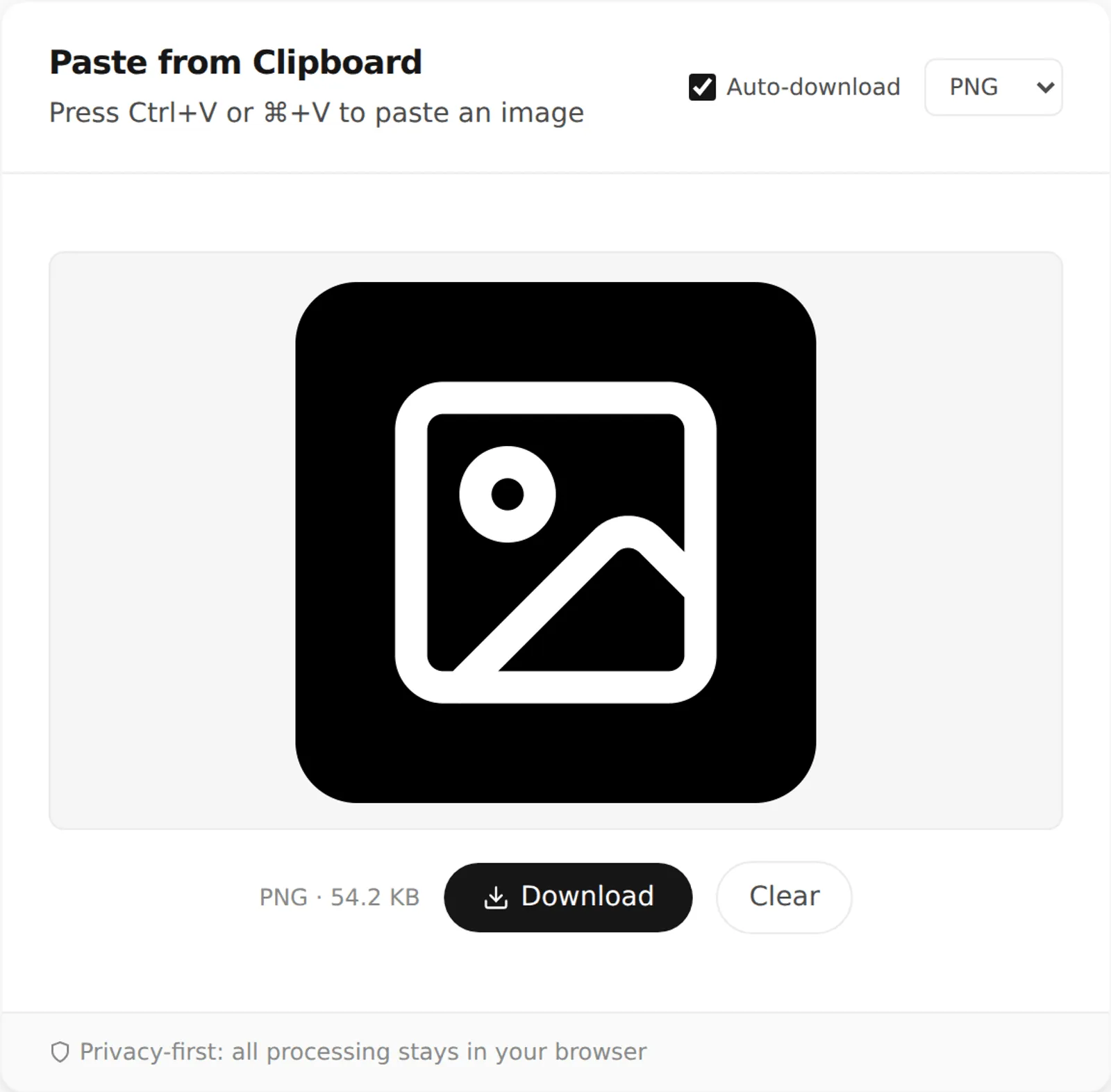
PNG, JPG, and WebP are all raster formats: a fixed grid of pixels. SVG and ICO are not built the same way. Converting them through a browser-based tool exposes some quirks that do not show up with ordinary photos or screenshots. I dragged this site's own favicon files straight into PasteDownloadApp to see exactly what happens.
SVG: The Browser Has to Decide a Size First
SVG is a vector format: XML instructions describing shapes rather than pixels. It does not have an inherent pixel size the way a PNG does. When a browser needs to draw an SVG onto a canvas, which is what happens during any SVG-to-PNG or SVG-to-WebP conversion, it has to rasterize it at some resolution. That resolution comes from the SVG's own width, height, or viewBox attributes.
I dragged this site's favicon.svg, a 72.8 KB vector file, straight into the drop zone. The file declares width="1200" height="1200" explicitly, so the browser read it at exactly 1200×1200. Rasterizing it to PNG produced a 54.2 KB file, exactly what the tool reported in the paste preview, not a rounded estimate. That worked cleanly because the source file was explicit about its size. Here is the quirk to watch for: an SVG that omits width, height, and viewBox will often fall back to a browser default rendering size, commonly 300×150. That produces a tiny, low-resolution raster output, with no warning that anything went wrong. If a converted SVG comes out blurry or oddly cropped, check whether the source file actually declares a size before assuming the converter is broken.
How to Get a Bigger PNG Out of an SVG
Because the output size comes from the SVG itself, the way to get a larger, sharper PNG is to change the SVG, not the converter. Open the file in any text editor and look at the opening <svg> tag. If it has a viewBox such as viewBox="0 0 24 24" and a small width and height, raise the width and height, for example to 1024 each, and keep the viewBox as it is. The viewBox defines the drawing's coordinate system, while width and height define how many pixels it is drawn at, so the shapes scale up cleanly with no blur. Save the file and drag it into the tool again.
Keep the proportions matched. If the viewBox is wider than it is tall, set width and height in the same ratio, or the browser will add empty space around the drawing to preserve its aspect ratio.
Fonts, External Images, and Other Things That Go Missing
An SVG can reference things outside the file itself: a web font, a linked bitmap image, or a stylesheet. When a browser draws an SVG as an image, which is what any canvas conversion does, it does not load those external resources. Text set in a custom font falls back to a default font, and linked images simply do not appear. If a converted SVG is missing its text styling or a logo inside it, that is the likely cause. Design tools usually offer an export option to convert text to outlines or embed images, which makes the SVG self-contained and fixes the conversion.
ICO: One File, Several Images, Only One Comes Out
An ICO file is a container that can bundle several versions of the same icon at different resolutions, commonly 16×16, 32×32, and 48×48. That way, Windows and browsers can pick whichever size fits the context, a tab icon versus a taskbar icon, for example. When you load an ICO file into an <img> element or a canvas, the browser exposes exactly one of those frames, not the full set. Which one it picks is not something a script gets to choose.
I dragged this site's favicon.ico, a 14.7 KB file that bundles multiple resolutions, into the same drop zone. Chromium decoded it as a single 48×48 image, and converting that to PNG produced a 1.7 KB file at 48×48, confirmed by testing both common ICO MIME types a browser or OS might report for the file. If you specifically need the 16×16 or 32×32 version out of a multi-resolution ICO, a browser-based converter cannot get it for you. It only ever sees the single frame the browser itself chose to decode, not the full set bundled in the file.
Where Transparency Goes
Icons and SVG logos usually have a transparent background. PNG and WebP keep that transparency through the conversion. JPEG cannot store transparency at all, so PasteDownloadApp fills the background with white when you choose JPEG. If you convert a white logo on a transparent background to JPEG, it will disappear into the white fill, so pick PNG or WebP for logos and icons.
Practical Takeaways
- Converting SVG to PNG or WebP works well when the source file declares an explicit size. Check for
width,height, orviewBoxin the file before assuming a low-resolution result is a tool bug. - Converting ICO gives you whatever single resolution the browser decoded, typically the largest one embedded, not a choice of sizes.
- Going the other direction, PNG or JPG into SVG or ICO, is not something canvas-based conversion can do at all. Canvas only produces raster output. Turning a photo into a true ICO with multiple embedded resolutions needs a dedicated icon generator, not a paste-and-convert tool.
Frequently Asked Questions
Can PasteDownloadApp convert a PNG into an SVG?
No. SVG is vector data, and there is no reliable automatic process for turning arbitrary pixels back into vector shapes. Canvas-based tools, this one included, can only rasterize vector formats into pixels, not the other way around.
Why did my converted SVG come out as a tiny, blank-looking image?
The source SVG almost certainly did not declare a width, height, or viewBox. That is why the browser rasterized it at a small default size. Check the SVG's XML for those attributes, or open it in an editor that can add them.
Does the same size-selection quirk affect other multi-frame formats?
Animated GIFs have a related issue: canvas conversion captures a single frame, not the animation. If you need to keep an image moving, converting it to PNG, JPEG, or WebP through a canvas-based tool is not the right approach.
Related Guides
 Favicon Size Guide: Every Size You Actually Need What size a favicon actually needs to be, from 16x16 browser tabs to 512x512 PWA icons, plus format and transparency guidance backed by real numbers.
  Why Re-Saving a PNG Can Make the File Bigger, Not Smaller A browser Canvas re-encode is not the same as a PNG optimizer. Here is the real size difference and why it happens.
  How to Save a Screenshot Directly as a File Without Opening MS Paint Turn Print Screen or Snipping Tool captures into PNG or JPG files without opening an editor.