How to Convert a Screenshot to JPG (or PNG or WebP)

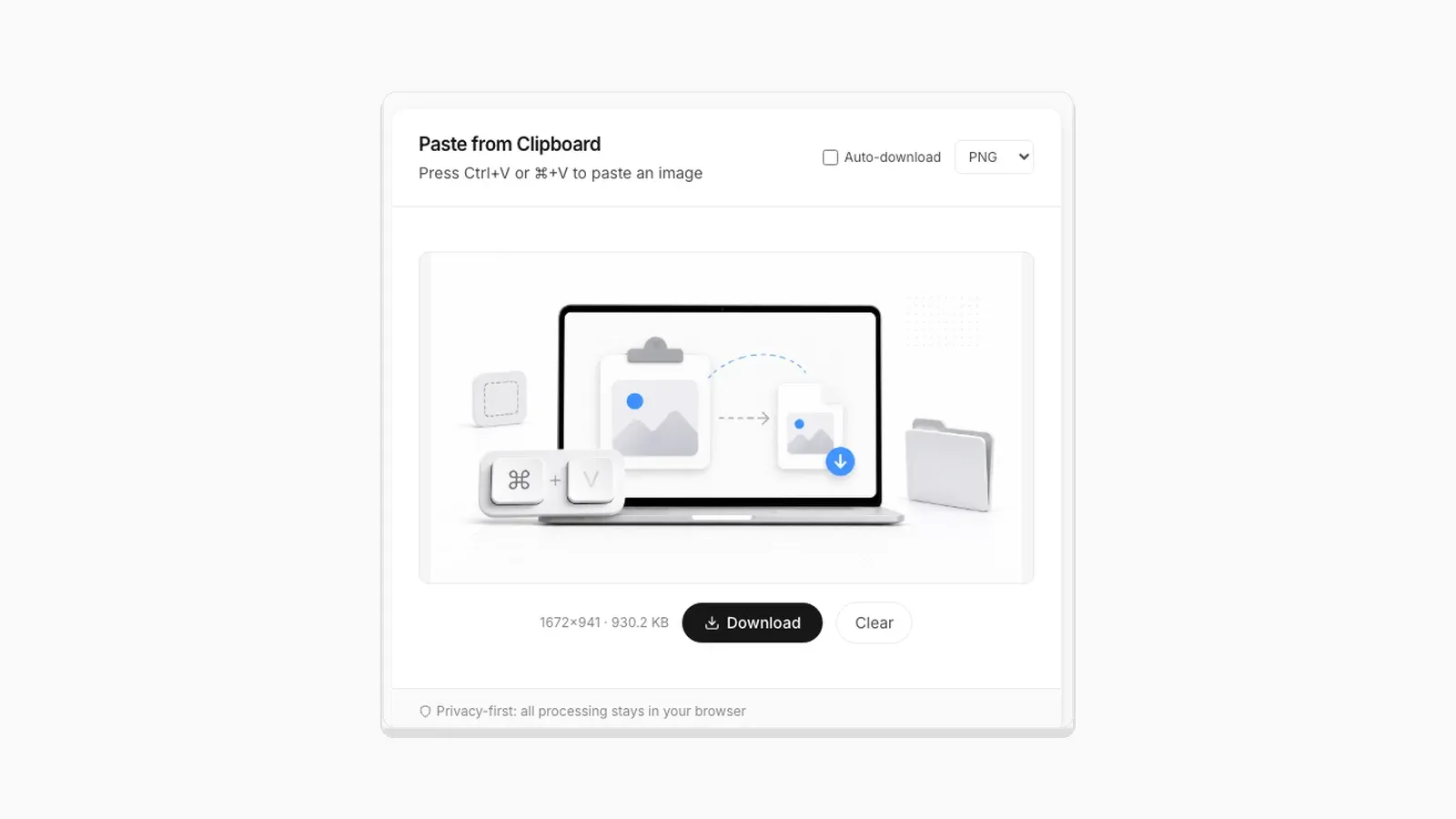
A screenshot straight off your clipboard is a PNG. If you need it as a JPG instead, smaller for an email attachment, a form that only accepts JPG, or just a habit, converting it takes one format change in a browser tab, no editor required. Below is the short four-step version. After it come real file sizes for PNG, JPEG, and WebP on the same screenshot, a re-download behavior I found in the tool's own code, and the fastest way to handle several screenshots in a row.
Convert a Screenshot to JPG in Four Steps
- Copy your screenshot to the clipboard (Print Screen, Snipping Tool, ⌘⇧4, or right-click Copy Image).
- Open pastedownloadapp.com and press Ctrl+V (or Cmd+V on Mac) to paste it.
- Change the format dropdown from PNG to JPEG.
- If Auto-download is checked (it is by default), the JPG downloads immediately. Otherwise, click Download.
That is the whole conversion. Nothing is uploaded; the format change happens in your browser using the Canvas API, the same way the rest of this article's numbers were produced. If you would rather convert to PNG or WebP instead of JPG, the same four steps apply, just pick a different option from the dropdown.
What Actually Happens When You Paste
Before the numbers, here is the state you land on: a blank drop zone waiting for Ctrl+V, ⌘+V, or a click on Access Clipboard, with Auto-download checked and PNG selected by default.
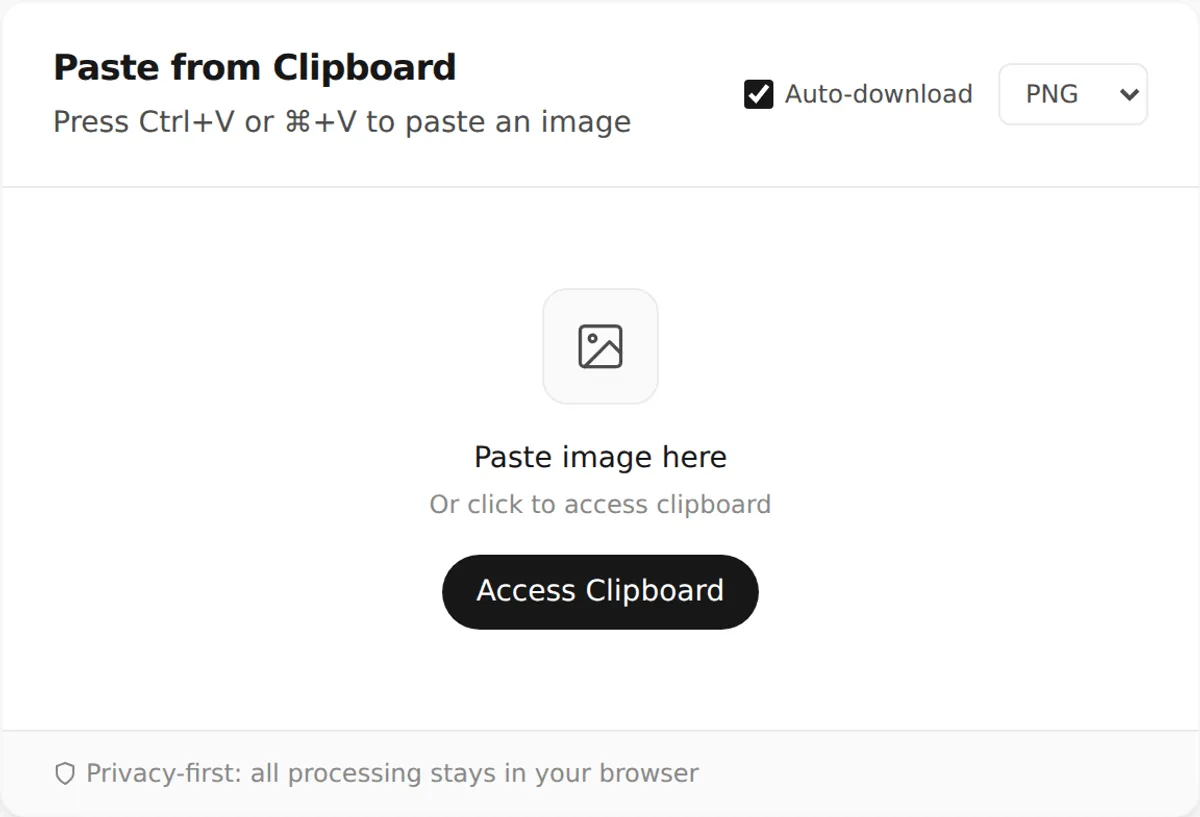
There is nothing to configure before your first paste. Because Auto-download starts on and PNG is the default format, your very first Ctrl+V already downloads a file with no extra clicks. Everything below happened by dispatching the identical paste DOM event Chrome fires on a real Ctrl+V against the live tool code running locally, since a script cannot touch your OS clipboard the way a person can. That means the numbers are genuine output from the tool's own conversion function, not estimates.
The Real Numbers From Converting One Screenshot Three Ways
To get real file sizes instead of guessing, I built a 1280×800 test graphic that behaves like a real screenshot. It has a window title bar, sharp white text, a busy blue-to-pink gradient, and a light noise texture. A flat single-color mockup would compress far too well and make the comparison meaningless. I pasted it once and let Auto-download run at the default PNG setting.
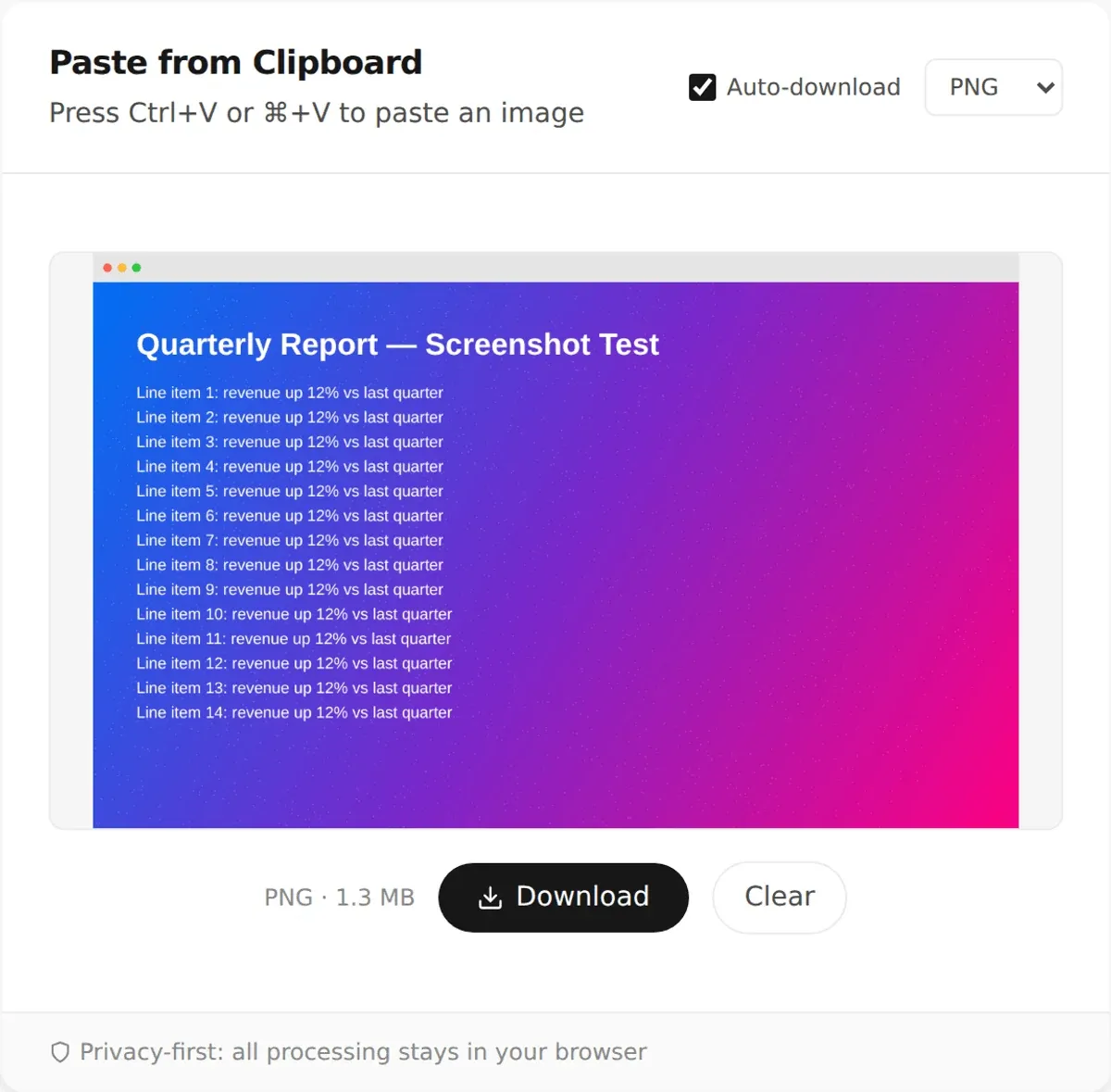
PNG came back at 1.3 MB. Switching the format dropdown to JPEG on that same image brought it down to 172.1 KB, an 87% reduction. Switching again to WebP took it to 108.4 KB, 92% smaller than the PNG and roughly 37% smaller than the JPEG of the identical image. That gap is wider than you would see on a plain UI screenshot with large flat-color areas. Gradient and noise behave more like a photo. PNG's lossless compression handles photo detail far worse than the lossy encoding in JPEG or WebP.
Switching Formats After Pasting Re-Downloads Automatically
Here is something I did not expect. I found it in the tool's conversion code and then confirmed it by testing. If you change the format dropdown while a pasted image is still in the preview, the tool converts that same image to the new format right away. It then downloads it again. You only avoid this if you have clicked Clear. It is not just "the next paste uses the new format." It is an extra, automatic download you did not click a button for.
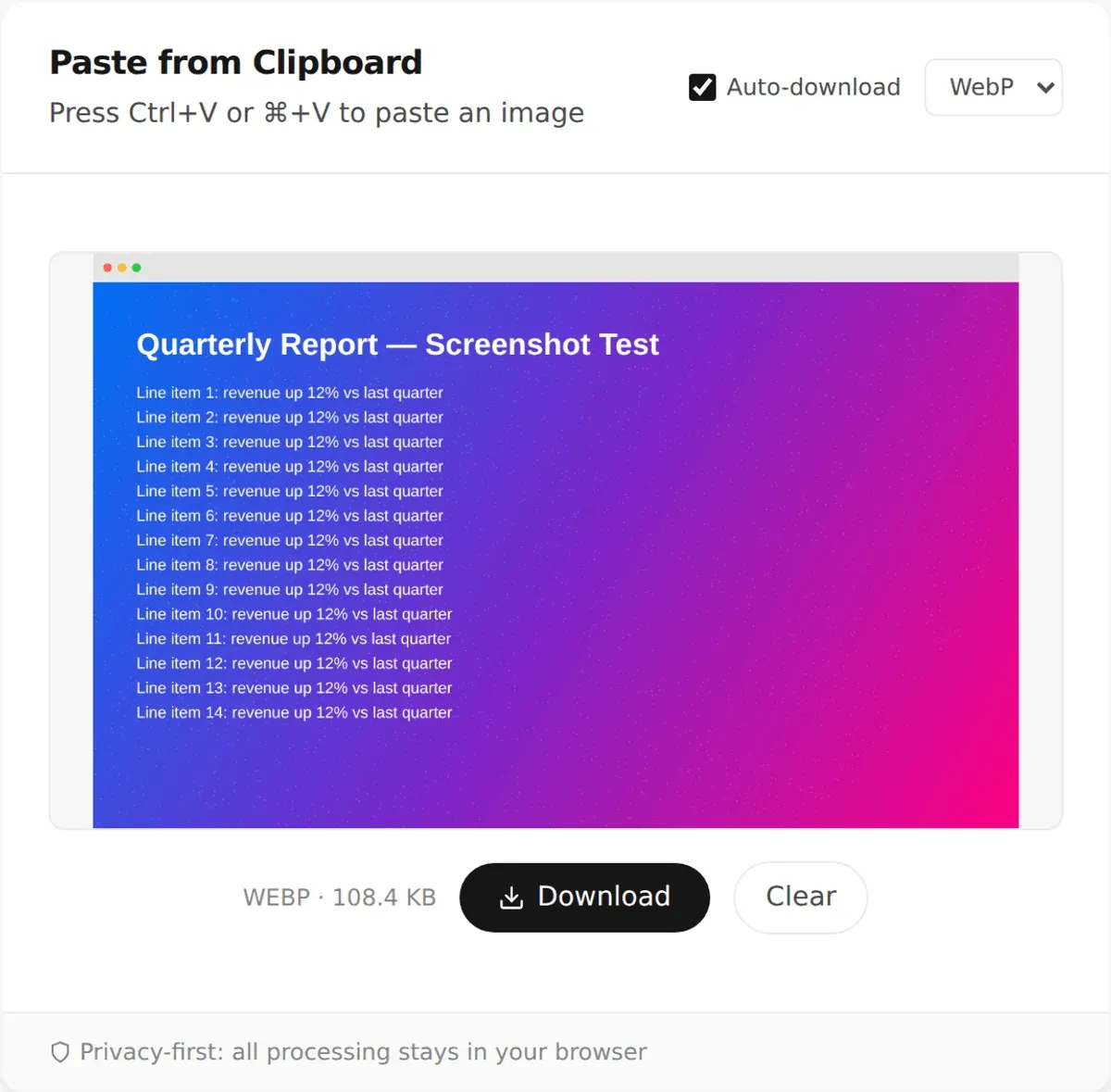
In my test run, going PNG to JPEG to WebP on the same pasted image, touching nothing but the dropdown, produced three separate downloaded files from a single paste. If you are trying formats to see which is smallest, expect a small pile of files in your Downloads folder, one per format you tried. Check that pile before you move on to the next screenshot.
Converting Several Screenshots at Once
If you have more than one screenshot to convert, the same four steps repeat with no reconfiguration between them. Auto-download, the checkbox next to the format selector, is on by default, so once your format is set, every paste after the first converts and downloads immediately with no preview-then-click step to wait through. Copy the next screenshot, click into the paste zone, paste again. For a stack of ten, that is ten copy-paste pairs rather than forty individual clicks across preview, format, and download steps, since the format stays selected between pastes.
Where This Breaks Down
This workflow is fast for a handful of images sitting on your clipboard one after another, such as a run of Print Screen captures during a bug-reporting session. It stops being fast once you are working from a folder of existing files rather than fresh screenshots, because you still have to open each one, copy it, and paste it individually. For genuinely large batches, twenty or more existing files, a dedicated batch converter or a short script using a tool like ImageMagick will outperform any browser-paste workflow, and it would be misleading to suggest otherwise.
Naming and Keeping Track of Downloads
Every download from the paste zone is named with a timestamp down to the second, like pasted_20260822_143007.png, so repeated pastes never overwrite each other even when Auto-download fires in quick succession. That is deliberate: it means you can paste ten times in a row without checking the filename after each one, and sort the results by name afterward to get them back in capture order.
I stress-tested that claim by scripting five pastes back to back, roughly one every 150 milliseconds, faster than you would realistically paste by hand but useful for finding the edge case. Two of the five collided on the same second-level timestamp, so the tool generated an identical filename twice within one batch. Chrome's download manager caught it and silently appended (1) to the second file instead of overwriting the first, so nothing was lost, but the filename the tool itself generated was not actually unique that time. If you are pasting faster than about once per second, do not rely on the filename alone to guarantee no collisions. Your browser's download manager is the thing actually preventing overwrites, and in my test it did its job correctly.
What You Don't Get: Quality Control and Transparency
Two details worth knowing before you commit to this workflow for a real batch of files, both confirmed by reading the tool's conversion code directly rather than assuming:
- Quality is fixed at 92% for JPEG and WebP. There is no slider or setting to change it. If a specific compression level matters for a project, you will need a dedicated image editor for that step; this tool always converts at the same fixed quality.
- JPEG conversion flattens transparency onto a solid white background before encoding. JPEG has no alpha channel, so any transparent area in a pasted image, a cut-out icon or a PNG with soft edges, becomes solid white once converted. PNG and WebP both preserve transparency; JPEG never does, on this tool or any other.
A Faster Loop for Repeated Screenshot Capture
If the images are screenshots you are about to take rather than ones you already have, the fastest loop is capture-paste-capture rather than capture-capture-capture-then-convert-all. Take one screenshot with your OS shortcut, switch to the browser tab, paste, switch back, take the next one. Because Auto-download fires on paste, you never accumulate a backlog of unconverted images waiting at the end.
Frequently Asked Questions
How do I convert a screenshot to JPG?
Copy the screenshot to your clipboard, paste it into pastedownloadapp.com with Ctrl+V, and switch the format dropdown to JPEG. It downloads automatically if Auto-download is checked, or with one click on Download otherwise. No install, no upload.
Can I select multiple files at once in the drop zone?
No. The drop zone reads one file per drop or paste. If you drag multiple files at once, only the first one in the selection is processed.
Will Auto-download trigger a "multiple downloads" browser warning?
Chrome and Firefox may show a one-time prompt asking whether to allow a site to trigger several downloads in a row. Allowing it for the session removes the prompt for subsequent pastes.
Does changing the format mid-session affect files I already downloaded?
It depends on whether the pasted image is still in the preview. If you have clicked Clear, format changes only affect your next paste and nothing already saved. If you have not clicked Clear, changing the format re-converts and re-downloads the image currently in the preview, in the new format, immediately, as shown above. That is easy to miss if you are clicking through formats quickly.
Do fast, back-to-back pastes ever produce duplicate filenames?
Yes, if two pastes land within the same second, since the timestamp in the filename only has one-second resolution. Chrome and Firefox both detect the collision automatically and append (1), (2), and so on to keep the files from overwriting each other, so this is a cosmetic issue rather than a data-loss risk.
Does converting to JPEG lose transparency?
Yes, always. JPEG has no alpha channel, so the tool fills any transparent area with solid white before encoding. Use PNG or WebP instead if transparency matters for the file.
Related Guides
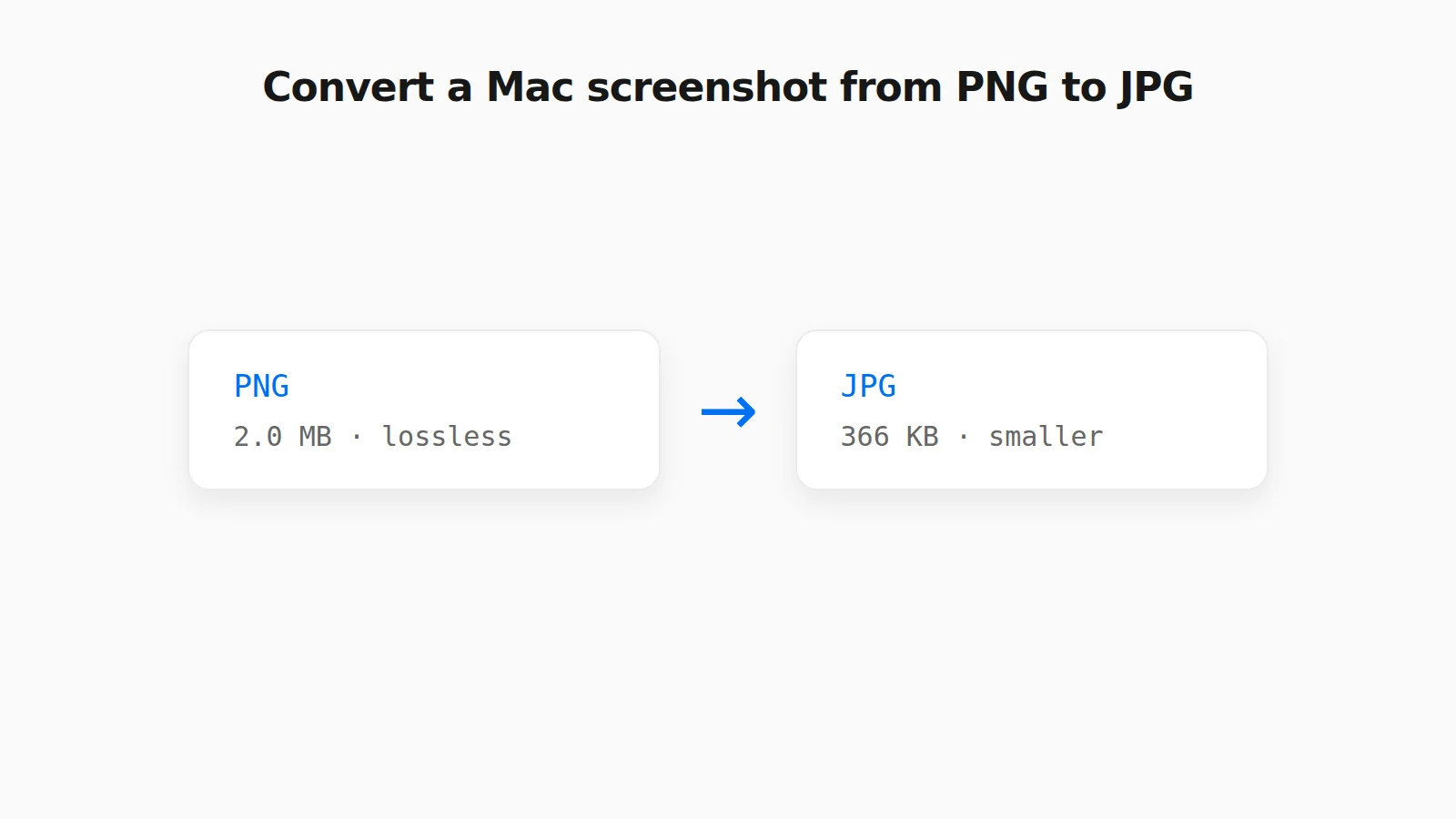 How to Convert a PNG Screenshot to JPG on Mac (4 Ways) Preview, the Finder Convert Image action, a Terminal default, and a browser tool, with real file sizes.
 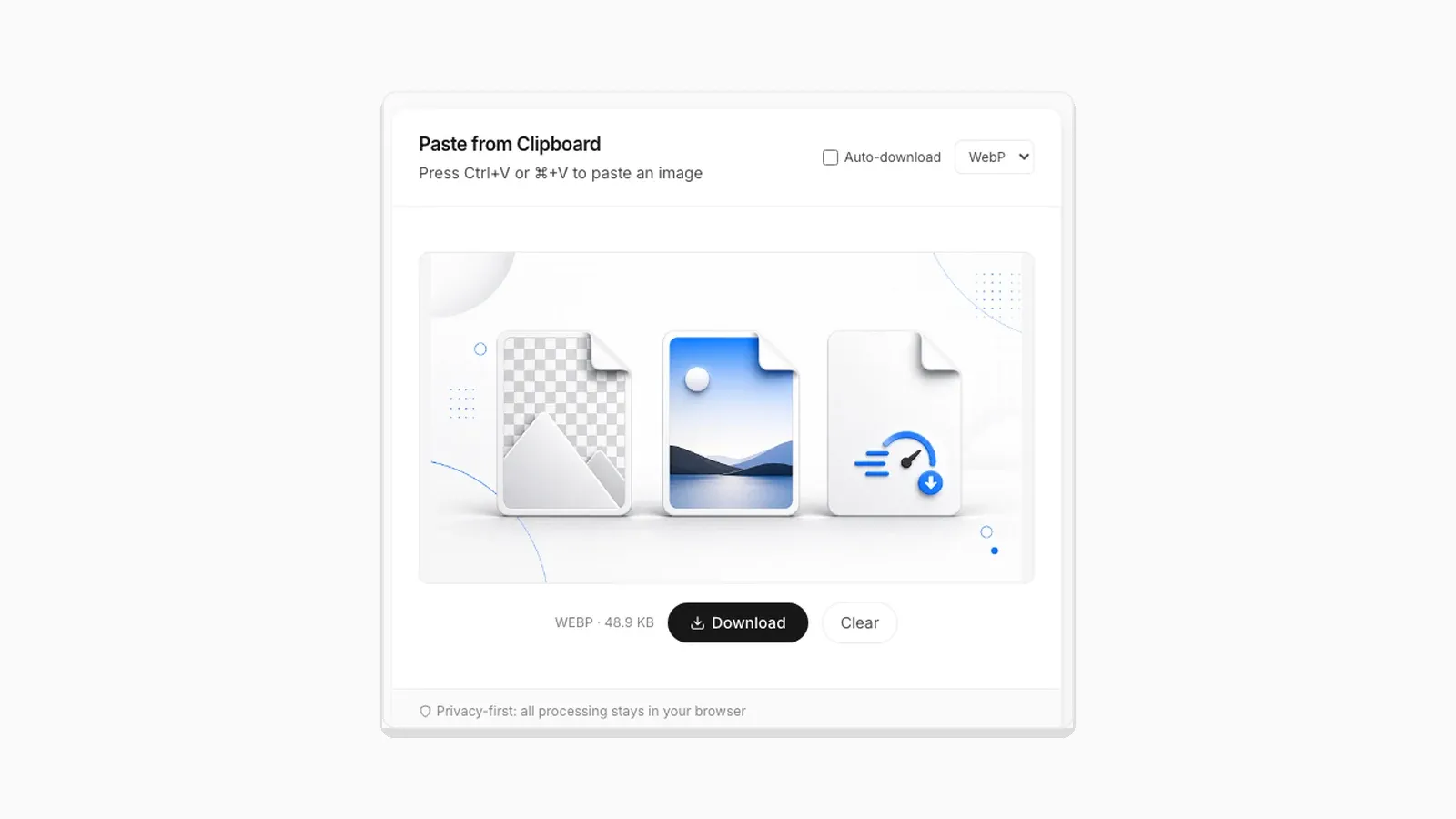 Image Compression Quality Settings Explained, With Real File Sizes What a JPEG or WebP quality number actually changes, shown with real before-and-after file sizes.
 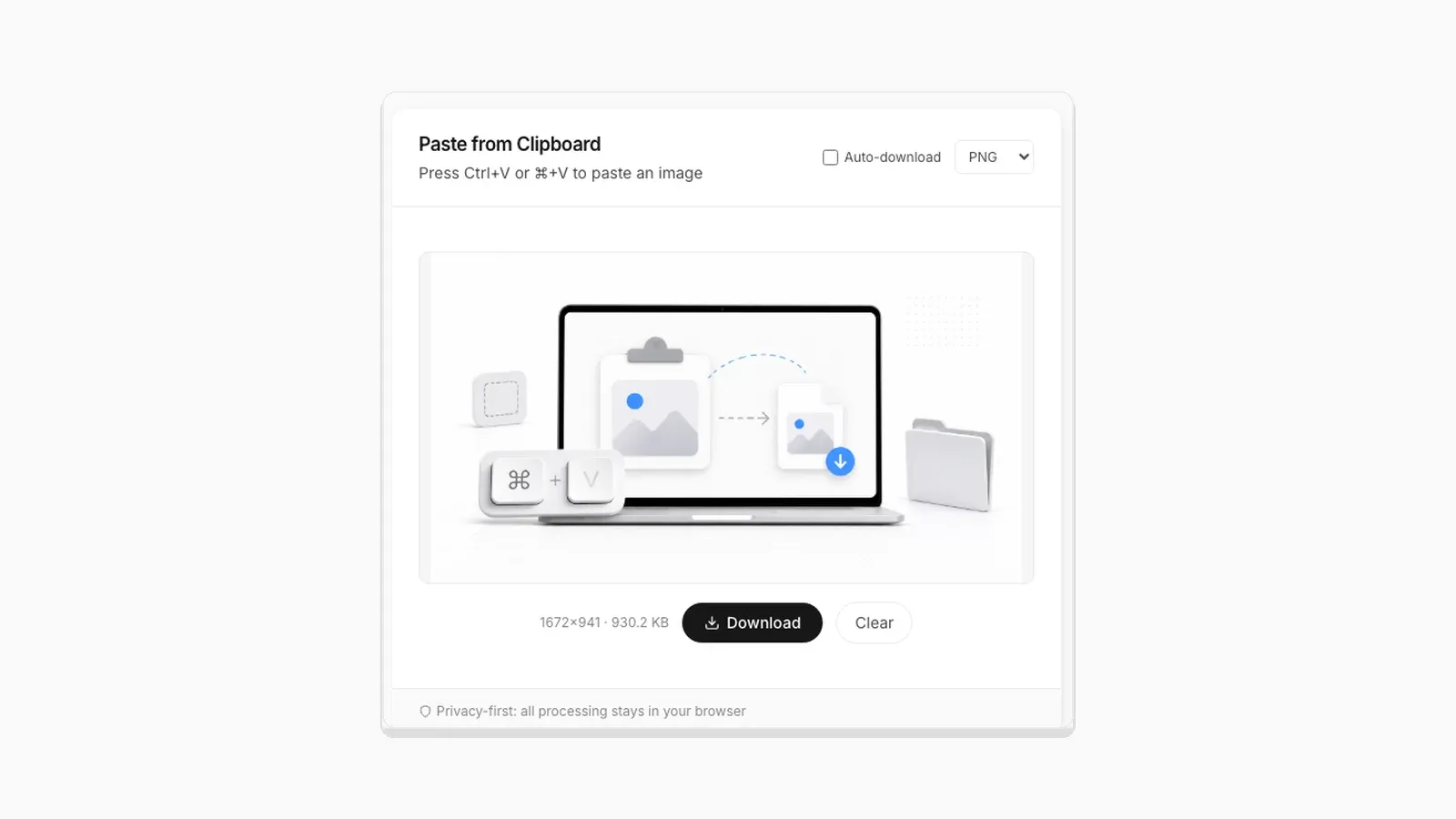 Why Re-Saving a PNG Can Make the File Bigger, Not Smaller A browser Canvas re-encode is not the same as a PNG optimizer. Here is the real size difference and why it happens.