
How to Paste an Image to Search on Google, Bing, and TinEye

You see a chair you like in a screenshot, a photo that looks suspiciously too good for the story it is attached to, or a plant you cannot name. The quickest way to find out more is a reverse image search: you give a search engine the picture instead of words. Most people assume that means saving the image as a file and uploading it. It does not have to. Google, Bing, and TinEye all accept a pasted image, straight from your clipboard.
This guide covers exactly where to paste on each of the three, the browser shortcuts that skip copying entirely, how to do it on a phone, and which engine is best for which kind of question. It also covers what to do when the paste is ignored, which usually comes down to what is actually on your clipboard.
Before You Paste: Get the Image, Not the Link
Paste-to-search only works if the clipboard holds image data. That sounds obvious, but it is the most common reason it fails, because several everyday actions put something else on the clipboard:
- "Copy image address" copies the URL as text. Some search boxes accept a URL too, but a paste into an image drop area expects a picture.
- Copying a file in File Explorer or Finder copies a reference to the file, not the pixels inside it. Most web pages cannot read that as an image. Drag the file in instead.
- A screenshot saved to disk is not on the clipboard at all unless you used a copy-to-clipboard shortcut.
The ways that do put a real image on the clipboard: right-click a picture in your browser and choose Copy image; on Windows, press Win+Shift+S and drag a region; on a Mac, press Cmd+Ctrl+Shift+4 and drag, which copies the capture instead of saving it. Where screenshots and copied images go lists the clipboard shortcuts for every platform.
Paste an Image Into Google Search (Google Lens)
Google's image search runs on Google Lens. On a computer:
- Go to images.google.com, or the main Google homepage.
- Click the camera icon in the search box. Its tooltip reads Search by image.
- A panel opens that says you can drag an image there or upload a file. With that panel open, press Ctrl+V or Cmd+V. The image uploads and Lens shows results.
The same panel also has a box where you can paste an image link instead, which is handy when you copied the address rather than the image. Once results appear, Lens lets you drag a selection box over part of the image. That is worth doing: a search for "the lamp in the corner" works far better when the box is around the lamp rather than the whole room.
Skip the Clipboard in Chrome
If the image is already on a web page in Chrome, you do not need to copy it at all. Right-click the image and choose Search image with Google (older versions called this Search image with Google Lens). Results open in a side panel. Chrome can also search anything visible on the screen, not just images: look for Search with Google Lens in the right-click menu on the page or in Chrome's three-dot menu, then drag a box around what you want to search. That works on video frames, parts of a PDF open in the browser, and images that block right-clicking.
Paste an Image Into Bing Visual Search
Bing's version is called Visual Search. Go to bing.com/images and click the camera icon in the search box. A panel opens where you can drag an image, browse for a file, or paste an image or URL. Press Ctrl+V or Cmd+V with the panel open and Bing runs the search. Like Lens, it lets you adjust a crop box on the results page to focus on one object.
In Microsoft Edge there is also a built-in shortcut: right-click an image on any page and choose the visual search option, which opens Bing results in the sidebar. The exact label varies between Edge versions.
Paste an Image Into TinEye
TinEye is a dedicated reverse image search engine, and it supports paste directly. Copy the image, go to tineye.com, and press Ctrl+V or Cmd+V anywhere on the search page. TinEye's own blog describes this. You can also drag a file onto the page or paste an image URL into the search box.
TinEye works differently from Lens and Visual Search. It looks for copies of the same image, including resized, cropped, and slightly edited versions, rather than visually similar things. Results can be sorted by the date TinEye first found each copy, which is exactly what you want when you are trying to find where an image first appeared.
Which One Should You Use?
| You want to know | Best first try | Why |
|---|---|---|
| What is this object, plant, or landmark? | Google Lens | Identifies things in the picture, not just matching pictures. |
| Where can I buy this? | Google Lens or Bing | Both surface product listings and visually similar items. |
| Where did this image first appear? | TinEye | Finds copies of the same image and sorts them by date found. |
| Is there a higher-resolution version? | TinEye, then Google | TinEye can sort matches by image size. |
| What does this text say, or can I copy it? | Google Lens | Lens can select, copy, and translate text inside an image. |
For anything that matters, such as checking whether a photo in a news story is old or taken somewhere else, try more than one. Each engine has its own index, and an image missing from one is often found by another.
Searching From a Phone
On Android, the Google app and Chrome both have Lens built in. In Chrome, long-press an image and choose the Google Lens search option. In the Google app, tap the camera icon in the search bar and pick a photo or screenshot from your gallery. Many Android phones also offer Circle to Search: hold the home button or navigation bar, then circle whatever is on the screen.
On iPhone, the Google app has the same Lens camera icon in its search bar, and Chrome for iOS offers an image search option when you long-press an image. In Safari, long-pressing an image offers Look Up on photos where Apple's Visual Look Up recognizes a subject. It is Apple's own recognition, not a web search, but it is a quick first check for plants, pets, and landmarks.
Pasting into a search engine's website from a phone is less reliable than on a computer, because mobile browsers handle clipboard images differently. Saving a clipboard image on Android vs iPhone explains the differences. If paste will not cooperate, upload the saved screenshot instead.
When Pasting Does Not Work
If you press Ctrl+V and nothing happens, work through these in order:
- Open the upload panel first. On Google and Bing, the paste only registers while the camera panel is open. Pasting into the main text box searches for text instead.
- Check what is on the clipboard. Paste into a chat app or document. If you get a link or a file name, copy the image itself again.
- Click inside the page before pasting, so the tab has keyboard focus.
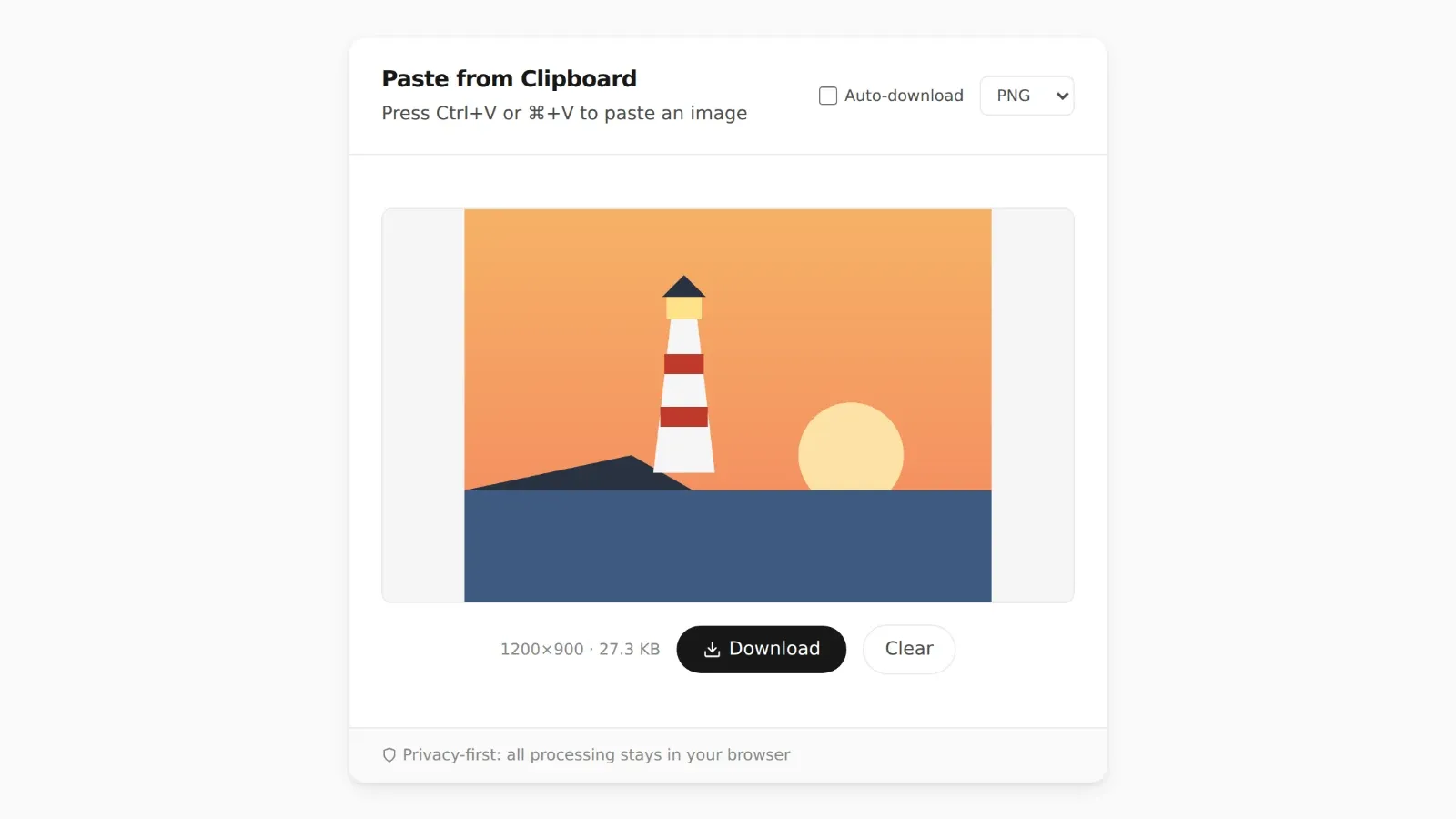
- Save it as a file and upload it. Every engine accepts an uploaded file, whatever browser you use. PasteDownloadApp turns the clipboard image into a PNG, JPEG, or WebP file in one paste, and the conversion happens in your browser, so nothing is uploaded until you choose to upload it to the search engine.
Saving a file first is also the better route when you want to search the same image on all three engines. You upload one file three times instead of copying it again for each site.
Crop First for Better Results
Reverse image search works best when the image contains one clear subject. A full-screen screenshot with a browser toolbar, a taskbar, and three product photos gives the engine too much to match. Cropping to just the thing you care about almost always improves results. Lens and Visual Search let you adjust the crop after searching, but TinEye matches the whole image, so a tight crop matters more there. The simplest method is to take the screenshot of just that region in the first place, with Win+Shift+S or Cmd+Ctrl+Shift+4.
A Note on Privacy
Every search engine here uploads your image to its servers to run the search. That is how the search works, and it is worth remembering when the screenshot includes more than you meant to share: an email address in the corner, a name on a message, a document in the background. Crop those out before you paste. Google and Bing may keep searched images according to their privacy policies, and TinEye's policy says it does not keep images you search with, but check each service's current policy if it matters to you.
PasteDownloadApp itself never uploads anything. It is a safe place to paste, check, and save an image before you decide which search engine to send it to. The guide to saving clipboard images without software explains how that works.
Frequently Asked Questions
Can I paste a screenshot directly into Google to search it?
Yes. Open Google Images, click the camera icon, and press Ctrl+V or Cmd+V while the upload panel is open. The screenshot must be on your clipboard as an image, which means taking it with a copy-to-clipboard shortcut or copying it from wherever it is displayed.
Why does Google search for text when I paste an image?
You pasted into the main search box rather than the image panel, or your clipboard held text such as an image URL. Click the camera icon first, then paste.
Is reverse image search free?
Google Lens, Bing Visual Search, and TinEye's standard search are all free to use. TinEye sells paid plans for high-volume and commercial use.
Can I search with an image on a website that blocks right-clicking?
Yes. Take a screenshot of the area with a copy-to-clipboard shortcut and paste that, or use Chrome's Search with Google Lens option to select that part of the screen.
Related Guides
 Where Do Screenshots Go on Windows, Android, and iPhone? Screenshots and copied images do not behave like normal files until you save them. Here is where they go on Windows, Android, and iPhone.
  5 Faster Ways to Save Clipboard Images Without Software Compare browser-based and built-in methods for saving copied images on desktop and mobile.
  Why "Access Clipboard" Fails, and How to Fix It Clipboard read permission errors explained: browser support, HTTPS requirements, and permission prompts.
  Saving a Clipboard Image on Android vs iPhone: What Actually Works Mobile clipboard access does not match desktop. Here is the real difference between Android and iOS browsers.