Mac Screenshot to Clipboard and File at the Same Time

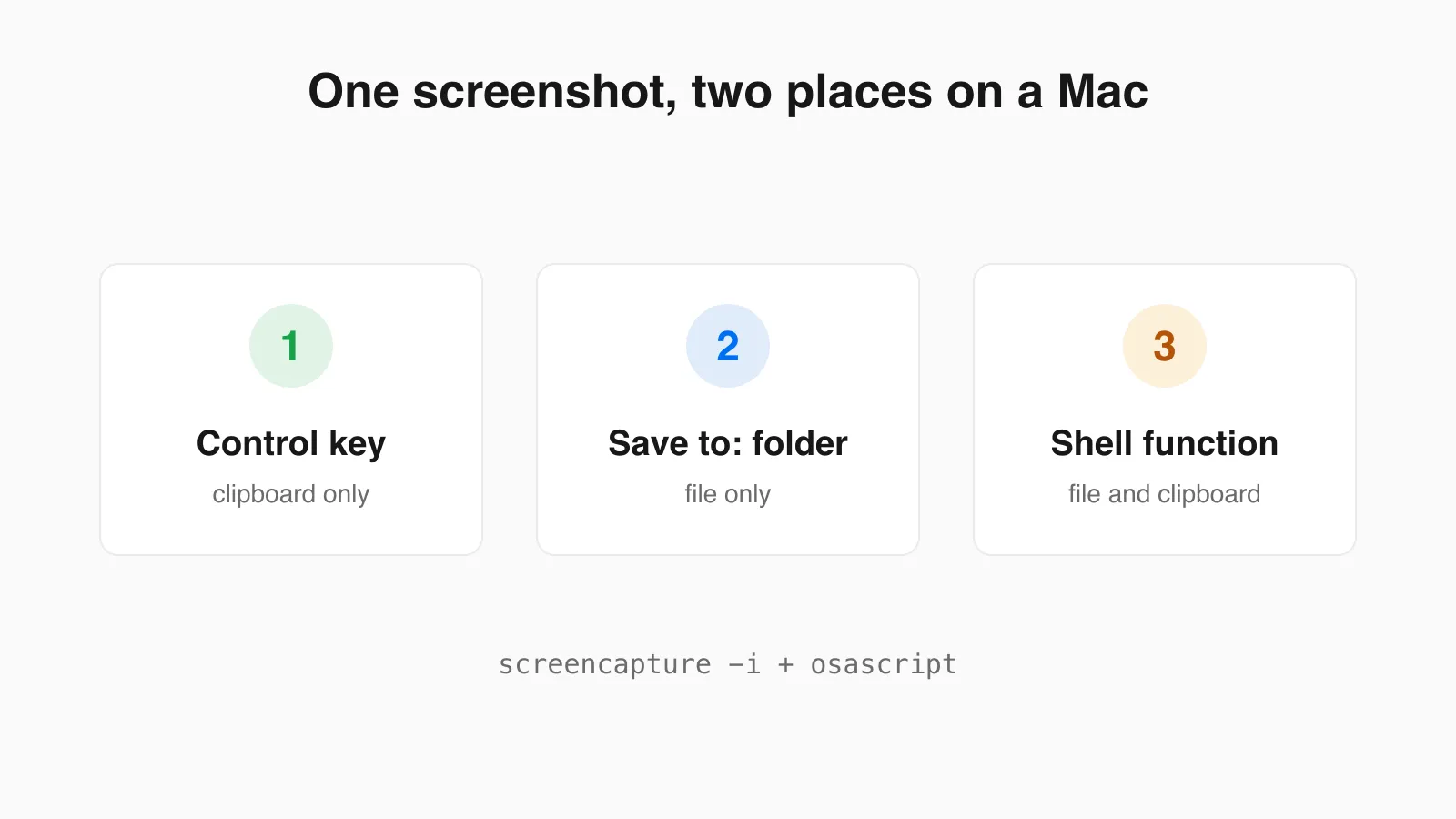
Most people searching for how to send a Mac screenshot to the clipboard want a simple switch. The harder and more common need is different: you want to paste the screenshot into a chat right now and also keep a file you can find next week. macOS does not do both. Each capture goes to one destination, so every guide that says "just copy it to the clipboard" quietly leaves you without a file.
This guide covers the built-in ways to pick a destination, why they cannot be combined, and a short shell function that does both. I ran the clipboard half of that function on a Mac and compared the bytes, and I say below which parts I could not test.
Why a Mac Screenshot Goes to Only One Place
Apple documents two controls. Adding Control to a capture shortcut copies that single capture to the clipboard instead of saving a file: Control+Shift+Command+3 for the whole screen, Control+Shift+Command+4 for a selection. The other is the Save to list in the Screenshot app (Shift+Command+5, then Options), which sets one destination for every capture until you change it. Apple's screenshot support page describes both, and neither one sends a capture to a file and the clipboard together.
You can read the current setting from Terminal. On the Mac used for this guide it printed clipboard, which means every capture on that machine was already going to the clipboard only:
defaults read com.apple.screencapture targetclipboardIf the command prints an error saying the key does not exist, nothing has been customised and captures go to the default location. I only read this value and did not change it, so use the Options menu for changes rather than copying a write command from a forum.
Compare that with Windows, where Win+Print Screen already copies and saves in one press. Mac users have to build that behaviour themselves.
Pick the Right Option for How You Work
| Option | File on disk | Clipboard | Best for |
|---|---|---|---|
| Control added to the shortcut | No | Yes, this capture only | Occasional quick pastes while files remain the default |
| Save to: Clipboard in Options | No | Yes, every capture | People who paste everything and rarely keep files |
| Save to: a folder | Yes | No | People who keep files and attach them later |
| The shell function below | Yes | Yes | Pasting now and keeping a copy, with no second step |
If you almost never need the file, the Control key is the least effort. If you regularly find yourself retaking a screenshot because it went to the wrong place, the function below removes the decision.
Get Both: A Shell Function That Saves and Copies
macOS ships a command line tool called screencapture. Its manual page documents -i for interactive selection (the same crosshair you get from Shift+Command+4) and -c for sending a capture to the clipboard. There is no flag that does both, so the function captures to a file first and then puts that file on the clipboard as an image. Add it to ~/.zshrc:
shotboth() {
  local f="$HOME/Pictures/Screenshots/shot-$(date +%Y%m%d-%H%M%S).png"
  mkdir -p "$(dirname "$f")"
  screencapture -i "$f" && [ -s "$f" ] && \
    osascript -e "set the clipboard to (read (POSIX file \"$f\") as «class PNGf»)"
}
Run source ~/.zshrc, then type shotboth, drag over the area you want, and paste. The file lands in ~/Pictures/Screenshots with a timestamp in the name.
What I tested and what I did not
The first part was not testable in the session I used to write this. The screencapture command could not capture the screen from that environment and printed could not create image from rect, which is what happens when a program lacks Screen Recording permission. So I replaced screencapture with a stand-in that writes a known 400 by 300 PNG and ran the rest of the function for real:
- The file was written to the Screenshots folder, and the function returned success.
- The clipboard then listed an image.
osascript -e 'clipboard info'began with«class PNGf», 123007, and 123,007 bytes is exactly the size of the file. - I wrote the clipboard image back out to a new file and compared it with the original using
cmp. The two were identical, so the copy step does not re-encode or shrink the image. - When the stand-in produced no file, which is what cancelling with Escape looks like, the function stopped with a failure status and left the clipboard untouched.
On your Mac, the first time you run it, macOS will ask whether Terminal (or the app you run it from) may record the screen. Allow it under System Settings, Privacy & Security, Screen & System Audio Recording, then run the function again. The permission prompt is the one step I could not go through myself.
You Already Have a File and Now Need It on the Clipboard
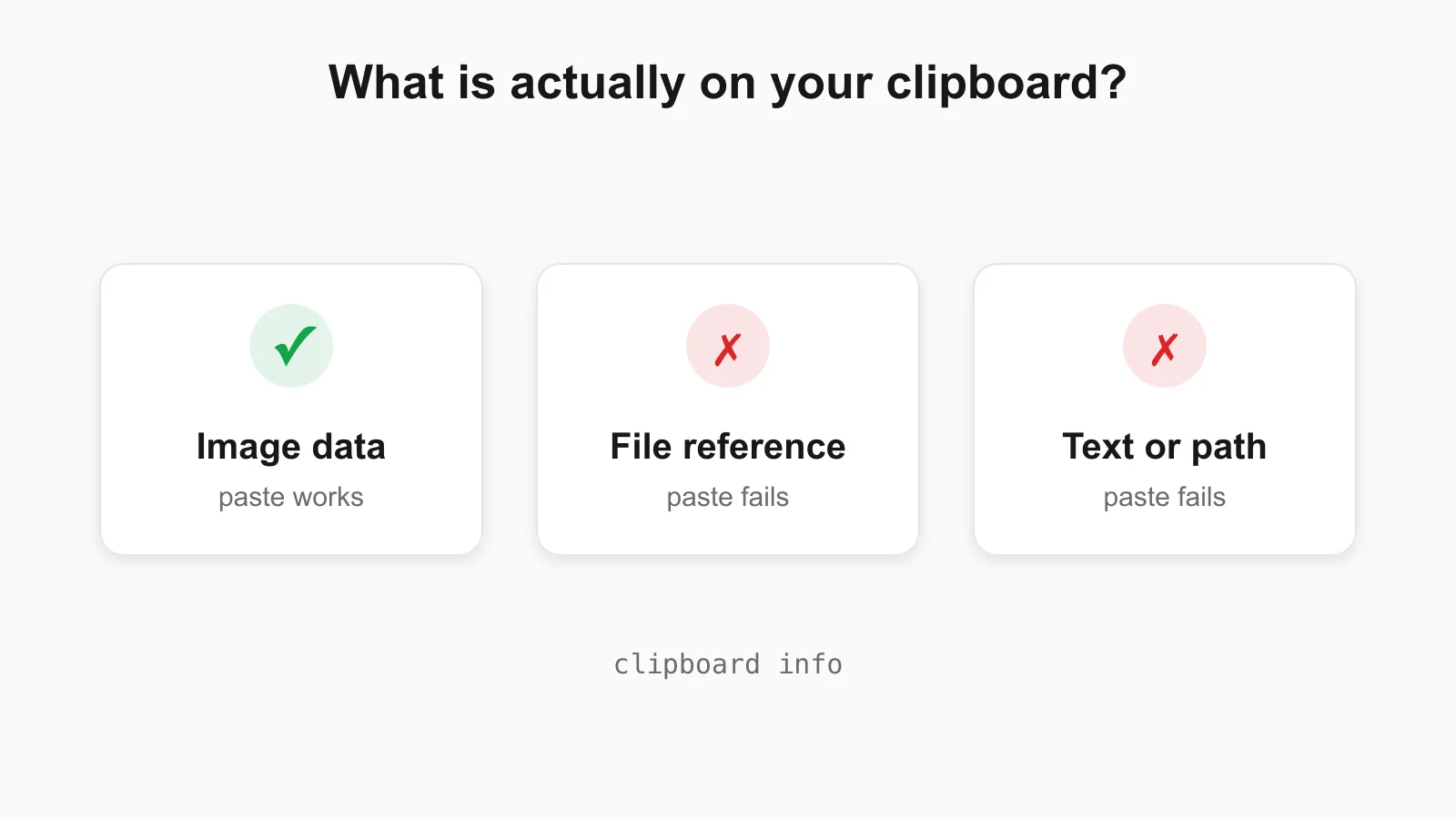
A related problem: the screenshot is saved on your Desktop and the chat window wants a paste. Pressing Command+C on the file in Finder will not do it, because that puts a reference to the file on the clipboard, not the picture. On my Mac the clipboard info for a Finder copy was just this:
alias, 486Many apps that want pixels ignore an alias. The reliable ways to put the actual image on the clipboard are to open the file in Preview and copy from there, or to run this one-line function, which uses the same copy step as above:
clipfile() {
  osascript -e "set the clipboard to (read (POSIX file \"$(realpath "$1")\") as «class PNGf»)"
}
Use it as clipfile ~/Desktop/some-screenshot.png. After it ran, the clipboard listed «class PNGf» instead of alias. It reads a file as PNG data, so give it PNG files.
You Have a Clipboard Screenshot and Need the File
The reverse also happens: you captured with Control, pasted it once, and now want it saved. The image lives on the clipboard until you copy something else, so act before that. Paste it into PasteDownloadApp with Command+V and download it as PNG, JPEG, or WebP. It runs in your browser and nothing is uploaded. The step-by-step version is in How to Download a Copied Image on Mac Without Saving to Photos.
Things That Catch People Out
- The clipboard keeps one item. Copying a word after a Control screenshot replaces the screenshot. Paste straight away.
- A clipboard image is stored in several formats. For my 123 KB test image, the clipboard listed PNG at 123,007 bytes and TIFF at 363,374 bytes. The app you paste into picks one, so a pasted image can end up larger on disk than the PNG you captured. If a pasted screenshot is bigger than expected, why re-saving a PNG can make the file bigger explains the mechanism.
- The floating thumbnail. If you leave the thumbnail alone after a normal capture, the file saves after a few seconds. Apple notes that resting the pointer on it keeps it on screen.
- Remote and virtual desktops. The clipboard on your Mac is not shared with a remote session unless that tool shares it, so a paste can fail even when the copy worked. The check in Can't Paste an Image? Check What Is Actually on Your Clipboard helps tell the two cases apart.
Sources and Method
- Apple Support, Take a screenshot on your Mac, for the Control modifier, the Save to options and the thumbnail behaviour.
- The
screencapturemanual page on macOS 26.4.1 for the-iand-cflags. - Clipboard output, file sizes and the byte comparison: run on macOS 26.4.1 on October 21, 2026. The capture step was not tested, as described above.
Frequently Asked Questions
Can a Mac screenshot go to the clipboard and a file at the same time?
Not with the built-in controls. Each capture goes to one destination. A short shell function that runs screencapture to a file and then copies that file to the clipboard gives you both.
How do I take a Mac screenshot straight to the clipboard?
Add Control to the usual shortcut: Control+Shift+Command+3 for the whole screen or Control+Shift+Command+4 for a selection. Nothing is saved as a file, so paste before copying anything else.
How do I check where my Mac screenshots are going?
Run defaults read com.apple.screencapture target in Terminal. If it prints clipboard, captures go to the clipboard only. An error that the key does not exist means the default location is in use. The Options menu in Shift+Command+5 shows the same setting.
Why does pasting a copied screenshot file do nothing?
Copying a file in Finder puts a file reference on the clipboard, not the picture, so apps that need image data cannot paste it. Open the file in Preview and copy from there, or copy it with a script that places the PNG on the clipboard.
Does the shell function change my screenshot settings?
No. It calls screencapture for one capture and writes to its own folder, so your Save to setting and shortcuts stay as they were.
Related Guides
 Where Do Screenshots Go on Mac? How to Find Them and Change the Folder Mac screenshots save to the Desktop by default, but not always. Find a missing one, change the folder, or rescue a clipboard-only capture.
  5 Faster Ways to Save Clipboard Images Without Software Compare browser-based and built-in methods for saving copied images on desktop and mobile.
  Can't Paste an Image? Check What Is Actually on Your Clipboard When an image will not paste, the clipboard usually holds a file reference or text. Check on Mac, Windows, Linux and in the browser, with real command output.