Can't Paste an Image? Check What Is Actually on Your Clipboard

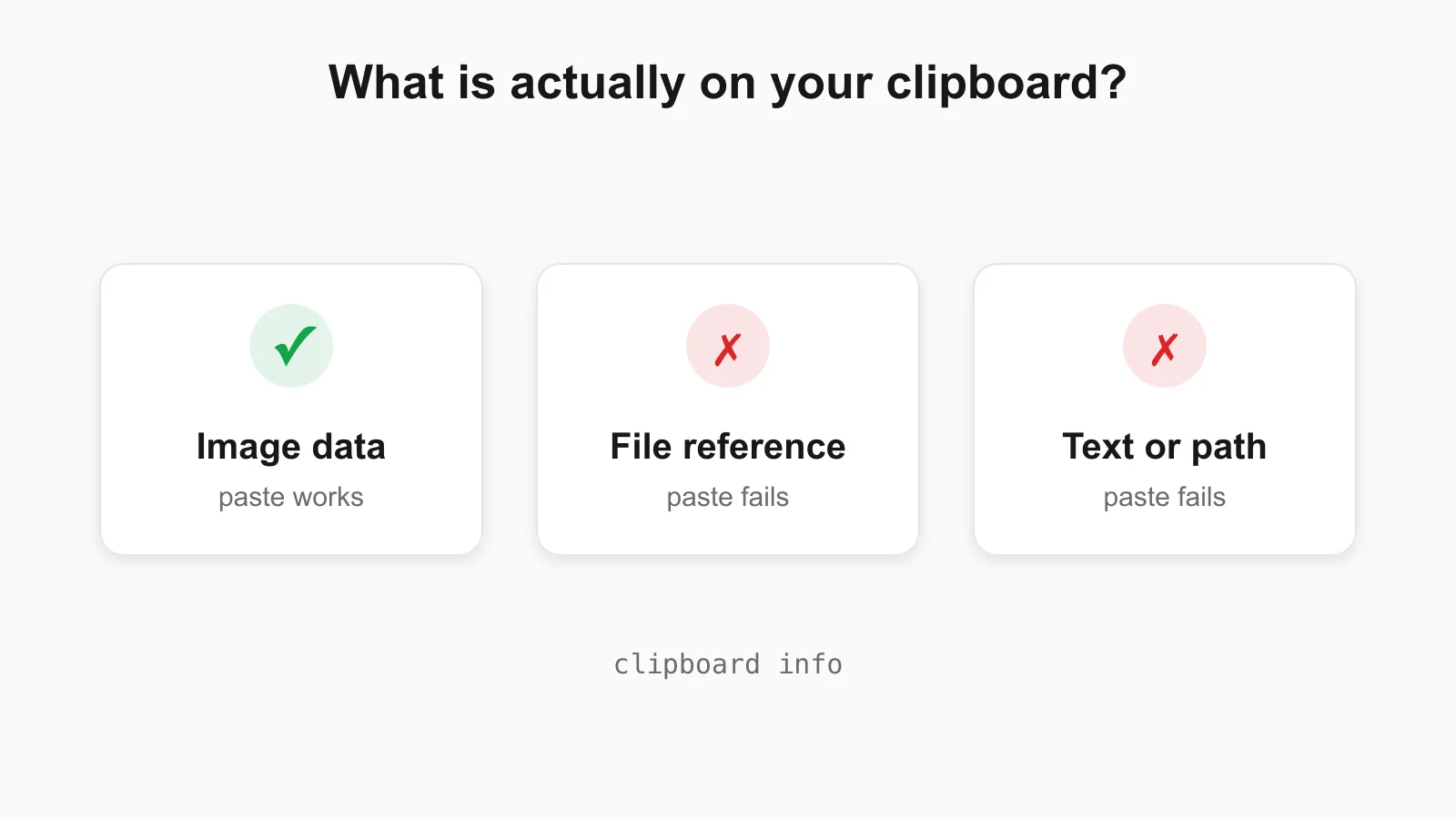
The usual advice for a picture that will not paste is to restart the app. It rarely helps, because the app is rarely the problem. The clipboard is more likely to hold something other than what you think it does. Find out what is on it first, and the fix usually becomes obvious in a minute.
The Clipboard Holds Several Things at Once
One copy action can put the same content on the clipboard in several formats. When you paste, the target app asks for the format it understands and ignores the rest. If the format it wants is not there, paste does nothing, with no error message. For images, there are four situations worth telling apart:
- Image data. The actual pixels. This is what paste normally needs.
- A file reference. You copied a file in Finder or File Explorer. The clipboard holds a pointer to the file, not its contents.
- Text. A web address, a file path, or a file name, often from “Copy image address” or “Copy path”.
- Nothing useful. The screenshot went to a file instead, or another copy replaced it.
The 30-Second Test That Works on Any System
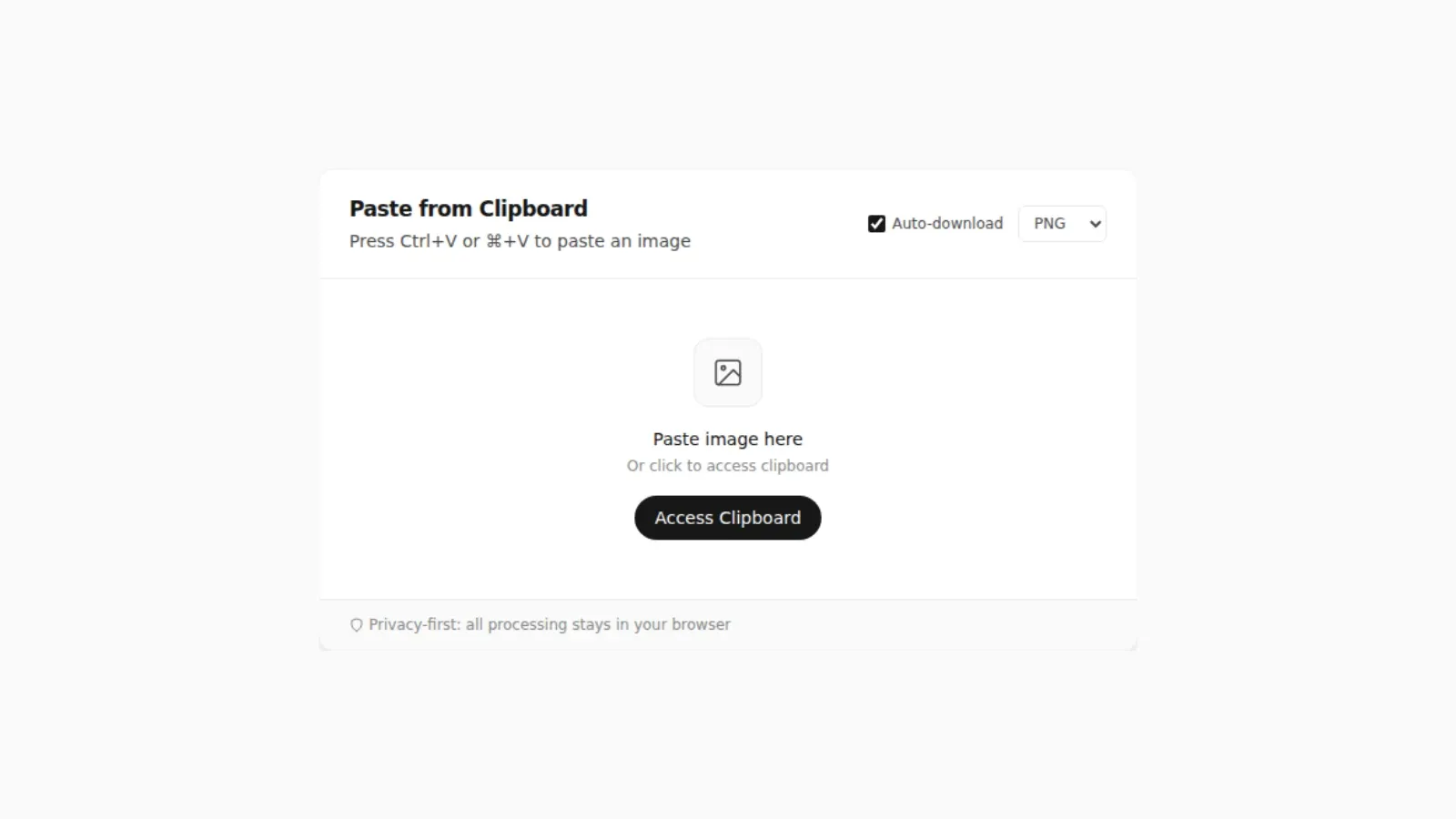
Open PasteDownloadApp and press Ctrl+V (Cmd+V on a Mac). The tool reads the clipboard in your browser and shows a preview, and nothing is uploaded.
- The preview appears: the browser can see image data on your clipboard. The copy step worked, so the problem is in the app you are pasting into. Skip to the last sections.
- Nothing appears: the clipboard does not hold an image your browser can read. Use the system checks below to see what it holds instead.
If you click the tool's button instead of pressing the shortcut and it fails, the cause may be browser permissions rather than the clipboard contents. Why “Access Clipboard” Fails, and How to Fix It covers that case.
On a Mac: Ask the Clipboard Directly
macOS can describe the clipboard without any extra software. The commands below were run on macOS 26.4.1 and the output is exactly what Terminal printed. Each line is a list of formats followed by their size in bytes.
Text on the clipboard
osascript -e 'clipboard info'«class utf8», 5, «class ut16», 12, string, 5, Unicode text, 10Only text types (utf8, string, Unicode text). A pasted image target has nothing to use here, however the copy looked.
An image on the clipboard
«class PNGf», 8480, «class AVIF», 2897, «class 8BPS», 33390, GIF picture, 4259, «class jp2 », 19293, JPEG picture, 16996, TIFF picture, 789838, «class BMP », 786486, «class TPIC», 18088A long list, and that is normal for an image. AppleScript reports converted versions of the same picture, so you see PNG, TIFF, JPEG, and others, each with a size. The sign you want is an image type such as «class PNGf» or TIFF picture. When it is there, the clipboard holds a real image.
A copied file on the clipboard
alias, 380One entry, alias, and no image types. This is what a file copied in Finder looks like. Asking this clipboard for PNG data fails:
execution error: Can’t make some data into the expected type. (-1700)That error is the whole story of a file that will not paste as a picture: the clipboard never had the pixels. Open the file in Preview and press Cmd+C there, and the clipboard will hold image data instead.
Save the clipboard image as a file
If an image is on the clipboard and you want a file, this writes it as a PNG. I compared the saved file with the original image it was copied from and the bytes were identical, so nothing was re-encoded:
osascript -e 'set d to the clipboard as «class PNGf»' \
  -e 'set f to open for access POSIX file "/tmp/clip.png" with write permission' \
  -e 'set eof f to 0' -e 'write d to f' -e 'close access f'
A browser route is simpler for most people: paste into the tool and download the PNG, JPEG, or WebP. The guide How to Download a Copied Image on Mac Without Saving to Photos walks through it.
On Windows
I captured the Mac output above myself; the Windows and Linux commands below use documented tools and I have not included captured output for them. PowerShell can read an image straight off the clipboard:
Get-Clipboard -Format Image
(Get-Clipboard -Format Image).Save("$HOME\Desktop\clipboard.png")
The first line prints an image object (with a width and height) when a picture is on the clipboard. The second saves it to your Desktop as a PNG. If there is no image on the clipboard, you will not get one back, which tells you the same thing as the Mac check.
Three capture shortcuts cause most of the confusion. Win+Shift+S copies to the clipboard, and so does Print Screen in its default setup. Win+Print Screen saves a file to Pictures instead. If you pressed that one, your capture is a file, not a clipboard image. How to Save a Screenshot Directly as a File Without Opening MS Paint has the details. Also try Win+V, which opens Windows clipboard history, if you copied the image a moment ago and something has replaced it since.
On Linux
Use xclip on X11 or wl-paste from the wl-clipboard package on Wayland. The first command in each pair lists what is on the clipboard, and the second saves an image if one is there:
xclip -selection clipboard -t TARGETS -o
xclip -selection clipboard -t image/png -o > clipboard.png

wl-paste --list-types
wl-paste --type image/png > clipboard.png
If image/png appears in the list, an image is on the clipboard.
What the Result Means and What to Do
| What the check shows | What is on the clipboard | Why paste fails | Fix |
|---|---|---|---|
Only alias (Mac) or a file path | A reference to a file | The target wants pixels, not a pointer to a file on disk | Open the image and copy it from the viewer, or attach or drag the file instead |
| Only text types | A URL, a path, or a file name | “Copy image address”, “Copy link” and “Copy path” all copy text | Use “Copy image” in the browser, not the address |
| Nothing, or your previous copy | The screenshot never reached the clipboard | On a Mac, Cmd+Shift+4 saves a file; Control must be added to copy | Retake with the clipboard shortcut and paste straight away |
| An image, but the target still refuses | Image data is fine | The target app restricts pasting, or only accepts file uploads | Save it as a file and upload or attach that |
| An image on your own machine, nothing in a remote window | The clipboard is not shared | Remote desktops, VMs and SSH sessions have their own clipboard | Turn on clipboard sharing for the session, or transfer a file |
Why the Image Vanishes Between Copy and Paste
The clipboard keeps one item. Copying anything else, even a single word, replaces the image. This also applies across devices: Apple's description of Universal Clipboard says content copied on one device stays on the other device's clipboard only briefly, and is replaced when you copy something else. Paste straight after copying, and check which device you copied on.
Clipboard manager apps and remote tools add another layer. A remote desktop, a virtual machine, or a cloud PC has its own clipboard, and the tool that connects you has to share it in both directions. If the image reaches your local browser test but not the remote window, that sharing is the missing piece.
When the App Wants a File, Not Pixels
Some apps and web forms only accept uploaded files and ignore clipboard images altogether. For those, turn the clipboard image into a file: paste it into the tool, choose PNG, JPEG, or WebP, and download it. Then attach or upload the file the normal way. If the destination is an email, How to Turn a Pasted Screenshot Into an Email Attachment covers that route, and for spreadsheets there is a separate guide on pasting images into Excel and Google Sheets.
Sources and Method
- Mac output: captured on macOS 26.4.1 with
osascript -e 'clipboard info', October 18, 2026. The image case used a PNG file copied to the clipboard as image data; the file case used a file reference set on the clipboard from Finder. - Apple's Universal Clipboard support page for the note that cross-device clipboard content is brief and replaced by the next copy.
- Windows and Linux commands are standard tools (
Get-Clipboard,xclip,wl-paste); no captured output is shown for them.
Frequently Asked Questions
Why won't my image paste even though I copied it?
The clipboard probably holds something other than image data, such as a file reference, a web address, or the text of a path. Check what is on it, then copy the image itself, for example by opening the file in a viewer and copying from there.
How do I see what is on my clipboard on a Mac?
Run osascript -e 'clipboard info' in Terminal. Image types such as PNGf or TIFF mean an image is there. Only text types or alias mean it is text or a file reference.
Is a copied image file the same as a copied image?
No. Copying a file in Finder or File Explorer puts a reference to the file on the clipboard, not its pixels. Apps that need image data cannot paste it. Open the file and copy from the viewer instead.
Why did my screenshot not go to the clipboard?
On a Mac, Cmd+Shift+4 saves a file, and you add Control to copy to the clipboard instead. On Windows, Win+Shift+S and Print Screen copy to the clipboard, while Win+Print Screen saves a file.
Related Guides
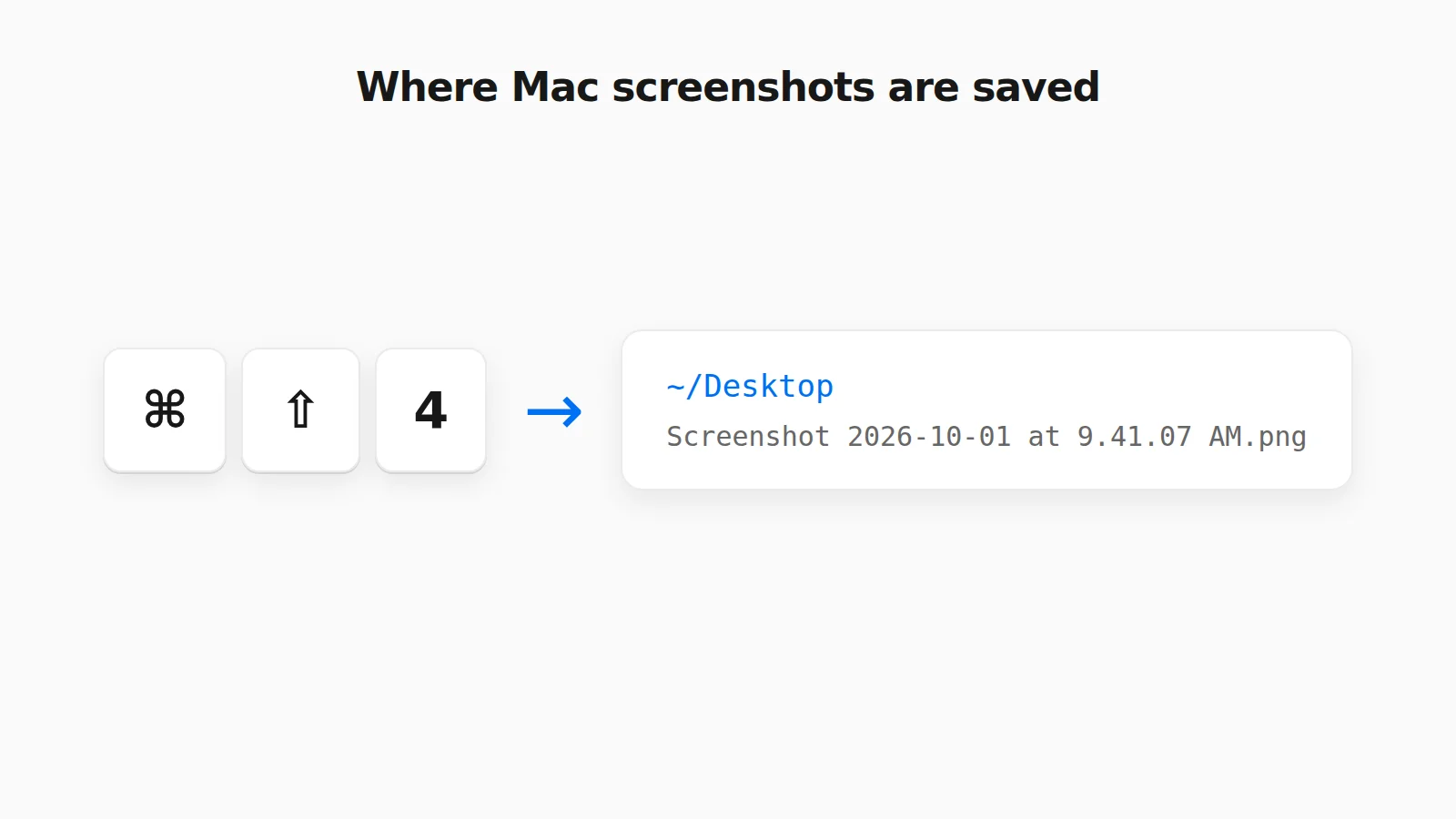 Where Do Screenshots Go on Mac? How to Find Them and Change the Folder Mac screenshots save to the Desktop by default, but not always. Find a missing one, change the folder, or rescue a clipboard-only capture.
  How to Save a Screenshot Directly as a File Without Opening MS Paint Turn Print Screen or Snipping Tool captures into PNG or JPG files without opening an editor.
  Where Do Screenshots Go on Windows, Android, and iPhone? Screenshots and copied images do not behave like normal files until you save them. Here is where they go on Windows, Android, and iPhone.