Paste an Image From the Clipboard in JavaScript: Paste Event vs Clipboard API

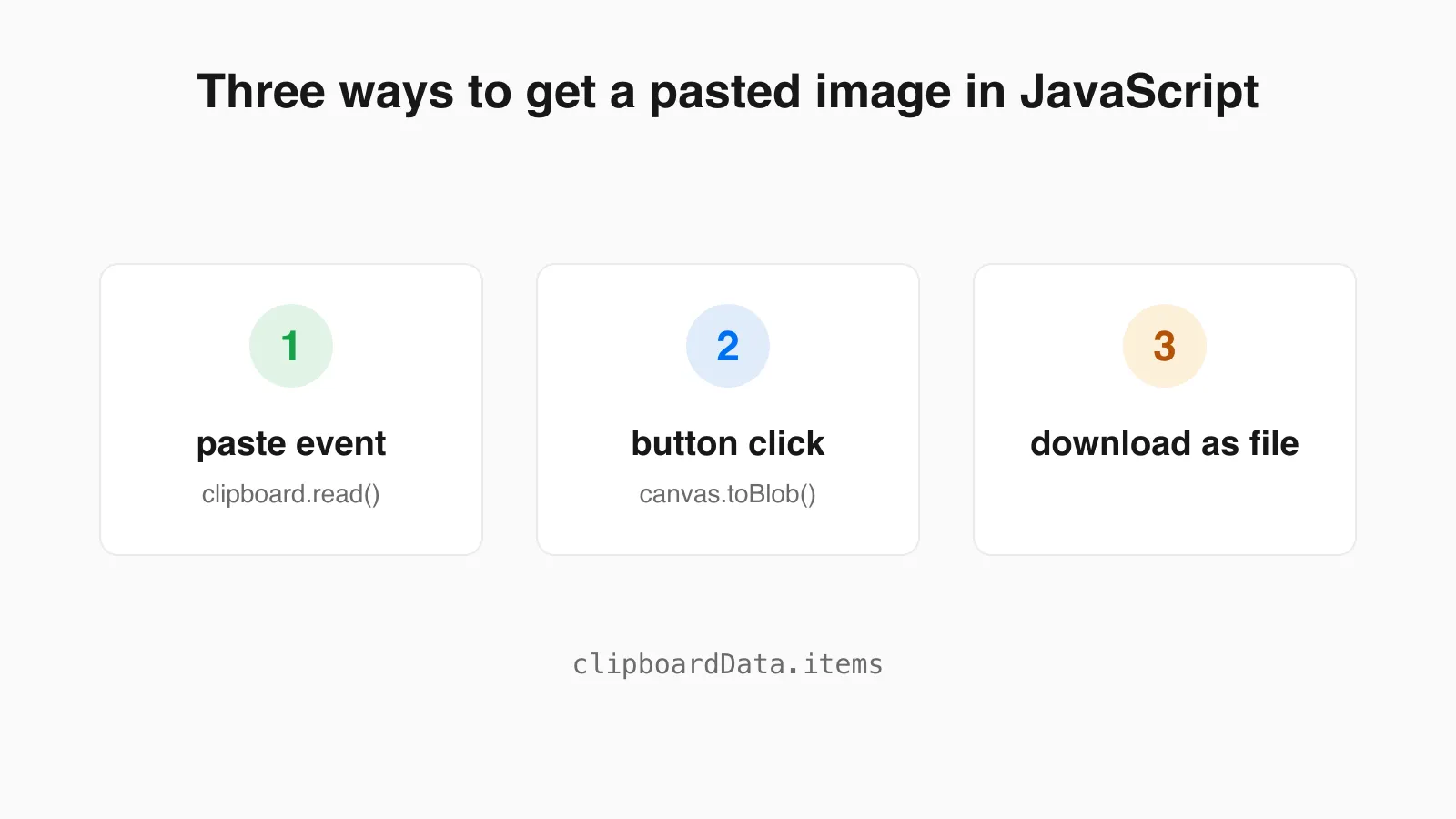
If you search for how to paste an image from the clipboard in JavaScript, you will find two different answers that look unrelated: a paste event listener and navigator.clipboard.read(). They are both correct, they behave differently, and a page that wants to feel reliable usually needs both. PasteDownloadApp itself uses the paste event for Ctrl+V and the Clipboard API for its button, so the code below is the pattern that tool is built on.
I ran the snippets in Chrome 152 against a live page. Where a result comes from that run, I say so, and I note the places where only a real keyboard paste in your own browser can confirm the behaviour.
Which One Do You Need?
| paste event | navigator.clipboard.read() | |
|---|---|---|
| Triggered by | The user pressing Ctrl+V or Cmd+V, or using Paste in a menu | Your code, usually from a button click |
| Permission prompt | None, because the user is pasting | Can prompt, and can throw NotAllowedError |
| Where it works | Any page | Secure contexts (HTTPS) only |
| What you get | File objects and strings from clipboardData | ClipboardItem objects, read by MIME type |
| Good for | The main paste path | A visible Paste button, and mobile where there is no shortcut |
Start with the paste event. Add the Clipboard API when you want a button, and always keep the paste event as the fallback.
Read a Pasted Image With the Paste Event
The event carries a DataTransfer in event.clipboardData. Each entry in items has a kind (file or string) and a MIME type. An image is a file item whose type starts with image/:
document.addEventListener('paste', (event) => {
  const files = [...(event.clipboardData?.items ?? [])]
    .filter((item) => item.kind === 'file' && item.type.startsWith('image/'))
    .map((item) => item.getAsFile())
    .filter(Boolean);

  if (files.length === 0) return;

  event.preventDefault();
  showPreview(files[0]);
});
Two details matter. Only call preventDefault() when you actually handled an image, otherwise you break ordinary text paste on the page. And pull the File out of the item straight away inside the handler rather than after an await, which is the safe habit because the browser protects clipboard data once the event ends.
What the event looked like in my test
I built a 40 by 30 PNG, put it in a DataTransfer next to a line of text, and dispatched a paste event. The handler saw this:
clipboardData.typeswas["text/plain", "Files"]. The wordFilesis how the list advertises that a file is present.- The first item was
kind: "file",type: "image/png", withgetAsFile()returning a file namedimage.png. - The second item was
kind: "string",type: "text/plain", andgetAsFile()returnednull. - A second event with only text had an empty file list, so the handler returned without touching it.
That was a synthetic event, built in script. A real screenshot paste from a real clipboard is the thing it cannot reproduce, so check the filename and type there. The generic name image.png is the one to expect, which is why the next section matters.
Read the Clipboard From a Button With the Clipboard API
navigator.clipboard.read() returns an array of ClipboardItem. Each item can hold the same content in several formats, listed in item.types. MDN says browsers commonly support text/plain, text/html and image/png but guarantees none of them, so look at the list before asking for a type:
pasteButton.addEventListener('click', async () => {
  try {
    const items = await navigator.clipboard.read();
    for (const item of items) {
      const type = item.types.find((t) => t.startsWith('image/'));
      if (type) {
        showPreview(await item.getType(type));
        return;
      }
    }
    showMessage('There is no image on the clipboard.');
  } catch (error) {
    showMessage('Clipboard access was blocked. Press Ctrl+V or Cmd+V instead.');
  }
});
Reading needs a secure context, and when the read is not allowed it throws a NotAllowedError. In embedded frames in Chromium, the page must also allow the clipboard-read permission through its Permissions-Policy. MDN lists the method as Baseline 2024, newly available, which means older browsers may lack it, so feature-detect with navigator.clipboard?.read and show only the paste hint when it is missing.
The reason this fails more often than people expect is not browser support. In my test I called read() from a script while the page was not the focused document, and Chrome rejected it with NotAllowedError: Document is not focused. A real click on a focused page avoids that, and a click is also what the browser wants before it will show a permission prompt. For the user-facing side of these failures, see Why “Access Clipboard” Fails, and How to Fix It.
Name and Show the Image
Whatever path you used, you now have a Blob or File. Pasted images come with a generic name, so make your own if the file will be downloaded or uploaded:
const name = `pasted-${Date.now()}.png`;
const file = new File([blob], name, { type: blob.type });
To show the image, create an object URL, load it into an Image, and release the URL once it has loaded. The loaded image also tells you the real pixel size:
function showPreview(blob) {
  const img = new Image();
  const url = URL.createObjectURL(blob);
  img.onload = () => {
    URL.revokeObjectURL(url);
    document.body.append(img);
    console.log(img.naturalWidth + 'x' + img.naturalHeight, blob.type, blob.size);
  };
  img.src = url;
}
Skipping revokeObjectURL keeps the blob in memory until the page closes, which adds up if someone pastes screenshots all afternoon.
Convert to PNG, JPEG or WebP With a Canvas
To change format, draw the image onto a canvas and call canvas.toBlob() with the type you want. This is where two quiet bugs live, and I confirmed both:
function convert(img, type, quality = 0.92) {
  const canvas = document.createElement('canvas');
  canvas.width = img.naturalWidth;
  canvas.height = img.naturalHeight;
  const ctx = canvas.getContext('2d');

  if (type === 'image/jpeg') {
    ctx.fillStyle = '#ffffff';
    ctx.fillRect(0, 0, canvas.width, canvas.height);
  }
  ctx.drawImage(img, 0, 0);

  return new Promise((resolve) => canvas.toBlob(resolve, type, quality));
}- Transparency becomes black in JPEG. I drew a red square on a transparent 64 by 64 canvas and exported a JPEG. The top-left pixel came back as
0, 0, 0, which is black. After filling the canvas white first, as the function above does, the same pixel was255, 255, 255. JPEG has no alpha channel, so you choose the background. - An unsupported type silently becomes PNG. I asked
toBlobforimage/bmpand the blob that came back had the typeimage/png. Always readblob.typeinstead of assuming you got what you asked for. In the same run,image/jpegandimage/webpboth came back as requested.
The quality argument only affects JPEG and WebP. For what the numbers mean in file size, see Image Compression Quality Settings Explained, With Real File Sizes.
Copying an Image Back to the Clipboard
If you also want a Copy button, navigator.clipboard.write() takes ClipboardItem objects. Check what the browser will accept before building one:
ClipboardItem.supports('image/png');   // true
ClipboardItem.supports('image/jpeg');  // false
Those two lines are the results from Chrome 152. PNG is accepted and JPEG is not, so convert to PNG before writing, even if the image started life as a JPEG. A write call from a script also hit the same Document is not focused rejection in my test, so only call it from a real click.
Test Your Handler Without Taking a Screenshot
You do not need to capture a new screenshot every time you change the handler. Paste this into the console on a page that has your listener, and it dispatches a paste event carrying a generated PNG:
const canvas = document.createElement('canvas');
canvas.width = 40;
canvas.height = 30;
canvas.getContext('2d').fillRect(0, 0, 20, 20);
const blob = await new Promise((resolve) => canvas.toBlob(resolve, 'image/png'));

const data = new DataTransfer();
data.items.add(new File([blob], 'image.png', { type: 'image/png' }));
document.dispatchEvent(new ClipboardEvent('paste', { clipboardData: data, bubbles: true }));
It exercises your parsing, naming and preview code. It does not exercise permissions, focus rules or how your real clipboard describes an image, so finish with one genuine paste from a screenshot and one from a copied image on a web page.
Common Problems
| Symptom | Likely cause | Fix |
|---|---|---|
| The paste handler never runs | The listener is on an element that is not focused or not in the paste path | Listen on document, or give the element tabindex and focus it |
| Text paste stops working on the page | preventDefault() runs on every paste | Only call it after you found an image |
items has only text | The clipboard holds a URL or a file path, not image data | Copy the image itself, not its address or its file |
read() throws NotAllowedError | No user gesture, page not focused, blocked permission, or an iframe without clipboard-read | Call it from a click, and fall back to the paste event |
| Pasted JPEG has a black background | Transparent pixels exported as JPEG | Fill the canvas white before drawing |
| Exported file is PNG when you asked for another type | The browser does not encode that type | Check blob.type and pick a supported type |
To see which of these your own clipboard is hitting, the clipboard check shows what is actually on it, and the live tool at pastedownloadapp.com is a working version of everything on this page.
Sources and Method
- MDN Web Docs, Clipboard: read() method, for the secure-context requirement, NotAllowedError, the commonly supported MIME types, the iframe permission note and the Baseline 2024 status.
- All behaviour marked as tested was run in Chrome 152 on October 21, 2026, against pastedownloadapp.com. Those tests used synthetic paste events and script-driven clipboard calls, not a physical Ctrl+V.
- I did not test Firefox or Safari for this article. For how the three browsers differ in practice, see Why Clipboard Image Paste Behaves Differently in Chrome, Firefox, and Safari.
Frequently Asked Questions
How do I get an image from the clipboard in JavaScript?
Listen for the paste event and read event.clipboardData.items. An image is an item with kind file and a type starting with image/, and getAsFile() returns it. For a button, call navigator.clipboard.read() and request the image type from the ClipboardItem.
What is the difference between the paste event and navigator.clipboard.read()?
The paste event fires when the user pastes and needs no permission prompt. navigator.clipboard.read() is called by your code, needs a secure context, and can throw NotAllowedError. Use the paste event as the main path and the Clipboard API for a Paste button.
Why does navigator.clipboard.read() throw NotAllowedError?
The usual causes are no user gesture, a page that is not focused, a blocked permission, or an iframe without the clipboard-read permission policy. In a test, a script call on an unfocused page failed with Document is not focused.
Why is my pasted image black instead of transparent when I save it as JPEG?
JPEG has no transparency. Exporting a transparent canvas to JPEG fills transparent pixels with black. Fill the canvas with white or another background colour before drawing the image.
Can I paste an image into a div or textarea without a library?
Yes. Attach a paste listener to the element or the document, read the image from clipboardData, and show it with an object URL. No library is needed for any of the code on this page.
Related Guides
 Why Clipboard Image Paste Behaves Differently in Chrome, Firefox, and Safari The Clipboard API is not implemented the same way everywhere. Here is what actually differs between browsers.
  Why "Access Clipboard" Fails, and How to Fix It Clipboard read permission errors explained: browser support, HTTPS requirements, and permission prompts.
  Image Compression Quality Settings Explained, With Real File Sizes What a JPEG or WebP quality number actually changes, shown with real before-and-after file sizes.