Windows Clipboard History (Win+V) and Screenshots: What It Keeps and Drops

Most guides to Windows clipboard history tell you to press Win+V and stop there. That is enough for copied text. It leaves out what people with screenshots keep running into: you copied a screenshot an hour ago, restarted, and it is gone, or you took a large capture and it never showed up in the list at all.
This guide takes the limits Microsoft publishes and applies them to images. I worked on a Mac while writing it, so I could not click through Windows myself. Everything in the first sections comes from Microsoft's own support page, I give the arithmetic where I draw a conclusion, and near the end there is a two minute check you can run on your own PC to settle the one question the documentation leaves open.
The Limits, in One Table
These are the figures from Microsoft Support's page on the clipboard in Windows:
| Question | What Microsoft says |
|---|---|
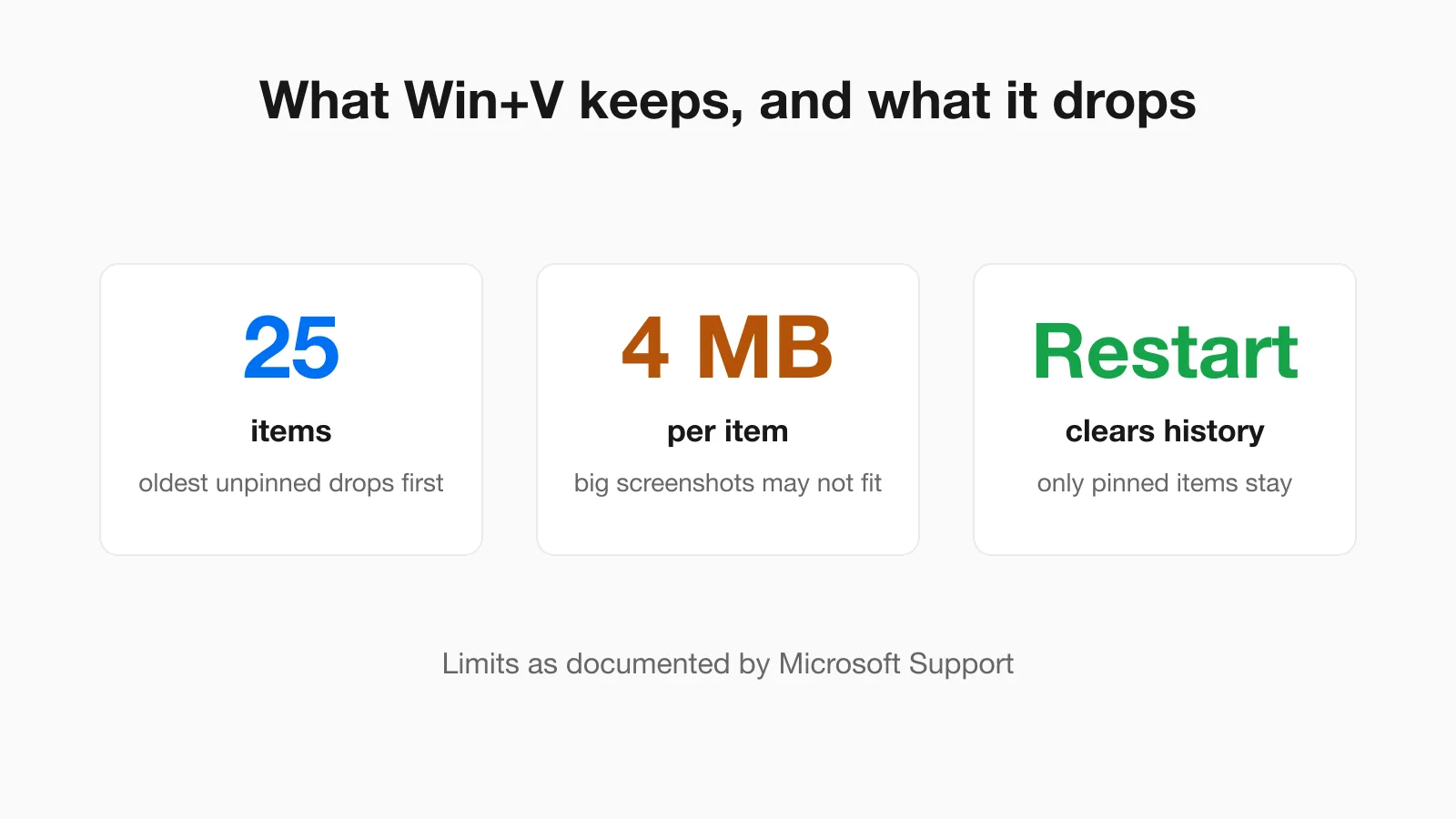
| How many items? | 25. When it is full, the oldest unpinned items are removed to make room |
| How big can one item be? | Up to 4 MB |
| What can it hold? | Text, HTML and bitmap (image) content |
| What happens on restart? | History is cleared, except pinned items |
| Do pinned items survive Clear all? | Yes. Clearing leaves pinned items alone, and you delete those one by one |
| Does it sync between PCs? | Only if you turn it on under Settings, System, Clipboard, and Microsoft describes it for copied text |
Two of those rows decide what happens to screenshots. The first is the restart rule. The second is the 4 MB limit, which needs a closer look.
Will a Screenshot Fit in 4 MB?
An image on the clipboard is a bitmap, and a raw bitmap is large. At four bytes per pixel, the uncompressed size of a full screen is:
| Screen size | Pixels | Raw bitmap size |
|---|---|---|
| 1920 by 1080 | 2,073,600 | 8,294,400 bytes (about 8.3 MB) |
| 2560 by 1440 | 3,686,400 | 14,745,600 bytes (about 14.7 MB) |
| 3840 by 2160 | 8,294,400 | 33,177,600 bytes (about 33.2 MB) |
If the 4 MB limit is measured against raw pixels, a full screen capture at any of those sizes is over it, while a small selection fits. If it is measured against a compressed PNG, a typical app window passes easily. Microsoft's page does not say which one applies, and I could not check on a Windows machine, so I will not guess. What the arithmetic does show is that the answer depends on how big the capture is, not on how many captures you have taken.
Check it on your own PC in two minutes
- Press Win+Shift+S and drag a small box around part of a window. Press Win+V. Note whether the capture appears.
- Press Win+Shift+S again and capture the whole screen. Press Win+V again.
- If the second one is missing, large captures are not being kept on your PC, and you should save them as files instead of trusting history.
- If both appear, history is handling your screen size, and you only need to watch the restart rule.
If history is switched off, the first press of Win+V offers to turn it on. Captures taken before you turned it on are not in the list.
Turn It On, Open It, Pin and Clear It
- Turn on: press Win+V and choose the option to turn it on, or go to Settings, System, Clipboard.
- Open: press Win+V in any app. Choosing an item pastes it where your cursor is, the same as Ctrl+V does for the current item.
- Pin: use the pin on an item. Pinned items survive restarts and Clear all.
- Delete one: open the item menu and delete it. This is how you remove a pinned item.
- Clear everything: Settings, System, Clipboard, Clear, or the clear all option in the Win+V panel. Both leave pinned items alone. If sync is on, Microsoft says clearing in Settings also clears the cloud copy.
A work or school PC can have clipboard history turned off by an administrator. If the option is missing or greyed out on a managed machine, that is the likely reason, and there is nothing to fix on your side.
Save the Image Before the Restart Wipes It
Since a restart clears unpinned items, treat history as a short buffer, not a place to keep things. Two ways to get a captured image out before it goes:
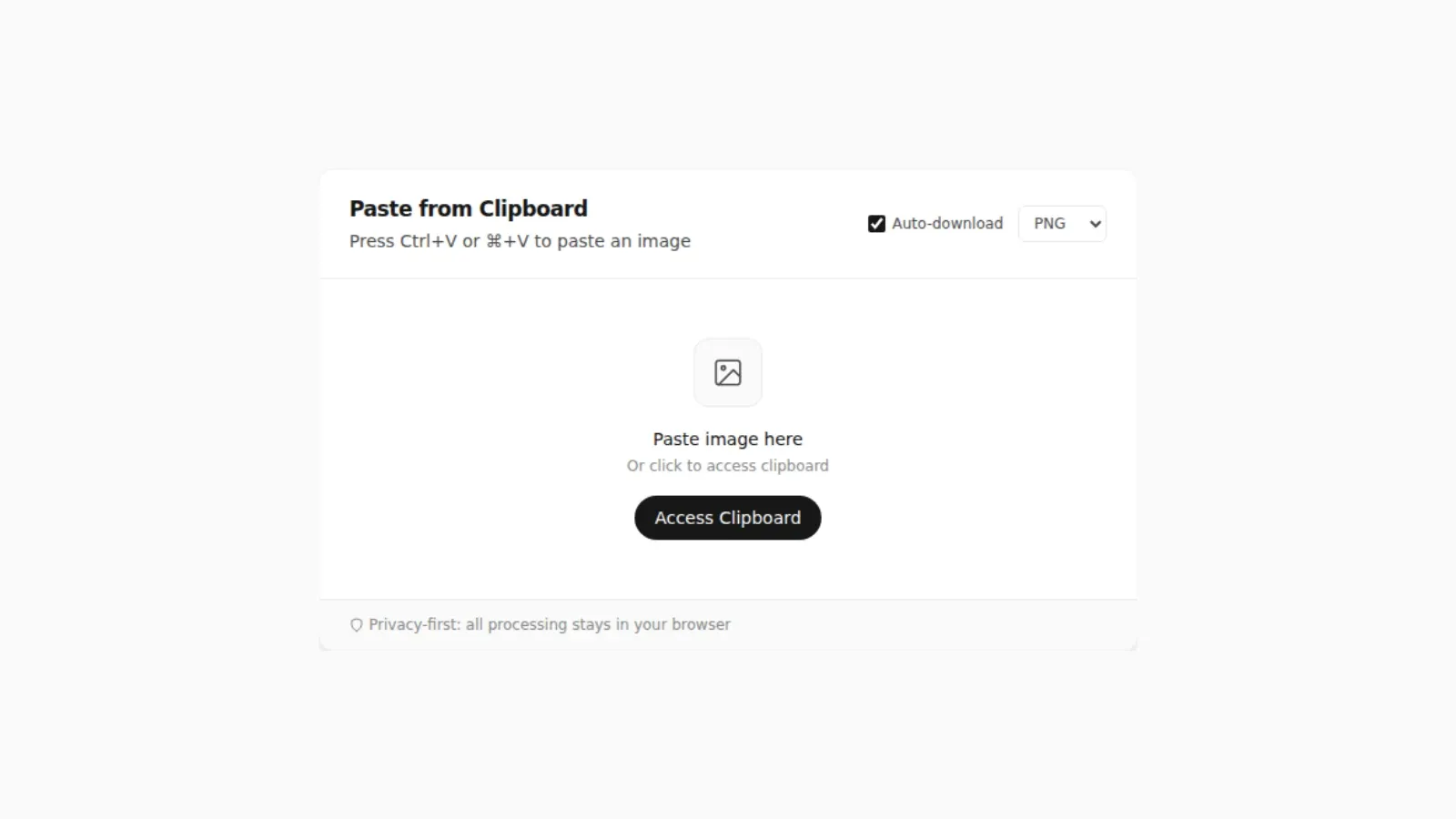
- Open PasteDownloadApp, press Win+V, choose the screenshot, and it pastes into the page like a normal Ctrl+V. Pick PNG, JPEG or WebP and download it. The image stays in your browser and is not uploaded.
- Paste it into Paint or another editor and use Save as there. The no-software options are compared in 5 Faster Ways to Save Clipboard Images Without Software.
If you want a file every time without thinking about it, the Windows steps in How to Save a Screenshot Directly as a File Without Opening MS Paint avoid the clipboard altogether.
When Win+V Seems Broken
| What you see | Likely cause | What to do |
|---|---|---|
| Win+V shows an offer to turn on, not a list | History is off | Turn it on. Earlier copies were not stored |
| The list is empty after boot | Restart cleared it | Expected. Only pinned items remain |
| A large screenshot is missing | It may exceed the 4 MB per item limit | Run the two minute check above and save large captures as files |
| The oldest item vanished | The list holds 25 and drops the oldest unpinned item | Pin what you need to keep |
| Win+V does nothing or the option is missing | Managed PC policy or a conflicting shortcut | Ask your administrator, or check what else uses the shortcut |
| It pasted, but the app shows no image | The app wants a file or a different format | See Can't Paste an Image? Check What Is Actually on Your Clipboard |
A Privacy Point Most Guides Skip
Whatever you copy sits in history until a restart or until you clear it, including a screenshot of a bank page, a password manager window or a private chat. With sync turned on, Microsoft describes text moving between your devices through your account, so check what you have enabled before capturing anything sensitive. After copying something private, delete that one item from the Win+V panel instead of waiting for a restart. The same caution applies to anything you pin, because pinned items persist across restarts by design.
Sources and Method
- Microsoft Support, Clipboard in Windows, for the 25 item limit, 4 MB per item, supported content types, restart behavior, pinning, sync and clearing, read on October 24, 2026.
- The raw bitmap sizes are my own arithmetic: width times height times four bytes per pixel.
- Not tested: any behavior on a real Windows PC. I used a Mac to write this guide, so I did not check whether the 4 MB limit applies to raw or compressed image data. That is why the check above is included. Third-party sites quote different size limits for older Windows 10 builds, so I used only the Microsoft page.
Frequently Asked Questions
How do I open clipboard history on Windows?
Press Windows key + V. If history is off, the first press offers to turn it on, and only items copied after that are stored. You can also turn it on under Settings, System, Clipboard.
How many items does Windows clipboard history keep?
Microsoft documents up to 25 items. When the list is full, the oldest unpinned items are removed to make room, and pinned items are kept.
Why did my screenshot disappear from clipboard history?
History is cleared every time the PC restarts, except for pinned items. A large capture can also be missing if it exceeds the 4 MB per item limit Microsoft lists, so save important screenshots as files.
Can I save an image from Windows clipboard history?
Yes. Press Win+V, choose the image to paste it into a page or editor, then save it. Pasting it into PasteDownloadApp lets you download it as PNG, JPEG or WebP without uploading it.
How do I clear Windows clipboard history?
Use Settings, System, Clipboard, Clear, or the clear all option in the Win+V panel. Both keep pinned items, which you must delete one at a time.
Related Guides
 5 Faster Ways to Save Clipboard Images Without Software Compare browser-based and built-in methods for saving copied images on desktop and mobile.
  How to Save a Screenshot Directly as a File Without Opening MS Paint Turn Print Screen or Snipping Tool captures into PNG or JPG files without opening an editor.
  Where Do Screenshots Go on Windows, Android, and iPhone? Screenshots and copied images do not behave like normal files until you save them. Here is where they go on Windows, Android, and iPhone.